A Quick Action performs a specific action in Salesforce, such as creating or updating a
record. Quick Actions can help streamline your users’ experience. For example, you might need to
update a lead status while on the go. Why bring up the full edit screen when you can create a
quick action to update just the lead status?
Required Editions
Available in: Lightning Experience in all editions
User Permissions Needed
To add buttons to page layouts:
Customize Application and Modify All Data
There are three types of Quick Actions that can be created for use in Seller-Focused
Mobile Experience using the Mobile Builder for Seller-Focused Experience.
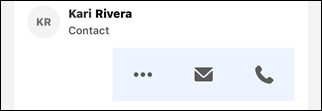
Device actions (like phone or email)
Global actions (like a new event, new task, or logging a call)
Activity Composer Actions, which are object-specific (like posting, linking, and
polling)
You can launch a quick action by tapping the three-dot menu.
Swipe a record to the left on the mobile record home or object home screen to see the
three-dot menu.
Tap the three-dot menu on the mobile record detail screen.
For this example, we'll create a quick action that updates a lead status.
Click , then click Setup.
Click Object Manager.
Select the object to create an action for. For this example, click
Lead.
Click Buttons, Links, and Actions.
Click New Action.
Select an Action Type. For example, Update a Record.
Optionally, select a Standard Label Type.
Enter a Label. This will appear in the form of a button on the object page. For example,
enter Update Lead Status.
Press tab to autofill Name.
Optionally, enter a Description.
Optionally, enter a Success Message.
Click Save.
Now let's assign it to the page layout. Click Object Manager.
Click Lead.
Click Page Layouts.
Click Lead Layout.
Click Mobile & Lightning Actions.
In the Salesforce Mobile and Lightning Experience Actions section, click the
override the predefined actions link.
Drag the Update Lead Status button to the Salesforce Mobile and
Lightning Experience Actions section.
Click Save.
Your quick action is now available to use in Seller-Focused Mobile
Experience.
For Seller-Focused Mobile Experience record pages, Lightning quick actions should be
accessible from the quick actions list.
However, there are known limitations:
Lightning web component (LWC) quick actions are not supported.
Screen flow quick actions are not supported.
If you notice any quick actions are missing or not working correctly, use the View
Full Record tab on the record page. This action loads the complete, web-based
record page, giving you access to all its features.
Did this article solve your issue?
Let us know so we can improve!
Loading
Salesforce Help | Article
Cookie Consent Manager
Cookie Consent Manager
General Information
Required Cookies
Functional Cookies
Advertising Cookies
General Information
We use three kinds of cookies on our websites: required, functional, and advertising. You can choose whether functional and advertising cookies apply. Click on the different cookie categories to find out more about each category and to change the default settings.
Privacy Statement
Required Cookies
Always Active
Required cookies are necessary for basic website functionality. Some examples include: session cookies needed to transmit the website, authentication cookies, and security cookies.
Functional Cookies
Functional cookies enhance functions, performance, and services on the website. Some examples include: cookies used to analyze site traffic, cookies used for market research, and cookies used to display advertising that is not directed to a particular individual.
Advertising Cookies
Advertising cookies track activity across websites in order to understand a viewer’s interests, and direct them specific marketing. Some examples include: cookies used for remarketing, or interest-based advertising.