
Configure Autonomous Scheduling for Field Service in the New Agentforce Builder
You can modify the behavior of Autonomous Scheduling by configuring the agent and its various components. Your agent includes details and is composed of subagents that include actions, and some of them call flows. You can configure any of these components. For example, in the agent details you can configure the welcome message, in the subagent you can configure the instructions, and in the flows you can change the scheduling policy, operating hours and more.
Required Editions
| Available in: Lightning Experience |
| Available in: Enterprise, Performance, Unlimited, and Developer Editions with Field Service and Foundations, or Einstein 1 Field Service Edition or Agentforce 1 Field Service Edition. |
| User Permissions Needed | |
|---|---|
| To manage agents: | Manage Agentforce Service Agents AND Manage AI Agents OR Customize Application |
Watch the video to see some of the ways that you can configure your Autonomous Scheduling experience.
Get Started
To personalize your agent, follow these steps.
- From the App Launcher, find and select Agentforce Studio.
- Open your agent. The agent opens in the new Agentforce Builder.
- From Settings, modify the details. For example, from System, modify the Welcome Message.
- From Subagents, modify the subagents that this agent uses. For example, remove a subagent that you don’t want to use or modify a subagent’s instructions.
- Identify the flows that the agent uses and modify them in Flow Builder. For example, you can modify the scheduling policy or operating hours.
Here are some examples of components that you can personalize to reflect your org’s preferences.
Address
By default, the customer's address is taken from the contact record. If your org uses the account record for storing addresses, follow these steps.
- In Setup, find and select Flows.
- Open the Field Service: Create Service Appointment flow.
- From Flow Builder, click Save As New Flow.
- Configure the flow to use the address defined in the account record instead of the contact record.
- Save and activate the flow.
Escalations
The agent includes various scenarios where a conversation is escalated to a representative. If you want to add, remove, or modify any of these scenarios, follow these steps.
- To understand the guardrails that are built in to the agent, review Ethical Instructions and Escalations to a Representative.
- If you want to modify the scenarios, in Agentforce Studio, switch to the Script mode.
- Search for escalate and escalation to locate all of the relevant instructions.
- Modify the instructions as needed.
Messaging Channels
When using an Enhanced Web Chat deployment, you can configure how information is displayed.
- In Setup, find and select Embedded Service Deployments.
- Customize the settings of the messaging channel. For example, you can show typing indicators.
Operating Hours
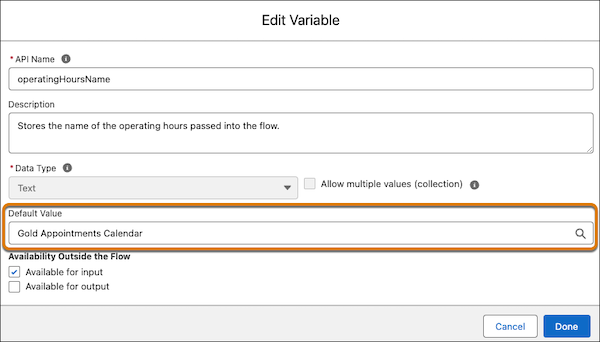
By default, operating hours is set to Gold Appointments Calendar. We recommend replacing this value with the operating hours used in your org.
- In Setup, find and select Flows.
- Open the Field Service: Get Appointment Time Slots flow.
- From Flow Builder, click Save As New Flow.
- Open the toolbox and edit the operatingHoursName variable.
-
Replace the default value of the variable with the name of your preferred operating hours.
- Save and activate the flow.
Scheduling Policy
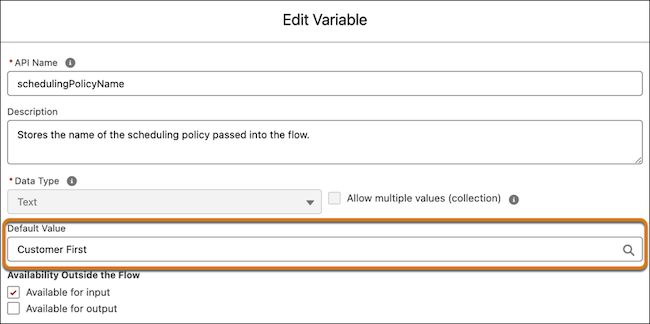
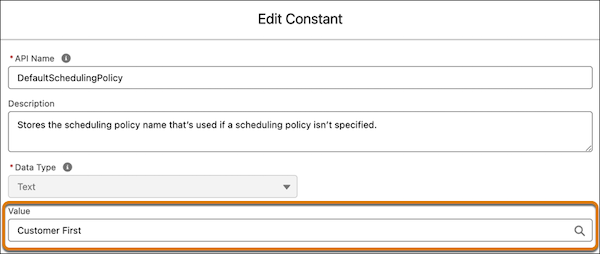
By default, the scheduling policy is set to Customer First. We recommend replacing this value with the scheduling policy used in your org.

-
Edit the flow that gets the time slots.
- In Setup, find and select Flows.
- Open the Field Service: Get Appointment Time Slots flow.
- From Flow Builder, click Save As New Flow.
- Open the toolbox and edit the schedulingPolicyName variable.
-
Replace the default value of the variable with the name of your preferred scheduling
policy.
- Save and activate the flow.
-
Edit the flow that schedules the service appointment.
- Open the Field Service: Schedule Service Appointment flow.
- From Flow Builder, click Save As New Flow.
- Open the toolbox and click the DefaultSchedulingPolicy constant.
-
Replace the value of the constant with the name of your preferred scheduling policy.
- Save and activate the flow.
Service Provider Information
You can present personalized messages after customer verification.
- From the list of subagents in Agentforce Builder, click the Customer Verification for Field Service subagent.
- Edit the instructions to present personalized messages after customer verification by adding service provider-specific information.
Time Slots
By default, customers are offered five time slots. If you want to change this number, follow these steps.
- In Agentforce Builder, search for the word five.
- Modify the number of slots in all of the instances that you find.
Welcome Message
By default, the welcome message is taken from the agent template that you selected when creating the agent. If you want to personalize the message, follow these steps.
- From the App Launcher, find and select Agentforce Studio.
- Open your agent.
- Click System.
- Replace the default welcome message.
Email Confirmation
Set up your Scheduling Agent so that it sends an email to your customers confirming that their request to schedule, reschedule, or cancel their appointment was successful.
Set Up the Flow
- In Setup, find and select Flows.
- Open the Field Service: Send Confirmation to Customer flow.
- Click Save as New Flow.
- Enter a label and API name, then save the flow.
-
Enable sending the confirmation emails.
- Open the Toolbox.
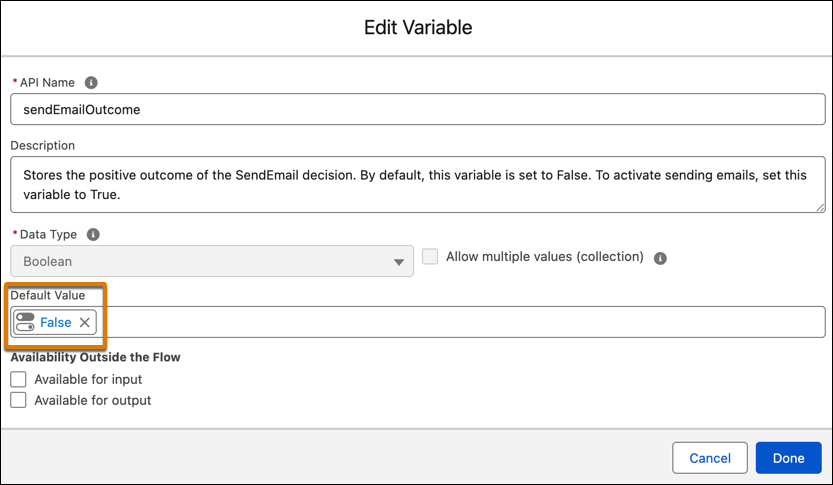
- Open the sendEmailOutcome variable.
-
Change the default value from False to
True.
- Click Done.
-
Add your company name.
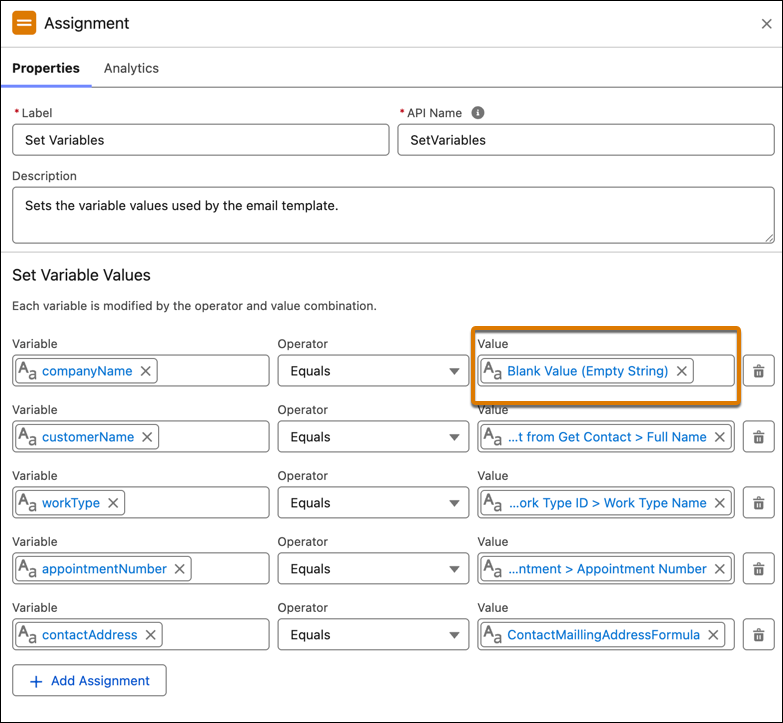
- Open the Set Variables element.
-
For the companyName variable, delete the value and enter the name of your company.
-
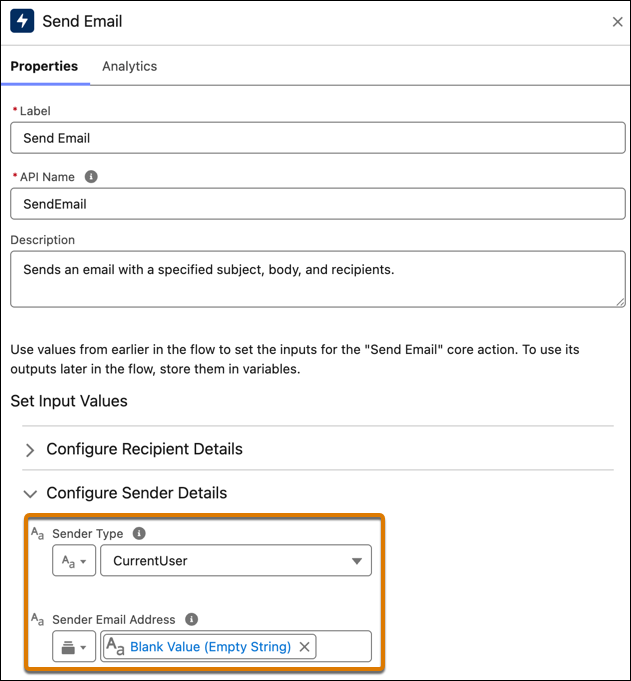
The sender’s email address is set to the current user. If you want to use an Organization-Wide Email Address, follow these
steps.
- Open the Send Email element.
- Under Configure Sender Details, for Sender Type, select OrgWideEmailAddress.
-
For Sender Email Address, delete the value and enter the required email address.
- Save and activate the flow.
Add Custom Labels
Create custom labels and modify them as needed.
- In Setup, find and select Custom Labels.
- Click New Custom Label.
- Copy the names from the table below and use them to create custom labels for the subject and body of these template types: Cancel, Schedule, and Reschedule.
| Short Description | Name | Value |
|---|---|---|
| Subject of the confirmation email for canceled appointments. | Email_Confirmation_Cancel_Subject_template | Your appointment with {Company Name} was canceled |
| Body of the confirmation email for canceled appointments. | Email_Confirmation_Cancel_template | Hi {FirstName LastName}, Your {Work Type} appointment {Appointment Number} that was originally scheduled for {Original Date & Time} is now scheduled for {Date & Time} at this address: {Street and Number}, {City}, {State} Thank you, {Company Name} |
| Subject of the confirmation email for scheduled appointments. | Email_Confirmation_Schedule_Subject_template | Your appointment with {Company Name} was scheduled |
| Body of the confirmation email for scheduled appointments. | Email_Confirmation_Schedule_template | Hi {FirstName LastName}, Your {Work Type} appointment {Appointment Number} is scheduled for {Date & Time} at this address: {Street and Number}, {City}, {State} Thank you, {Company Name} |
| Subject of the confirmation email for rescheduled appointments. | Email_Confirmation_Reschedule_Subject_template | Your appointment with {Company Name} was rescheduled |
| Body of the confirmation email for rescheduled appointments. | Email_Confirmation_Reschedule_template | Hi {FirstName LastName}, Your {Work Type} appointment {Appointment Number} that was originally scheduled for {Original Date & Time} is now scheduled for {Date & Time} at this address: {Street and Number}, {City}, {State} Thank you, {Company Name} |
