
You are here:
Test Your Appointment Bundling Configuration
After completing the configuration steps for appointment bundling, test it in Field Service.
Required Editions
| Available in: both Salesforce Classic (not available in all orgs) and Lightning Experience |
| The Agentforce Field Service and Operations core features, managed package, and mobile app are available in Enterprise, Unlimited, and Developer Editions. |
| User Permissions Needed | |
|---|---|
| To manage bundles: | Field Service Dispatcher |
| To update configuration: | Customize Application |
- Open Field Service.
- From the appointment list, select one or two service appointments.
-
From the global actions list, select Bundle.
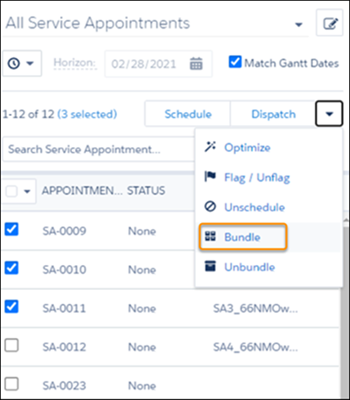
-
In the Bundle Appointments window, select Create bundle, and then
select a bundle policy.
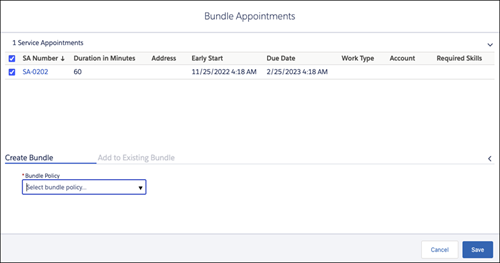
- Save the bundle.
- If you get error messages, resolve the configuration issues accordingly.
-
If you get a system error message about your remote site settings:
- Copy the URL from the error message.
- From Setup, in the Quick Find box, enter Security, and then select Remote Site Settings.
- Click New Remote Site.
- Enter a name, for example AppointmentBundling.
- For Remote Site URL, enter the URL that you copied from the error message.
- Save the remote site.
When a bundle is created:
- Appointment list—The new bundle service appointment appears in the appointment
list.
 Indicates that the appointment is a bundle service appointment. When the bundle
is scheduled, the icon also appears on the Gantt.
Indicates that the appointment is a bundle service appointment. When the bundle
is scheduled, the icon also appears on the Gantt. Indicates that the appointment is a bundle member service appointment.
 - Gantt—If all the service appointments in the bundle are scheduled, assigned to the same resource, and on the same day, the bundle is scheduled on the Gantt. If not, the bundle must be scheduled.
- Bundle tab of the bundle service appointment’s details window—If an Appointment Bundle Sort Policy is defined, the service appointments are sorted according to the policy. If an Appointment Bundle Sort Policy isn’t defined, the service appointments are sorted according to their due date in ascending order.
- Service Appointments tab—Shows the bundle information related to each bundle service
appointment and bundle member service appointment. This information can’t be edited.
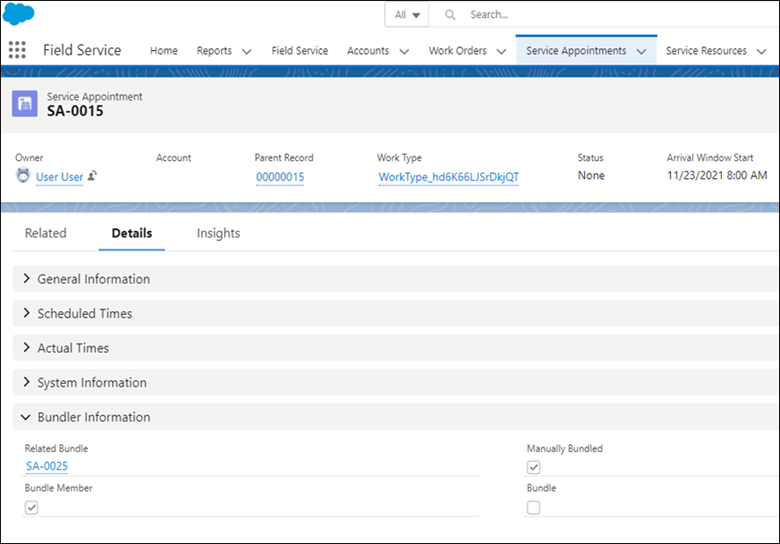
The Bundle Information fields can’t be selected to display in a list view. See Appointment Bundling Limitations.
Did this article solve your issue?
Let us know so we can improve!
