You are here:
Customize How Dynamic Plans Operate
Customize when dynamic plans start and how they update when there's new information for the record.
Required Editions
| View supported editions. |
Dynamic plans have default behavior for how they start and update in real time. You can customize how they behave for each object.
By default, case and messaging plans show a plan summary and a Start Plan button, and service reps start the plans manually. Optionally, you can have plans start faster by skipping the summary and removing the Start Plan button. Instead, the first step of the plan shows automatically once your eligibility criteria are met and the issue is detected.
In addition, for case, you can have the current plan step regenerate in real time when case fields are updated or a case comment is added or edited. Messaging always generates new plan steps in real time by default as the conversation progresses.
The same customizations aren't provided for voice service plans. They always start automatically by showing the first step of the plan once your eligibility criteria are met and the call transcript has enough context to identify the customer's issue. Voice always generates new plan steps in real time by default as the call progresses.
- Case Dynamic Plan Customizations
- Messaging Dynamic Plan Customizations
- Voice Dynamic Plan Customizations
Case Dynamic Plan Customizations
Dynamic plans for case offer two customizations in the Dynamic Plans section of the Case tab on the Service Assistant Setup page: Update Plans with Case Signals and Skip the Plan Summary & Start Plans Automatically.
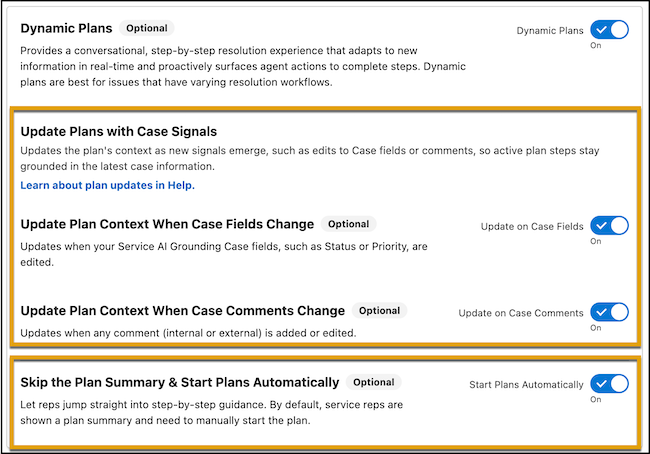
Update Plans with Case Signals
By default, Service Assistant monitors your Service AI Grounding configuration for the entire lifecycle of the case. When there's an update to any of the grounding fields and objects (emails, comments, feed), Service Assistant automatically tracks that new information. It incorporates the information into the next plan step once the current step is completed.
With Update Plans with Case Signals, you can have Service Assistant incorporate new case information sooner by automatically regenerating the current plan step when it detects the change. These settings enable this behavior.
- With Update Plan Context When Case Fields Change, Service Assistant regenerates the current plan step when a grounded case field is updated.
- With Update Plan Context When Case Comments Change, Service Assistant regenerates the current step when an internal or external comment is added or edited.
Plan regeneration settings are available only for case fields and comments. Service Assistant handles case emails and case feed differently.
- Case email step regeneration is enabled by default. When you select case emails as a grounding source on the Service AI Grounding Setup page, Service Assistant automatically tracks new emails and regenerates the current plan step in real time. There's no separate setting for case email step regeneration on the Service Assistant Setup page.
- Case feed updates don't trigger step regeneration. If you enable case feed grounding on the Service AI Grounding Setup page, Service Assistant still monitors the feed and captures new data. It applies the data only when the current step completes and the next step is created. There's no option on the Service Assistant Setup page to turn on real-time step regeneration for case feed.
- If you ground on the Internal Comments field, you must set Case Comments for grounding. Internal Comments data isn't tracked unless Case Comments is enabled for grounding.
Skip the Plan Summary & Start Plans Automatically
This feature allows you to control how dynamic plans for case start. By default, Service Assistant generates a service plan summary and then service reps click Start Plan to generate the first step of the service plan.
To have the service plans start right away and remove manual work for service reps, turn on Skip the Plan Summary & Start Plans Automatically. When enabled, Service Assistant skips the plan summary and shows the first step of the plan right away. Service reps don't see a plan summary or a Start Plan button.
Messaging Dynamic Plan Customizations
Dynamic plans for messaging provide several options for you to configure how soon the service plan starts when the eligibility criteria are met and Service Assistant detects the customer's issue. There are three plan speeds available for you to choose from in the Choose Your Plan Speed section of the Messaging tab of the Service Assistant Setup page.
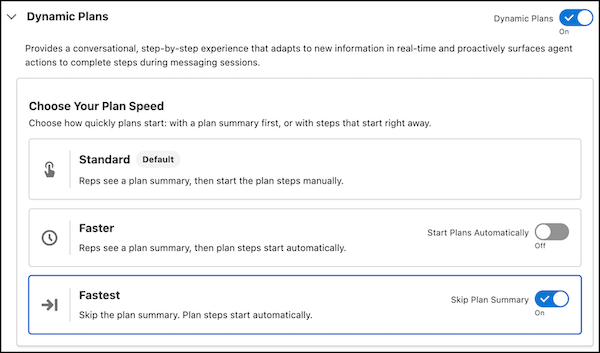
The three plan speeds are mutually exclusive. When you turn on one, the others turn off. Here are examples of what service reps see for each plan speed.
Standard (Default): After Service Assistant identifies the customer's issue, service reps see a plan summary and then click Start Plan to show the first step.
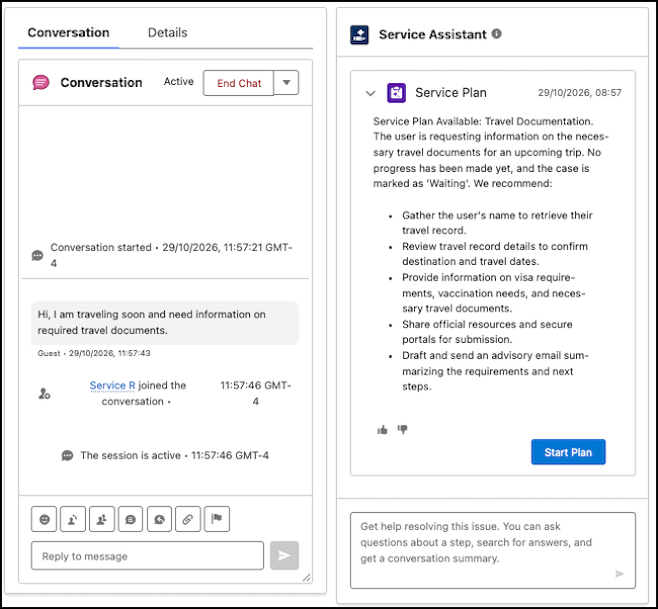
Faster: After Service Assistant identifies the customer's issue, service reps see a plan summary, and then the first step of the plan generates automatically. Service reps don't see a Start Plan button.
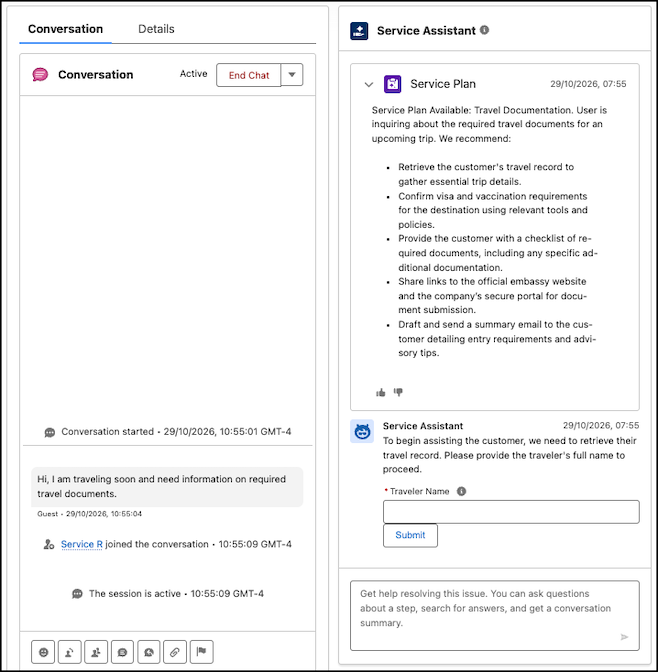
Fastest: Service reps don't see a plan summary or a Start Plan button. The first step of the plan generates as soon as Service Assistant identifies the customer's issue.
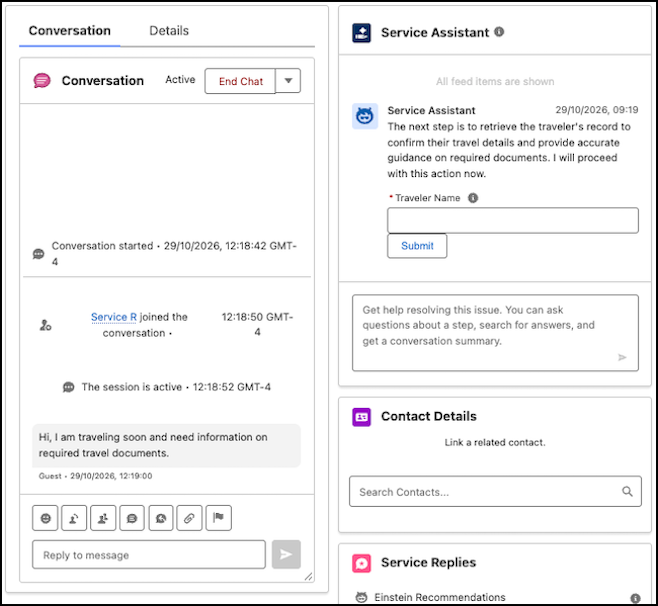
Service Assistant for Messaging doesn't have a setting to turn on or customize plan context updates. Service Assistant monitors the entire lifecycle of the messaging session and automatically generates new plan steps in real time. This behavior is enabled by default. See Grounding with Messaging Session Record Data.
Voice Dynamic Plan Customizations
Voice dynamic plans don't have any customizations. Voice plans always start automatically by showing the first step of the plan as soon as the eligibility criteria are met and the call transcript has enough context to identify the customer's issue. Service Assistant doesn't generate a plan summary for voice calls, and there's no Start Plan button.
Plan context updates also don't apply to voice. By default, Service Assistant monitors the call transcript for the record's entire call and automatically generates new plan steps in real time. See Grounding with Voice Call Record Data.
- Turn On Automatic Plan Start for Case (Optional)
Skip the plan summary and show the first step of a dynamic plan right away, so service reps can start resolving the customer's issue faster. - Turn on Automatic Plan Start for Messaging (Optional)
Choose how fast messaging service plans start when the record meets the eligibility criteria. - Turn on Case Dynamic Plan Context Updates (Optional)
Turn on automatic tracking of case field and comment updates so Service Assistant regenerates the current step of a dynamic service plan with the latest case data.
