You are here:
Turn on Automatic Plan Start for Messaging (Optional)
Choose how fast messaging service plans start when the record meets the eligibility criteria.
Required Editions
 This article applies to: |
Service Assistant for Messaging. |
 This article doesn't apply to: |
Service Assistant for Case and Voice. |
| User Permissions Needed | |
|---|---|
| To choose a plan speed: | Service Planner Builder permission set |

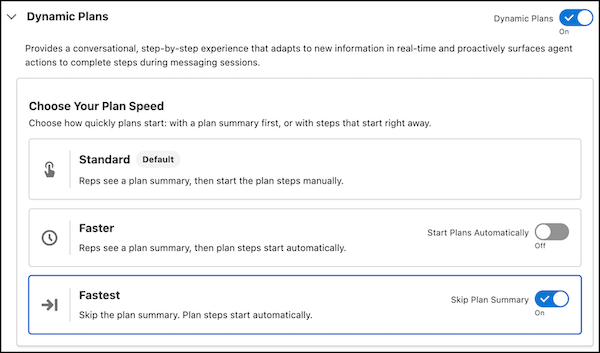
The Choose Your Plan Speed section of the Messaging tab controls how fast dynamic plans start for messaging sessions once Service Assistant detecs the customers issue. You can select only one plan speed. When you turn on one, the others turn off.
- Standard (default)
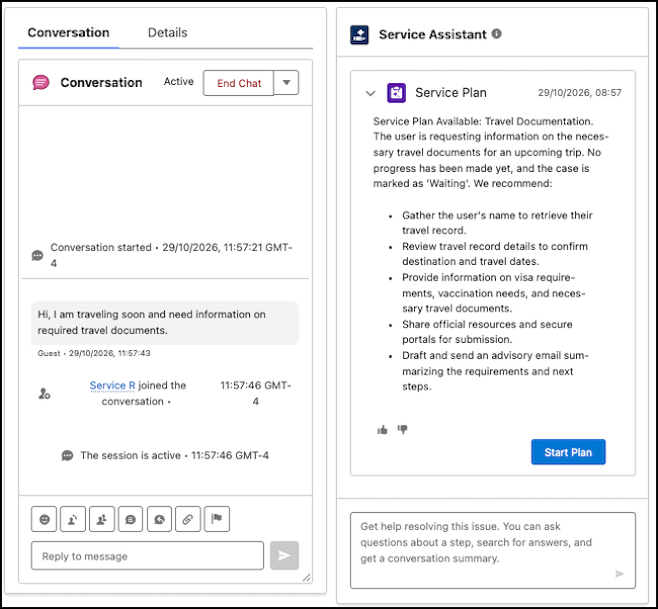
- When Service Assistant detects the customers issue, reps see a plan summary and then click Start Plan to generate the first step. This speed requires reps to wait for the summary plan to generate and then wait for the first step generate once they click draft plan.
- Faster
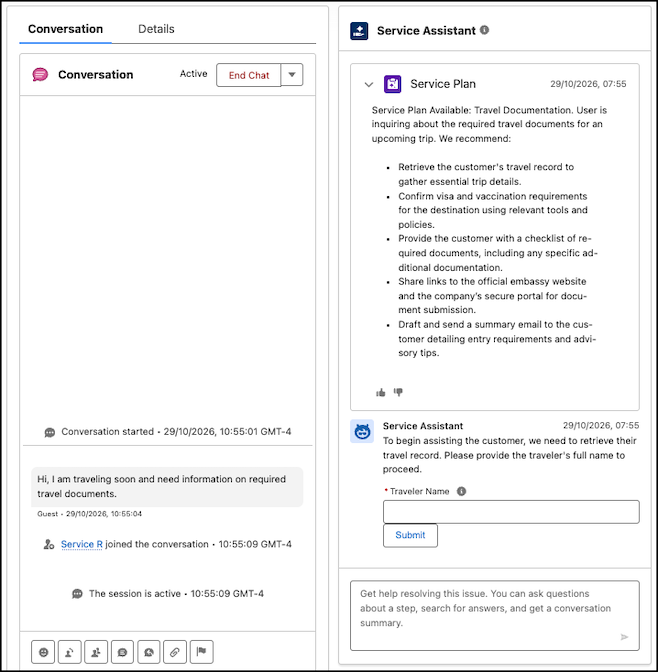
- When Service Assistant detects the customers issue, reps see a plan summary, and then the first step generates automatically. Reps don't see the Start Plan button. This speed requires service reps to wait for for the service plan summary to geterate, but the first steps shows immeditley after the summary generates.
- Fastest
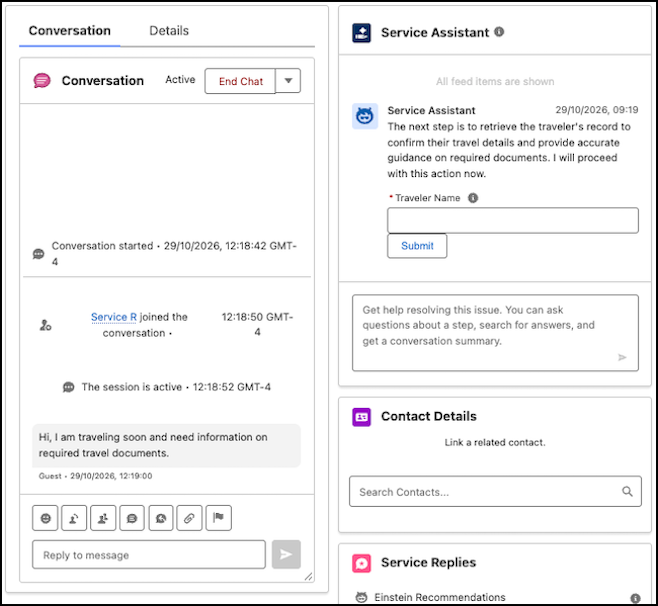
- When Service Assistant detects the customers issue, reps see the first step of the service plan. They don't see a plan summary or the Start Plan button.
- From the Service Assistnat Setup Page, go to Customize Expereince by Object section, and then select the Messaging tab.
- Under Dynamic Plans, confirm Dynamic Plans is turned on.
-
Under Choose Your Plan Speed, select a plan speed. Standard is set as the default plan
speed. Turning on Faster or Fastest disables Standard.
To confirm your selected plan speed works, start a new messaging session. You see the “Service Assistant is listening...” status indictor. Once Service Assistant has enough context in the chat to identify the issue, service assistant shows “Service Assistant is working on it...” to indicate that it’s generating the service plan. The plan then starts according to your selected plan speed.
When Standard is enabled, the service plan summary and start plan button are shown in the component.
When faster is enabled, the service plan summary generates in the component immediately followed by the first plan step.
When Fastest is turned on, only the first step of the service plan shows.