
You are here:
Create a List of Prospective Students
In this common use case doc, we'll show you how to identify high school students who've expressed interest in academic programs at your college or university.
- Introduction
It's application season and high school students from all over the country will soon begin making decisions about which colleges and universities they'll apply to. - Prospective Students—Organizing the Data
Whether you're tracking a small set of high school students, or a nationwide sampling of prospects, there are many ways you can organize your data in Salesforce. - Create a Contact & Accounts Report
So how do we get the data we're after? - Create a Cross Filter for Current High School Students
Next, we'll need a Cross Filter, so that we can look at data across various, integrated objects. - Create a Second Cross Filter for Prospective Students
Let's narrow the results by adding another Cross Filter to the report.
Introduction
It's application season and high school students from all over the country will soon begin making decisions about which colleges and universities they'll apply to.
College admissions recruiters have one of the toughest jobs around—keeping track of the hundreds, and often thousands of students who've expressed interest in their Higher Ed institution.
In this article, we're going to let you step into the shoes of one of those admissions recruiters, and show you how Salesforce and the Education Data Architecture (EDA) turn this daunting job into something streamlined and efficient. Specifically, we'll walk you through one of the most common use cases for admissions recruiters: identifying students from a subset of high schools who've expressed interest in academic programs at your college or university.
But with Salesforce and EDA, it's all about data. So as a recruiter using Salesforce, you need to think about the situation in those terms. What you're after, in particular is:
- A list of current high school students
- From all the high schools in the geographic region that you cover
- Who've expressed interest in an academic program at your school
That's three criteria you'll need to use to filter your data. But before you even think of doing that, you need to think about the data architecture itself, because with EDA, that's where it all begins.

Prospective Students—Organizing the Data
Whether you're tracking a small set of high school students, or a nationwide sampling of prospects, there are many ways you can organize your data in Salesforce.
EDA provides an out-of-the-box organizational data structure you can use as a baseline, so that you don't have to plan so much on your own. In this section we'll provide some best practices advice on how to use EDA to build a totally streamlined system that gives you the results you need.
So, here you are, the admissions recruiter, forced to think about how you want to track prospective students. You know the three pieces of data you need, but let's look at them again. Specifically, you need to track:
- Current high school students
- From all the high schools in the geographic region that you cover
- Who've expressed interest in an academic program at your school
What's the best way to do that in EDA?
Conveniently, EDA comes with Salesforce fields and objects that let you easily set up this kind of data in an integrated way. The best way to tell you is to show you, so let's take a look at a sample record for one of the high school students you're tracking, Joseph Halloway:
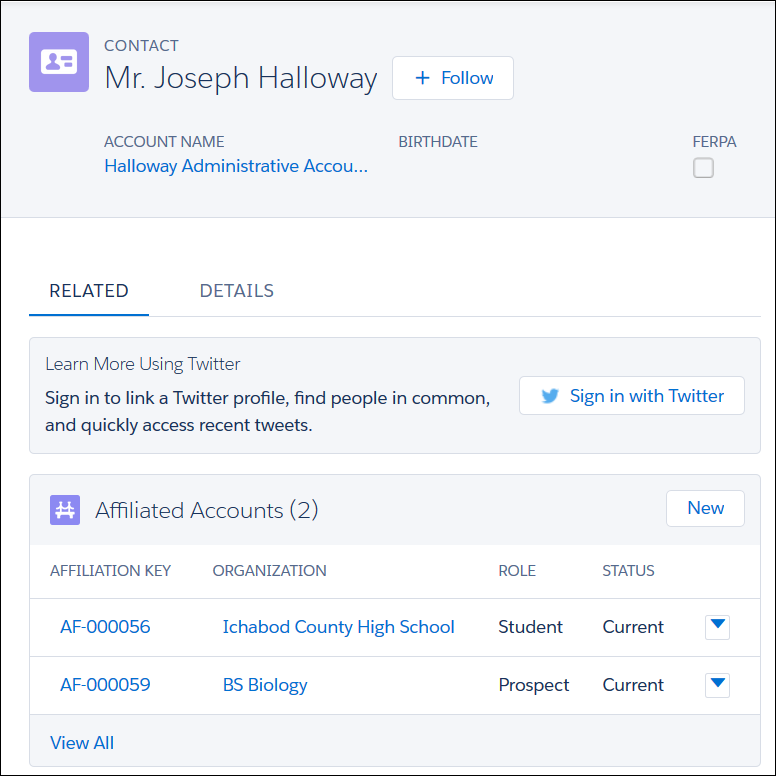
You can see from Joseph's Administrative Account record that we're using the EDA Affiliations object to track the main pieces of data we're interested in. The Affiliations object is a junction object that connects Joseph Halloway to the other two Accounts you see above—Ichabod County High School, one of the schools in the geographic region you cover, and BS Biology, one of the premier programs at your college. We've set a specific Role and Status for each of these Affiliations: Joseph is a current student at Ichabod County High School. He's also a prospect for the BS Biology degree. These values are important, and you'll see why a little later.
One level deeper, we see what those two Affiliated Accounts are. The Ichabod County High School record is an Account with a record type of Educational Institution. The BS Biology record is an Account with a record type of Academic Program.
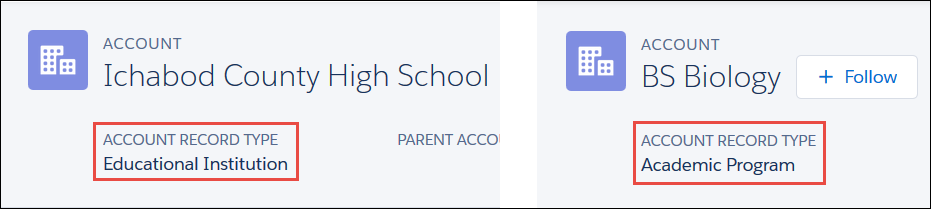
That's really important too, because we need to understand those different Account types, and our ability to set them as Primary, if we want to get the reporting results we're after. That's the last piece of the architecture—setting each of these Account records as Primary on the Affiliations objects themselves. If we don't do that, the data will not be available to us through Joseph's Contact record, which is where we need to see it if we later want to include the information in our report.
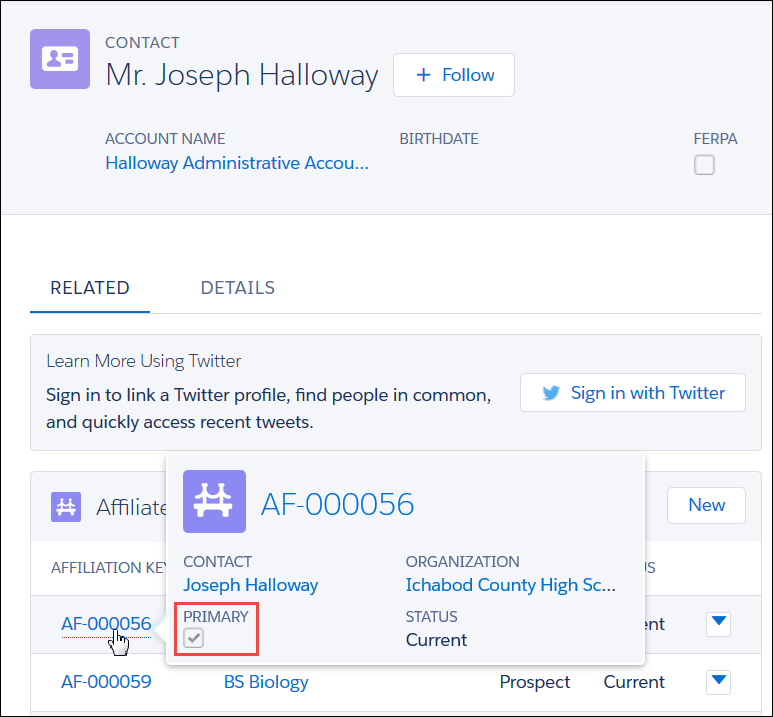
So there you have it—a simple and elegant way to organize your data for prospective students in EDA, using Accounts, Account record types, Affiliations, and Primary Affiliations. Once your architecture is in place, and your data is in, you're ready to get some results.
In the next sections, we're going to walk you through the process of actually doing something with all the data we just talked about. However, we need to show you how to do that using some sample data, which already includes Accounts, Affiliations, and so on, in our Salesforce org. If you actually want to do these steps with us, you should first go ahead and create records for 12 different students, all affiliated with a particular high school. And for 8 of those students, you'll also want to create additional affiliations to various degree programs.
But you don't actually have to do all that now. You can just sit back, watch, and learn!
Create a Contact & Accounts Report
So how do we get the data we're after?
We're going to use EDA in conjunction with one of Salesforce's most powerful features: Reports.

- Click the Reports tab. (If you don't see the Reports tab, from the App Launcher
 , find and select Reports.)
 - Click New Report.
- Expand the Accounts & Contacts folder and select the Contacts & Accounts report type.
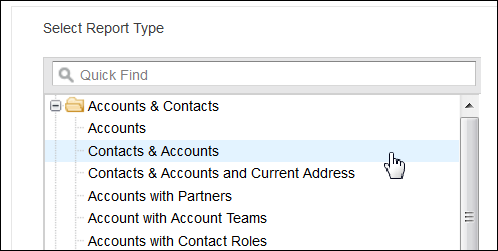
- Lastly, click Create.
We're using the Contacts & Accounts report in Salesforce because it's the one that will let us drill down into those all-important, EDA-specific Affiliations.
Create a Cross Filter for Current High School Students
Next, we'll need a Cross Filter, so that we can look at data across various, integrated objects.
- In the new, unsaved report, click the Filters drop down menu, and add a new Cross Filter.
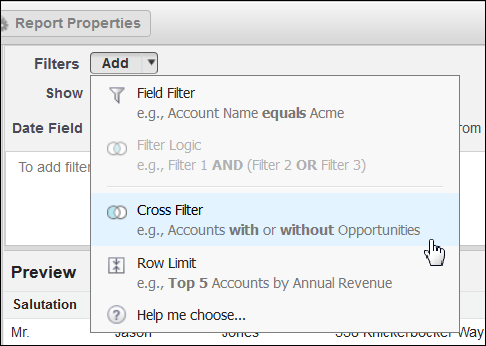
- Set the new Cross Filter to Contacts with Affiliated Accounts.

- Click Add Affiliated Accounts Filter, and add the following filters:
- Role equals
Student - Status equals
Current - Organization contains
school(We don't want to use “high school,” because not all of the schools you track have that in their name!)
 Tip When lookups are available (in this example they're available for both Role and Status fields), you should use them to make selections in order to avoid typographical errors.
 - Role equals
- Make sure the other fields on the report are not restricting your data. For example, make sure that the Show menu is set to All Accounts, and the Date Range is set to All Time, so that your report will include as many results as possible, regardless of who created the records, or when.
- Click OK to run the report.
What you'll see is a list of all students you've been tracking from the four high schools in your geographic area. (In this example, there are twelve students.)
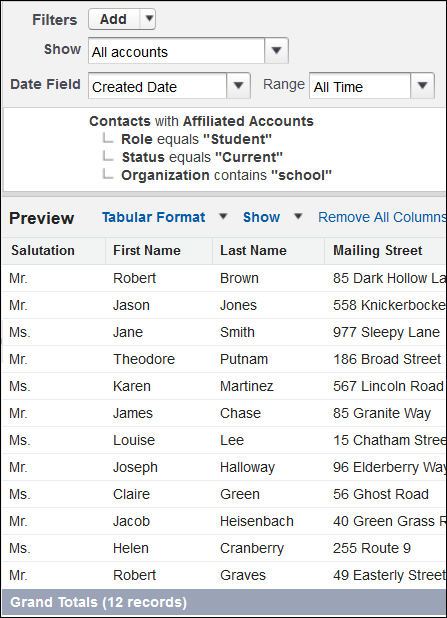
However, these are simply the students you've tracked over time, for one reason or another. Not all of these students have necessarily expressed interest in a particular program at your college.
Create a Second Cross Filter for Prospective Students
Let's narrow the results by adding another Cross Filter to the report.
- Click the Filters drop down menu again, and add another Cross Filter.
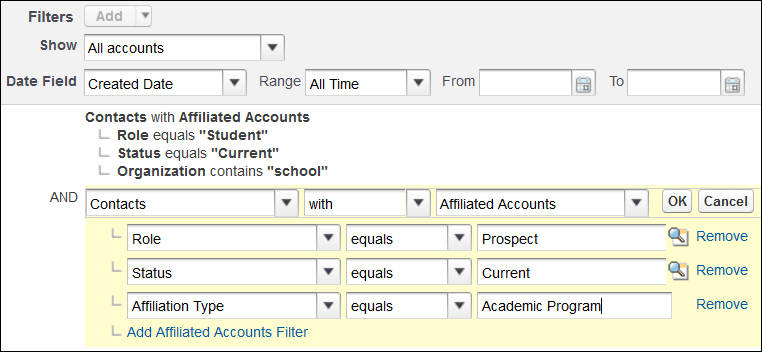
- Set the new Cross Filter to Contacts with Affiliated Accounts, just as you did before.
- Click Add Affiliated Accounts Filter, and add the following filters:
- Role equals
Prospect - Status equals
Current - Affiliation Type equals
Academic Program
- Role equals
- Click OK to run the report. The list of prospective students is refined to include only those students you've designated as “prospects”—that is, students who've expressed interest in a particular academic program. (In this example, there are eight.)
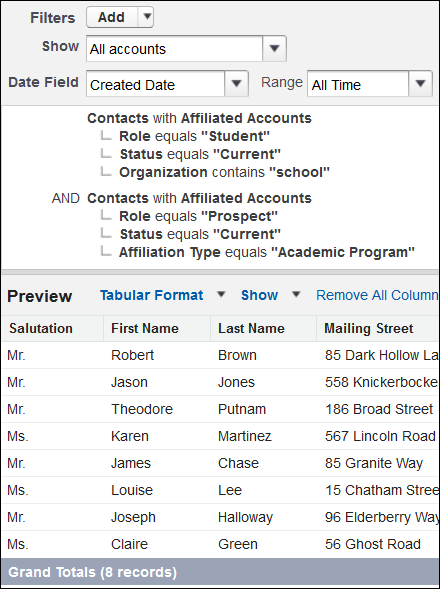
“But wait!” you say—that's not exactly good enough. You want to know the programs these students have expressed interest in, and it would be nice to see which high school each student is from too. EDA and Salesforce reporting functionality allows you to see that—as long as you've set those Primary Affiliations, which we talked about earlier.
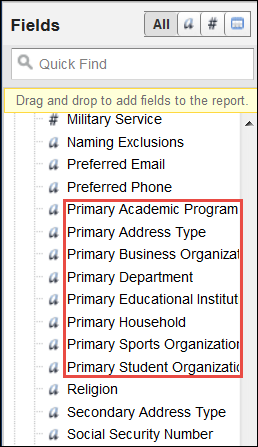
- Scroll down in the Fields column until you hit the Contact:Custom Info folder, and look for the cluster of Primary fields
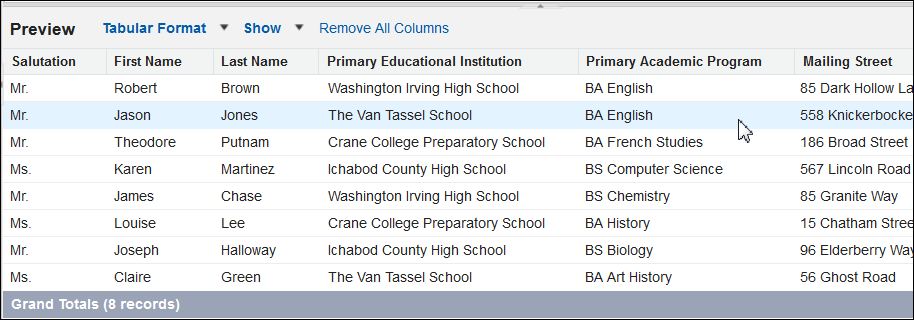
- Drag the Primary Educational Institution and the Primary Academic Program fields over to your report so that you can see the high schools and prospective programs of interest, as shown:
- Save the report with a name like “Interested High School Students” and a description. You can return to this report over and over again, and it will update automatically with any data you add or edit.
Now you've got an amazingly useful report built with Salesforce and EDA. But remember, your results will only be as good as the data you provide, so be sure to follow best practices when architecting and entering data into Salesforce.
