
You are here:
Disable Matching Rules
Learn why you receive a "Duplicates Detected" error when inserting records and how to prevent it.
When importing or restoring data to Salesforce you may see this error message:
Message: "Insert failed. First exception on row 1; first error: DUPLICATES_DETECTED, Duplicate Alert: []"
This error is caused by a Matching Rule. In the Salesforce Spring '16 release, Duplicate Management was added to help avoid duplicate records. If this rule is enabled, you will receive this error if duplicates are found when trying to insert records.
To disable Matching Rules in your Salesforce organization:
- Log into your Salesforce account as the System Administrator.
- Click
 , then click Setup.
 - From Setup, enter Matching Rules in the Quick Find box, then click Matching Rules.
- Click Deactivate next to the rule that needs to be disabled.
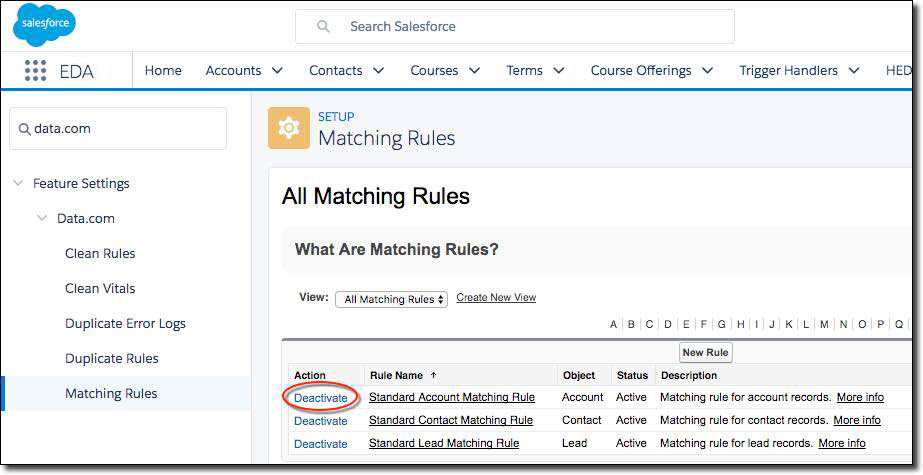
- Click OK.
Salesforce sends you an email when the rule is successfully deactivated. You should no longer see the duplicate record error message when importing data into Salesforce.
For more information on Duplicate Management, see Manage Duplicate Records.
