
You are here:
Understand Addresses in EDA
Learn how addresses are tracked and stored in EDA.
- Introduction
Students are nomadic. They live in a residence hall one year, off-campus the next. They study abroad for a term. They go home for the summer—or not. In short: They have lots of addresses. - Manage Multiple Addresses in Your Org
Contacts and Accounts in EDA can have one or more addresses. - Understand Where EDA Stores Address Data
When you maintain only one address per Contact or Account, EDA stores the address data on the Contact or Account record. That part is straightforward. When you use multiple addresses, however, EDA uses a third object: Address. - Use Multiple Addresses for Contacts with Household Accounts
Set up Contacts with multiple addresses, such as for seasonal residences, by using Household Accounts. - Manage Multiple Addresses for Other Types of Accounts
While K-12 Architecture Kit allows multiple addresses for Administrative, institutional, and organizational Accounts, it doesn't synchronize them the way it does for Household Accounts. - Manage Addresses When Multiple Addresses Are Off
If you're not using multiple addresses on Administrative or organizational Accounts, or their Contacts, simply update addresses directly on the Contact or Account record. - Multiple Addresses and Data Storage
One final important consideration about multiple addresses is data storage.
Introduction
Students are nomadic. They live in a residence hall one year, off-campus the next. They study abroad for a term. They go home for the summer—or not. In short: They have lots of addresses.
So do faculty, staff, and administrators—work and home addresses, each, at a minimum. Even academic departments and programs sometimes have addresses that need to be stored and managed in Education Data Architecture (EDA).
Fortunately, EDA offers robust address management that allows you to:
-
Track and manage multiple addresses for students and other Contacts using the Household Account model.
-
Keep multiple addresses for a student synchronized on related Contact, Household Account, and Address records.
-
Differentiate addresses among the Contacts in a Household—for example, have one mailing address for the student and a different mailing address for the student's parent or guardian.
-
Maintain one or more addresses for students and other Contacts using the Administrative Account model, as well as for institutional and organizational Accounts such as Academic Programs and University Departments.
EDA's address management functionality is powerful—and potentially confusing. This article covers in detail:
-
How to turn multiple addresses on and off in your org
-
Where EDA stores address data
-
How to use multiple addresses for student Contacts with Household Accounts
-
How to manage addresses for other types of Accounts
-
Storage considerations for using multiple addresses
-
Next steps for configuring and managing addresses in your org
So pour yourself a cup of coffee and get comfortable while you learn all about addresses in EDA.
Manage Multiple Addresses in Your Org
Contacts and Accounts in EDA can have one or more addresses.
Multiple addresses are on by default for Household Accounts and they can't be turned off. They're also on for:
-
Contacts
-
Administrative Accounts
-
Business Organization Accounts
They're off by default for all other Account types, but you can change nearly all of the defaults in EDA Settings.
You'll find instructions on how to change the defaults in the article Configure Address Settings, but before you change anything, keep reading to make sure you understand the implications of using multiple addresses in each context.
Understand Where EDA Stores Address Data
When you maintain only one address per Contact or Account, EDA stores the address data on the Contact or Account record. That part is straightforward. When you use multiple addresses, however, EDA uses a third object: Address.
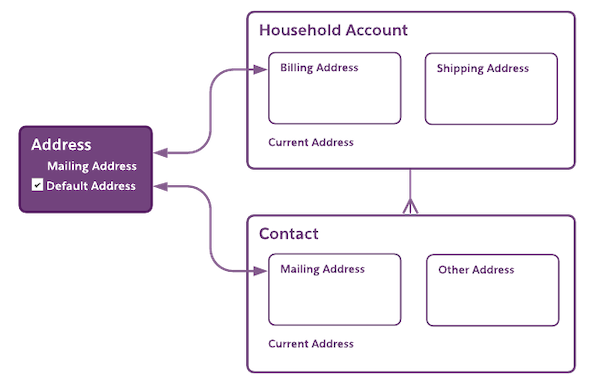
Let's dive deep into the data that Address, Contact, and Account records store, and how the objects relate, when you track multiple addresses for student Contacts with a Household Account. This scenario is probably the most complex—and most common—reason for using multiple addresses, so EDA provides some specialized synchronization to keep the data in sync, while preserving flexibility for seasonal and other address variations.

- Address
-
Address is a custom EDA object that stores address and address seasonality information. Each Address record looks up to an Account record or a Contact record, however, EDA synchronizes address data on the Address record with both the related Contact and Household Account records.
Each Address record is one of these types: Home, Work, Vacation Residence, or Other. These types come out of the box with EDA; you can create others.
Address records also contain a Default Address checkbox. The Default Address is the current, active address on the related Contact and Household Account records—the one where you send postal mail. Only one Address record can be the Default Address for all related Contact and Household Account records.
Finally, Address records contain fields that let you define a date range, or season, for when the address is in effect. You can see the last time an Address record was used by its Latest Start Date and Latest End Date fields.
- Contact
-
Every Contact record can store two addresses: a Mailing Address and an Other Address. Both are custom compound fields.
-
Mailing Address includes Mailing Street, Mailing City, Mailing State/Province, and other component "mailing" fields.
-
Other Address includes Other Street, Other City, Other State/Province, and so on.
As with Address records, each Contact address has a type: Home, Work, Vacation Residence, or Other.
EDA syncs the Contact's Mailing Address with its related Address record and with the Billing Address on its related Household Account record. After the initial sync, EDA continues to treat the Contact's Mailing Address as the source of truth, and the Address record ID shows in the Contact record's Current Address field. The value of the Current Address changes depending on which Address record is marked as Default Address and whether dates for a seasonal address are in effect.
The Current Address field on the Contact record looks up to the related Address record that stores the Mailing Address for the Contact.
Under certain conditions, EDA also syncs the Contact's Other Address to the Household Account record—but just once. (Don't worry. We explain what EDA synchronizes, and when, in just a minute.)
Finally, Contact records include a Do Not Automatically Update checkbox. This field allows you to maintain a separate mailing address for that Household Contact. For example, select Do Not Automatically Update on the parent or guardian Contact record within a student's household. That way, when the student moves out of the residence hall and you update their mailing address, the Mailing Address on their parent's Contact record isn't affected.
-
- Account
-
Account is a standard Salesforce object design for CRM, so its address fields are named for a business audience. Every Account record can store two addresses: a Billing Address and a Shipping Address.
As with Mailing Address and Other Address on a Contact record, Billing Address and Shipping Address are custom compound fields. However, unlike the addresses on Address and Contact, neither Billing Address nor Shipping Address has a type.
EDA syncs the Household Account's Billing Address with its related Address record and with the Mailing Address on its related Contact record.
The Shipping Address is synced once, from the related Contact's Other Address if and when you create a Contact record that contains an Other Address.
Household Account records also have the Current Address field, which looks up to the Address object and shows you the Address record ID for the Billing Address.
That's how Address, Contact, and Household Accounts relate in the abstract. Now let's learn how they work in practice.
Use Multiple Addresses for Contacts with Household Accounts
Set up Contacts with multiple addresses, such as for seasonal residences, by using Household Accounts.
Create a New Contact Record
Whenever you create a new independent Contact—meaning a Contact that isn't under an existing Household Account—always start from the Contact record when filling in the address. Contact records store more complete data about the individual than the Household Account record. And, importantly, saving the new Contact automatically creates related and synced Household Account and Address records so that your baseline data is accurate from the beginning.
The inverse isn't true: Saving a new Household Account doesn't automatically create related Contact and Address records.
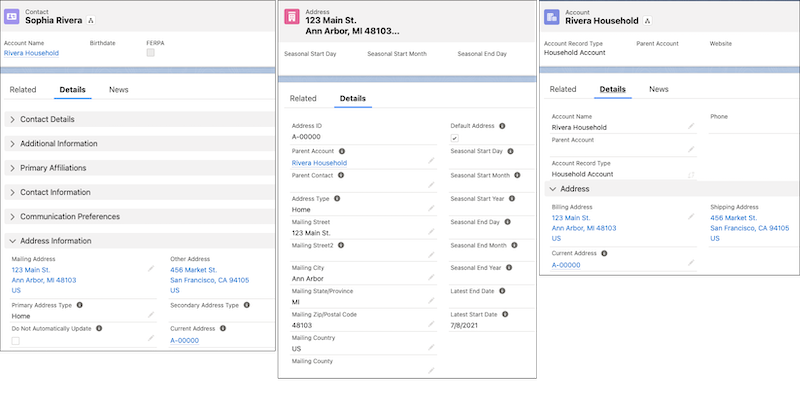
When you create a new Contact record with the Account Name field blank and one or more of the address fields populated, EDA K-12 Architecture Kit:
-
Creates a related Household Account record and syncs the Contact's Mailing Address to the Account's Billing Address. If provided, it also syncs the Contact's Other Address to the Account's Shipping Address. This is the only time that EDA K-12 Architecture Kit syncs the Contact's Other Address to the Household Account's Shipping Address.
-
Creates a related Address record and syncs the Contact's Mailing Address to the mailing address fields on the Address record. It also assigns the Primary Address Type from the Contact record to the Address Type on the Address record, and automatically selects the Default Address checkbox. If no Primary Address Type is specified, EDA K-12 Architecture Kit defaults to Home.
-
Makes the Contact's Mailing Address the Current Address.
Voila! The addresses are synchronized on all three records, and the Contact's Mailing Address becomes the Default Address and the Current Address.
Add a New Contact to an Existing Household
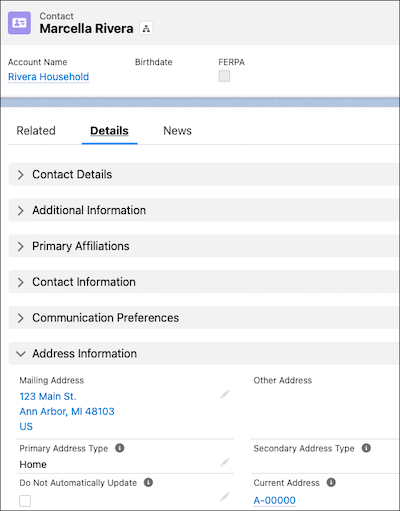
When you add a new household member (Contact) to a Household Account, EDA K-12 Architecture Kit:
-
Automatically populates the new Contact's Mailing Address with the Household Account's address.
-
Relates the Household's existing Address record to the new Contact's Mailing Address.
-
Applies the Address Type on the existing Address record for the Household to the new Contact's Mailing Address.
If you choose to enter a Mailing Address for the new Contact because their address is now the current, primary address for the Household Account, EDA K-12 Architecture Kit:
-
Creates a new Address record for the new mailing address.
-
Makes the new Address record the default for the Household Account and for all of the household's Contacts (unless any Contact has Do Not Automatically Update selected).
Update an Address When a Household Member Moves
When the student or someone in their household moves, addresses need to reflect the change. By default, EDA K-12 Architecture Kit keeps the Billing Address on the Household Account synchronized with the Mailing Address on all of the household's Contacts—unless any Contact record has Do Not Automatically Update selected. When Do Not Automatically Update is selected, that Contact's mailing address is not synced with the Household Account's address change.
You can update the address for everyone under a Household Account in any of these ways.
-
(Recommended) Create a new Address record from the Addresses related list on the Account and set it as the Default Address.
-
Edit the Billing Address on the Account record.
-
Edit the Mailing Address on any of the household's Contact records.
When you do so, EDA K-12 Architecture Kit:
-
Creates a new Address record and sets it as the Default Address.
-
Updates the Billing Address on the Household Account and the Mailing Address on all of the household's Contacts with the new address (except for Contacts who have Do Not Automatically Update selected).
Create a Seasonal Address
The seasonal fields on Address records allow you to automatically make the address current for a specified period of time. Say student Sophia is going to spend a term in Paris (lucky Sophia). Create an Address record for her Left Bank residence and use the seasonal fields to indicate when the address is in effect—that is, when it's the Current Address on Sophia's Contact and Account records.
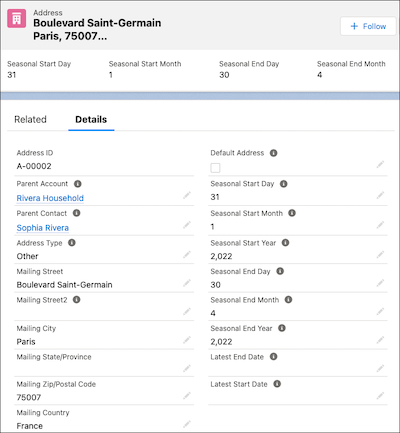
In this example, Boulevard Saint-Germain is Sophia's address from February 1 to April 30, 2022.
EDA K-12 Architecture Kit processes seasonal address updates as part of overnight scheduled jobs on the seasonal start date. If you want the address to go into effect on February 1, for example, specify a start date of January 31. However, if the start date is the current date or in the past, the seasonal address takes effect right away.
When a seasonal address is in effect, it becomes the Current Address on the related Contact and Account records—in other words, the seasonal Address record syncs to the Contact and Account records and becomes the current Contact Mailing Address and the current Account Billing Address.
After the seasonal end date, either another seasonal address takes its place, or the Address record marked as Default Address is restored as the Current Address for the related Account and Contact records.
Of course, unless Sophia's whole family is going with her to Paris, be sure you mark the Contact records for the other members of her household as Do Not Automatically Update.
Considerations for Using Multiple Addresses with Household Accounts
We like to think of Address, Contact, and Account as a three-legged stool: EDA K-12 Architecture Kit can synchronize multiple Household Account addresses across all three objects, and when it does, the data is just as you expect it to be and the stool is balanced and stable. But it's easy to make the stool wobble: You update or add an address, and you don't see the change propagated on a related record.
Here are a few more things to know about multiple address management for Household Accounts that can help prevent unwanted surprises, unexpected results, and an annoyingly unsteady stool.
-
Household Accounts always have multiple addresses enabled in EDA K-12 Architecture Kit. They can't be turned off, and they're in effect even if you turn off multiple addresses for Contacts. Be aware that Household Account appears in EDA Address Settings to be not enabled for multiple addresses, even though it is.
-
By default, Address records created from the Addresses related list on the Contact page aren't synchronized with the related Household Account. You must manually select the Parent Account when you create the Address record. As a result, we recommend always creating additional addresses for a Household Account from the Addresses related list on the Account, not from the related list on a member Contact. EDA K-12 Architecture Kit automatically synchronizes additional addresses from the Household Account to the Contact.
-
Don't rely on the Addresses related list on the Contact page for an accurate list of all related Address records. It doesn't show addresses created from the related Household Account page. For example, when you create additional Contacts for a Household Account from the Contacts related list on the Account record, you can see the Address record in the Household Account's Addresses related list, but not in the new Contact's Addresses related list.
-
When you need to edit an address (as opposed to creating a new address), always edit the Address record rather than editing the related Contact's Mailing Address or Account's Billing Address. Editing the Address record itself ensures that the data is synchronized to both the Contact and the Account. See Edit Addresses.
-
You can mark Address records as inactive when they shouldn't be used. For details, see Mark an Address as Inactive.
Manage Multiple Addresses for Other Types of Accounts
While K-12 Architecture Kit allows multiple addresses for Administrative, institutional, and organizational Accounts, it doesn't synchronize them the way it does for Household Accounts.
Create a New Contact Record for a Non-Household Account
When you use multiple addresses on non-Household Accounts and you first create a new Contact record with the Account Name field empty and the address data populated, K-12 Architecture Kit:
-
Creates a related Address record and syncs the Contact's Mailing Address to the Address record.
-
Assigns the Primary Address Type from the Contact record to the Address Type on the Address record. If no Primary Address Type is specified, K-12 Architecture Kit defaults to Home.
-
Selects the Default Address checkbox on the Address record.
-
Makes the Contact's Mailing Address the Current Address.
-
Creates a related Account record whose address fields are empty.
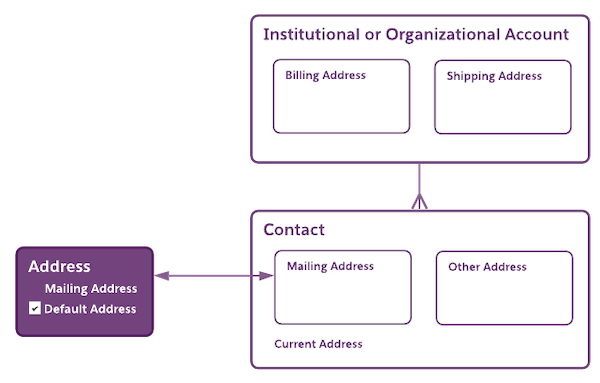
If you want the Contact's Mailing Address to be the related Account's Billing Address, manually fill in the Account's Billing Address fields. Even though the addresses are the same, they don't share an Address record and they aren't synchronized. If you update either address, manually update the other to keep them in sync.
Create a New Non-Household Account
When you use multiple addresses on non-Household Accounts and you first create a new Account record with a Billing Address, K-12 Architecture Kit:
-
Creates a related Address record and syncs the Billing Address to the mailing address on the Address record.
-
Selects the Default Address checkbox on the Address record.
-
Makes the Account's Billing Address the Current Address.
Then, when you create a Contact under this Account, K-12 Architecture Kit populates the Contact's Mailing Address with the Account's Billing Address, but it creates a new Address record even though the addresses are the same. The Account's Billing Address and the Contact's Mailing Address don't share an Address record and aren't synchronized. If you update either address, manually update the other to keep them in sync.
Address Updates to Non-Household Accounts
Additional addresses created for non-Household Accounts or their Contacts aren't synchronized.
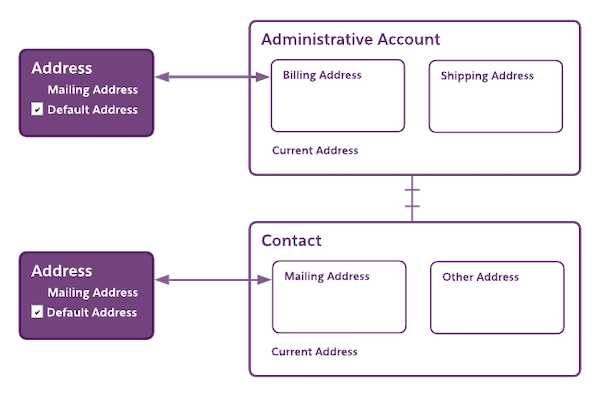
The new Address record is always related to the Contact or the Account record that you start from. When you create the Address, you can manually specify the Parent Contact (when you start from an Account) or Parent Account (when you start from a Contact) to also relate the new Address record to that record. But the Address record is only related, not synchronized: Setting it as the Current Address or Default Address doesn't update the Contact's Mailing Address (if you started from an Account) or the Account's Billing Address (if you started from a Contact).
When you need to edit an address for a Contact or a non-Household Account, you can edit the Address record or the address fields on the Contact or Account record. Edits made to the Contact's Mailing Address or the Account's Billing Address are synced with the Address record, and vice versa. Just remember that the edits don't also sync with the related Contact's address (if you edit the Account's address) or the related Account's address (if you edit the Contact's address).
Finally, you can specify additional seasonal addresses for non-Household Accounts.
See Create Address Records and Edit Addresses.
Manage Addresses When Multiple Addresses Are Off
If you're not using multiple addresses on Administrative or organizational Accounts, or their Contacts, simply update addresses directly on the Contact or Account record.
Go to the record, click Edit, and make and save your changes. The Contact or Account record is updated. The Address object isn't used when multiple addresses are off, and there's nothing to synchronize.
Multiple Addresses and Data Storage
One final important consideration about multiple addresses is data storage.
Every Address record uses 2 KB of data storage. While that doesn't sound like a lot, it adds up. If you have 10,000 students who each have two addresses in a year—one during the academic year and one during the summer—that's 20 MB on student Address records. Over four or six years, that's 80 MB to 120 MB. Add in addresses for studying abroad, for family members who move, for faculty at home and at work, and you can see how address data storage continues to climb.
As an EDA admin, it's important to stay aware of your org's storage. In Setup, search for and select Storage Usage. The Current Data Storage Usage table shows the number of records, amount of storage, and percentage of storage used by each Salesforce object, in descending order of usage. Look for Addresses. If or when the Address storage grows too large, consider deleting old address records—especially seasonal addresses. However, be sure to keep any addresses for recruiting and admissions or advancement.
For most institutions, address storage isn't a major roadblock. However, if storage is a concern, we recommend that you still use multiple addresses on student Household Accounts, but not on Administrative or organizational Accounts. The automatic syncing of address data across Address, Account, and Contact records over a student's nomadic tenure at your institution is typically worth the trade-off.
