
You are here:
Customizable Rollups Recipes
Welcome to the Customizable Rollups Recipes cookbook!
While NPSP provides numerous rollups out of the box, we know that there are many more ideas out there. This document reflects some of the recipes we've collected from you, the people actually using the product! Please know that this is just a small sampling and we are always looking for more ideas. So, if you cooked up a great Customizable Rollup in your org, and you want to share, please post to the Community Contributors group using the topic #Customizable Rollups. We would love to hear from you.

This doc provides high level steps for creating these Customizable Rollup recipes. If you need step-by-step instructions, see Create Customizable Rollups and Create Filter Groups. Also, please keep in mind that all field names, descriptions and help text, Customizable Rollup descriptions, and filter group names and descriptions are just suggestions. Feel free to use the naming conventions and descriptions that work best for your org.
- Recipe: Last Gift Fund
If you use General Accounting Funds, you may have a need to see the Last Gift Fund on an Account or Contact record. Using Customizable Rollups and Process Builder, you can make this work! - Recipe: Last Soft Credit Opportunity
When viewing a Contact, you can already see the value of the last soft credit that the Contact received. It's an out-of-box rollup provided in NPSP (called Contact: Last Soft Credit Amount). But, perhaps you want to also see the Opportunity on which the Contact was given that soft credit. With Customizable Rollups, you can provide this info and have it link directly to the Opportunity. - Recipe: Roll up Payment Details to the Recurring Donation
While you can see a summary of the Opportunity Amount info on a Recurring Donation, you may want a summary of the Payments as well. This is useful if a Contact pays more than the Opportunity amount on a given schedule OR if a Contact's Payment falls through and they haven't paid as much as they committed to. - Recipe: Combine Rollups and Levels
You can easily combine the power of Customizable Rollups with Levels to automatically calculate Levels based on rollup fields. - Recipe: Total Current Year Payments on Prior Year Pledges
Perhaps you want to see the Payments made this year for pledges from the prior year. Or you want to see last year's Payments on pledges from the year before that. And it's important that these fields are dynamic, so that they don't reflect a specific, hard-coded year. - Recipe: Track Amount Donated for Matched Gifts Only
Currently the Matching Gift related list shows the full amount of all donations, but not the actual matched amount (which can be different if the company only matched a portion of the gift). You can easily create a Customizable Rollup that shows the matched amount. - Recipe: First or Last Gift Campaign
Create a first or last gift campaign rollup on a contact record that's missing contact information. - Recipe: Total Gifts Three Years Ago
NPSP provides out-of-box rollups for total giving this year, last year, and two years ago. But perhaps you want to look back farther, to get a bigger picture of your donors' engagement and donation patterns. You can easily clone existing rollups and update the Years Ago field to see more of a donor's giving history. - Recipe: Identifying Peer-to-Peer Fundraising Influencers
If you plan events that include peer-to-peer fundraising, you want to be able to easily identify constituents who influence others to give. That way you can recognize their contribution by sending a thank you email or posting a note on your event site.
Recipe: Last Gift Fund
If you use General Accounting Funds, you may have a need to see the Last Gift Fund on an Account or Contact record. Using Customizable Rollups and Process Builder, you can make this work!
- Create a custom field on the Account object.
- Data Type = Lookup Relationship
- Related to = General Accounting Unit
- Field Label = Last Gift Fund
- Description = Displays the General Accounting Unit that this Account's most recent gift was allocated to. Populated automatically via a Customizable Rollup.
- Help Text = Displays the General Accounting Unit that this Account's most recent gift was allocated to. Populated automatically via a Customizable Rollup.
- Create a custom field on the Opportunity object.
- Data Type = Lookup Relationship
- Related to = General Accounting Unit
- Field Label = Related GAU
- Description = Displays the General Accounting Unit from the related Allocation. Populated via Process Builder, and used in a Customizable Rollup on Account to display the Account's most recent gift allocation.
- Help Text = Displays the General Accounting Unit from the related Allocation. Populated via Process Builder, and used in a Customizable Rollup on Account to display the Account's most recent gift allocation.
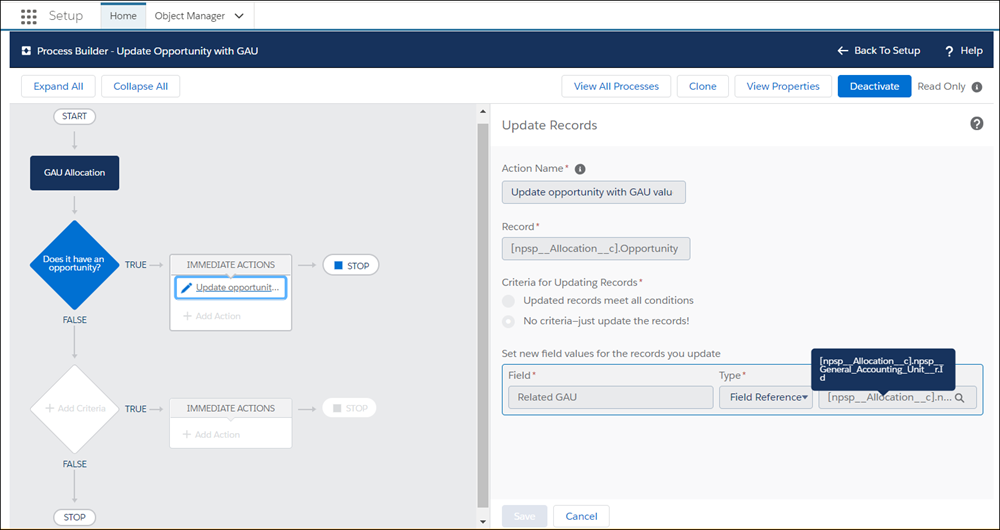
- Use Process Builder, or another tool, to copy the General Accounting Unit from the Allocation to the Opportunity. Here is how we did it in Process Builder:
- In The process starts when picklist, choose to start the process when A record changes.
- Object = GAU Allocation
- Start the Process = only when a record is created
- Criteria Name = Does it have an opportunity?
- Criteria for Executing Actions = No criteria—just execute the actions!
- Add an Immediate Action.
- Action Type = Update records
- Action Name = Copy GAU
- Record Type = Select a record related to the
npsp__Allocation__c, then select Opportunity - Criteria for Executing Actions = No criteria—just execute the actions!
- Field = Related GAU
- Type = Field Reference
- Value = General Accounting Unit Record ID. In the field you'll see [npsp__Allocation__c].npsp__General_Accounting_Unit__c.Id
- Be sure to click Activate! Note Opportunities that existed before the process was created won't be updated. You can update old Opportunities manually or by performing a mass update via a tool like the Salesforce Data Loader/Data Import Wizard, or an alternate third party tool.
- Depending on what Opportunities you want to roll up, you may want to create a filter group. You could also use the out-of-box Allocations: Won filter group.
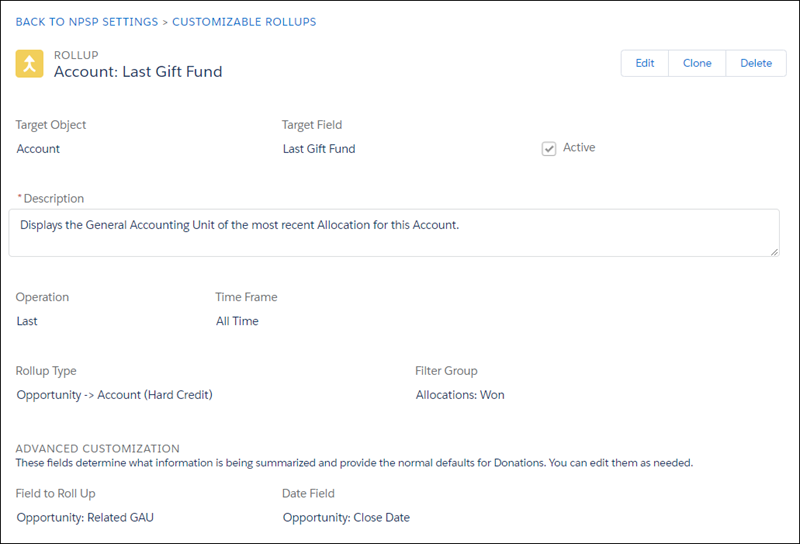
- Create a Customizable Rollup with these values:
- Target Object = Account
- Target Field = Last Gift Fund
- Description = Displays the General Accounting Unit from the most recent Allocation for this Account.
- Operation = Last
- Time Frame = All Time
- Rollup Type = Opportunity > Account (Hard Credit)
- Filter Group = Allocations: Won (or whichever filter group you want to use)
- Field to Roll Up = Opportunity: Related GAU
- Date Field = Opportunity: Close Date
Your rollup should look similar to this:
Now if you look at an Account's record, you can see the Last Gift Fund field displaying the General Accounting Unit to which the Account's last gift (Opportunity) was allocated.
Recipe: Last Soft Credit Opportunity
When viewing a Contact, you can already see the value of the last soft credit that the Contact received. It's an out-of-box rollup provided in NPSP (called Contact: Last Soft Credit Amount). But, perhaps you want to also see the Opportunity on which the Contact was given that soft credit. With Customizable Rollups, you can provide this info and have it link directly to the Opportunity.
- Create a custom field on the Contact object.
- Data Type = Lookup Relationship
- Related To = Opportunity
- Field Label = Last Soft Credit Opportunity
- Description = A lookup to the last Opportunity on which the Contact received a soft credit. Populated automatically by a Customizable Rollup.
- Help Text = A lookup to the last Opportunity on which the Contact received a soft credit. Populated automatically by a Customizable Rollup.
- Create the Customizable Rollup.
- Target Object = Contact
- Target Field = Last Soft Credit Opportunity
- Description = A link to the most recent Opportunity for which the Contact received a soft credit.
- Operation = Last
- Time Frame = All Time
- Rollup Type = Opportunity > Contact (Soft Credit)
- Filter Group = Opps: Won (SC)
- Field to Roll Up = Opportunity: Opportunity ID
- Date Field = Opportunity: Close Date
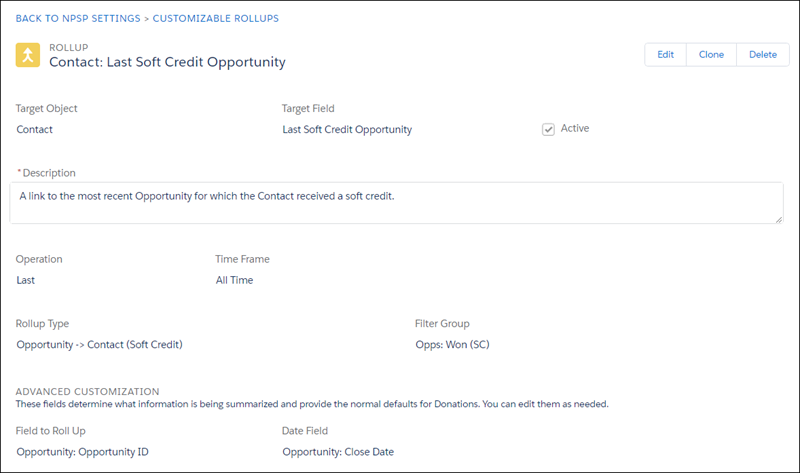
And if you look at a Contact's record, you can see the lookup to the most recent Opportunity from which the Contact received soft credit. Note that you'll have to manually calculate rollups to see results right away.

Recipe: Roll up Payment Details to the Recurring Donation
While you can see a summary of the Opportunity Amount info on a Recurring Donation, you may want a summary of the Payments as well. This is useful if a Contact pays more than the Opportunity amount on a given schedule OR if a Contact's Payment falls through and they haven't paid as much as they committed to.
- Create a custom field on the Recurring Donations object:
- Data Type = Currency
- Field Label = Payments Summary (Just a suggestion. Feel free to name it anything you like!)
- Description = A summary of all Payments for a Recurring Donation. Populated automatically by a Customizable Rollup.
- Help Text = A summary of all Payments for a Recurring Donation. Populated automatically by a Customizable Rollup.
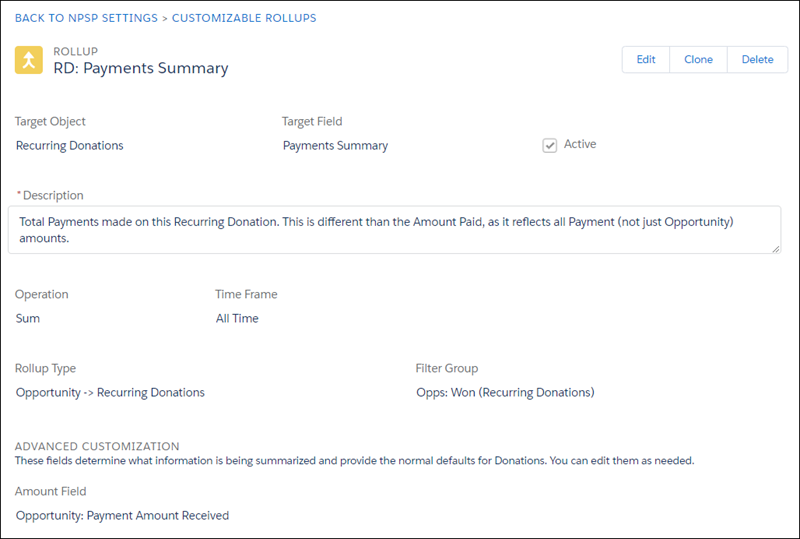
- Create a Customizable Rollup with these values.
- Target Object = Recurring Donations
- Target Field = Payments Summary
- Operation = Sum
- Time Frame = All Time
- Rollup Type = Opportunity > Recurring Donations
- Filter Group = Opps Won (Recurring Donations) or use your own!
- Amount Field = Opportunity: Payment Amount Received
Recipe: Combine Rollups and Levels
You can easily combine the power of Customizable Rollups with Levels to automatically calculate Levels based on rollup fields.
Let's say you have three Levels (Bronze 500-1499, Silver 1500-2999, Gold 3000+) and you want to populate them based on donations made in the last 365 days. In our example, we'll use the out-of-box Total Gifts Last N Days Customizable Rollup, which is set to roll up the last 365 days worth of data by default. But, you could easily modify the Days Back field in the rollup based on your needs OR clone this rollup and enter a different number of Days Back.
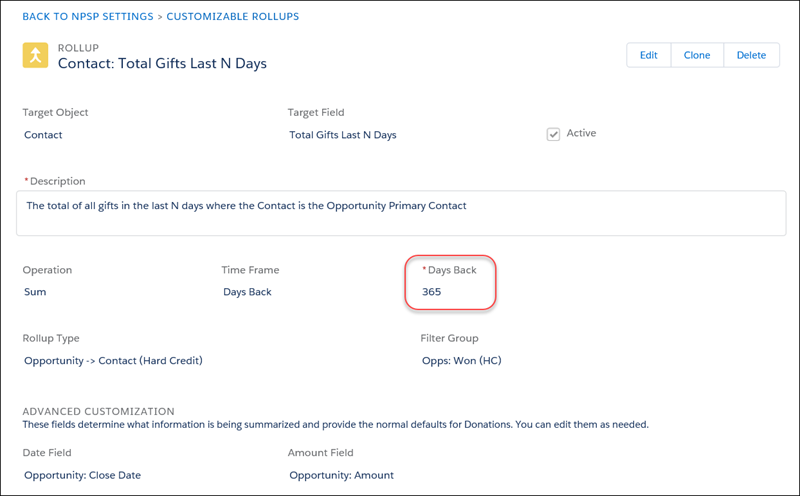
- Create your Levels. If you need more info, see Create and Manage Levels.
- Level Name = Bronze
- Minimum Amount = 500.00
- Target = Contact (or Account)
- Maximum Amount = 1499.00
- Source Field = Total Gifts Last N Days (this is where you link this Level to the Customizable Rollup!)
- Level Field = Level
- Previous Level Field = Previous Level
- Create your other Level fields using the same values above but giving each one a unique Level Name and amount.
Now, when the Total Gifts Last N Days field for a Contact includes a value that corresponds with one of your Levels, the Level field for that Contact will reflect the appropriate value.
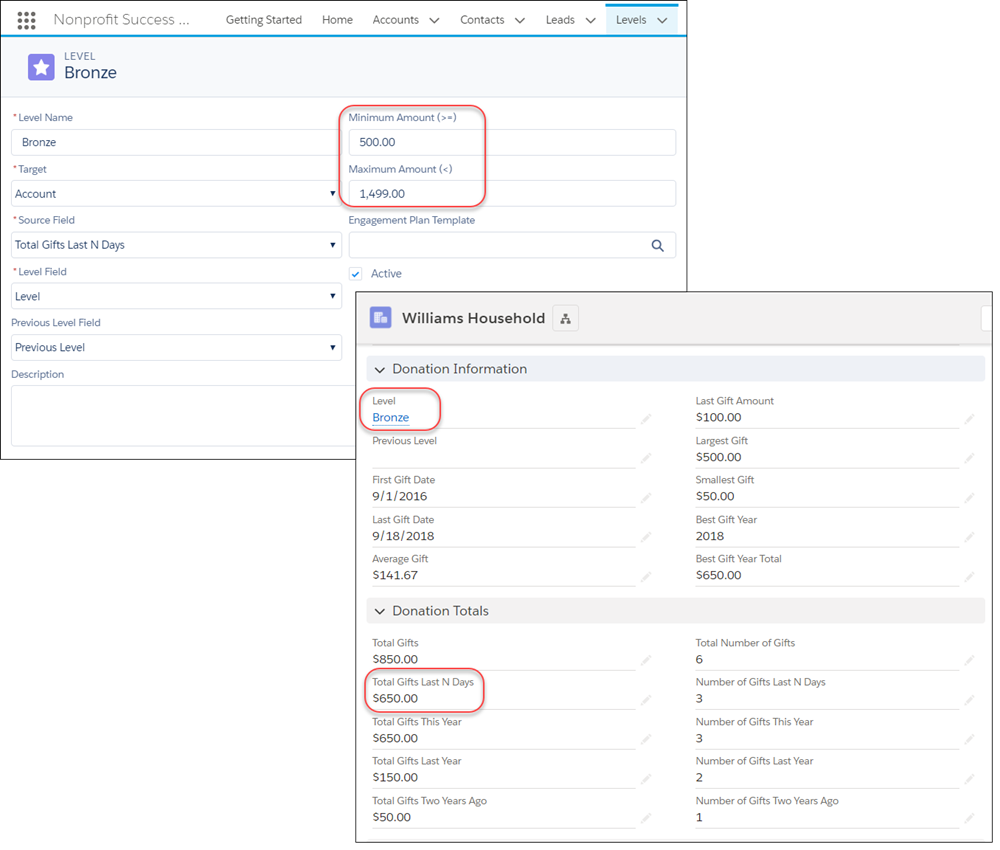
Recipe: Total Current Year Payments on Prior Year Pledges
Perhaps you want to see the Payments made this year for pledges from the prior year. Or you want to see last year's Payments on pledges from the year before that. And it's important that these fields are dynamic, so that they don't reflect a specific, hard-coded year.
- Create a custom field on the Account object:
- Data Type = Currency
- Field Label = This Year Payments on Past Year Pledges (Just a suggestion. Feel free to name it anything you like!)
- Description = Displays the total amount of Payments made in this calendar year for pledges (Opportunities) made in past calendar years. Populated automatically via a Customizable Rollup.
- Help Text = Displays the total amount of Payments made in this calendar year for pledges (Opportunities) made in past calendar years. Populated automatically via a Customizable Rollup.
- Create a custom field on the Payment object:
- Data Type = Formula
- Field Label = Is Opportunity From Prior Year
- Formula Return Type = Checkbox
- Formula = YEAR( npe01__Opportunity__r.CloseDate ) < YEAR( npe01__Payment_Date__c )
- Description = Indicates that the Opportunity associated with this Payment is from a prior calendar year. This field is populated automatically.
- Help Text = Indicates that the Opportunity associated with this Payment is from a prior calendar year. This field is populated automatically.
- Create a Customizable Rollup filter group.
- Name = Old Payments
- Description = Includes payments where the Opportunity Close Date year is older than the year of the Payment.
- Add a filter rule for Paid Payments:
- Object = Payment
- Field = Paid
- Operator = Equals
- Value = True
- Add a filter rule that indicates that the Opportunity's Close Date year is older than the year the Payment was Paid.
- Object = Payment
- Field = Is Opportunity From Prior Year (this is the field you created on the Payment object earlier)
- Operator = Equals
- Value = True

- Create the Customizable Rollup.
- Target Object = Account
- Target Field = This Year Payments on Past Year Pledges (or whatever you called the field you created in step 1)
- Operation = Sum
- Time Frame = Years Ago
- Years Ago = This Year
- Rollup Type = Payment > Account (Hard Credit)
- Filter Group = Old Payments (this is the new filter group you created)
- Date Field = Payment: Payment Date
- Amount Field = Payment: Payment Amount
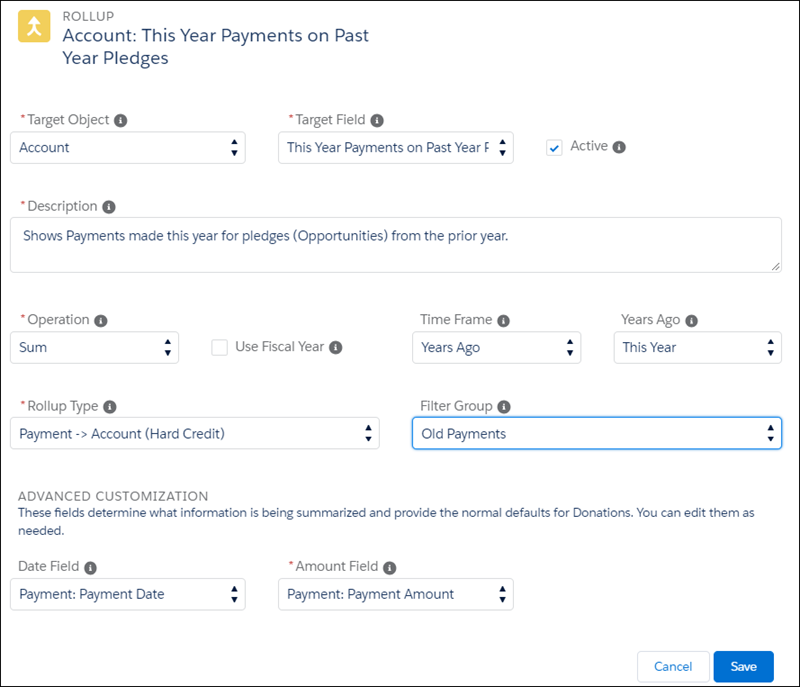
Now, you can look at the Contact and see the list of Payments for the previous year's pledges (Opportunities).
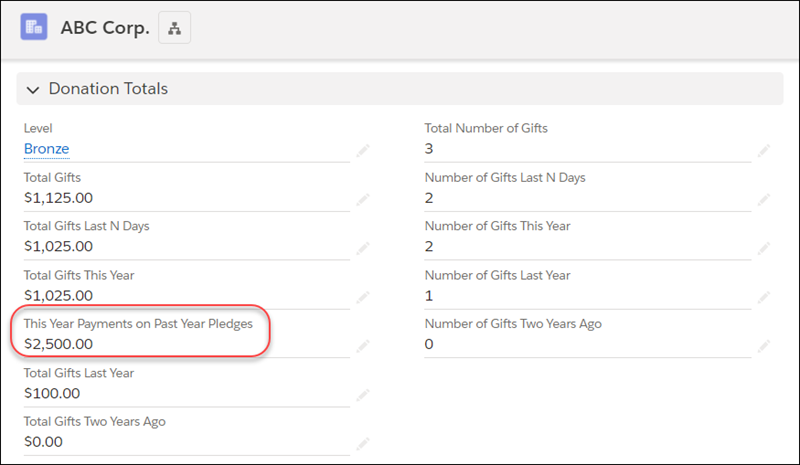
And you can verify that number by viewing the Payments on the Opportunity.
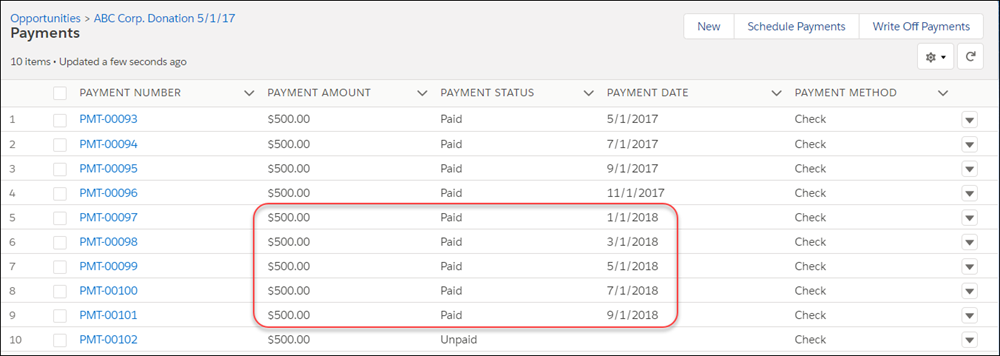
You can easily implement this for last year's payments made on pledges from any prior year. Simply create another custom field on the Account, but give it a unique name. When creating the Customizable Rollup, set the Years Ago field = Last Year.
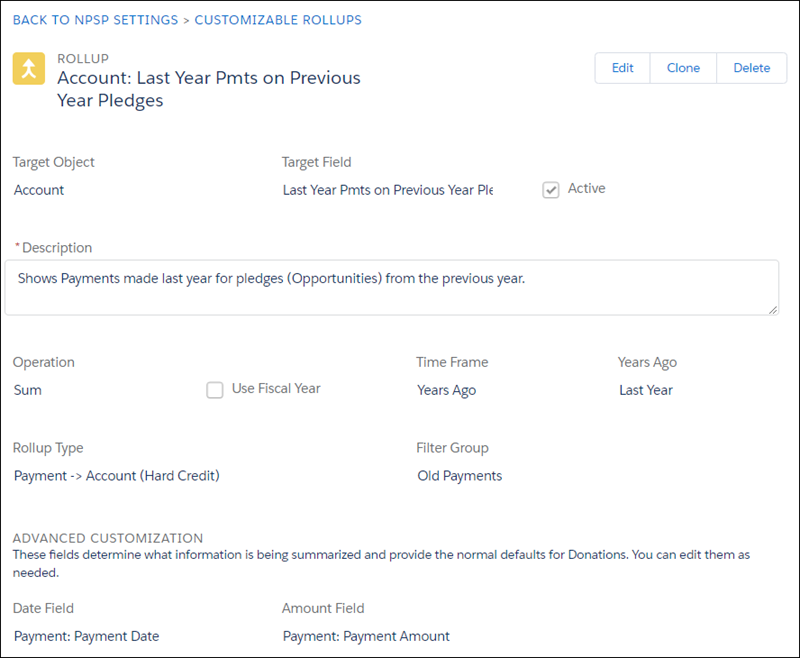
Recipe: Track Amount Donated for Matched Gifts Only
Currently the Matching Gift related list shows the full amount of all donations, but not the actual matched amount (which can be different if the company only matched a portion of the gift). You can easily create a Customizable Rollup that shows the matched amount.
- Create a custom field on the Contact.
- Data Type = Currency
- Field Label = Total Matched Amount (or Matched Gift Amount)
- Description = Displays the total amount of matching gifts that have been received as a result of this Contact's donations. Populated automatically by a Customizable Rollup.
- Help Text = Displays the total amount of matching gifts that have been received as a result of this Contact's donations. Populated automatically by a Customizable Rollup.
- Create a filter group that includes two filter rules. The first one should limit the Opportunities to those that are Closed/Won.
- Object = Opportunity
- Field = Won
- Operator = Equals
- Value = True
- Add a second filter rule that limits the Opportunities to only those with the Matching Gift record type.
- Object = Opportunity
- Field = Record Type ID
- Operator = In List
- Value = Matching Gift
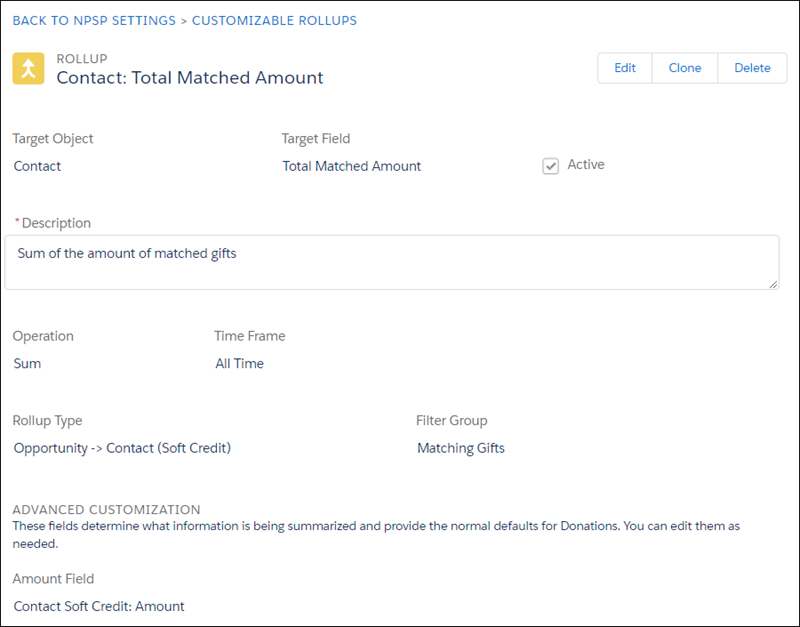
- Create a Customizable Rollup that sums up the Amount of matched gifts for this Contact.
- Target Object = Contact
- Target Field = Total Matched Amount
- Operation = Sum
- Time Frame = All Time
- Rollup Type = Opportunity > Contact (Soft Credit)
- Filter Group = Matching Gifts (should be the filter group you created earlier)
- Amount Field = Contact Soft Credit: Amount
Now, look at the Contact to see the total matched amount. Note that you'll have to manually calculate rollups to see results right away.
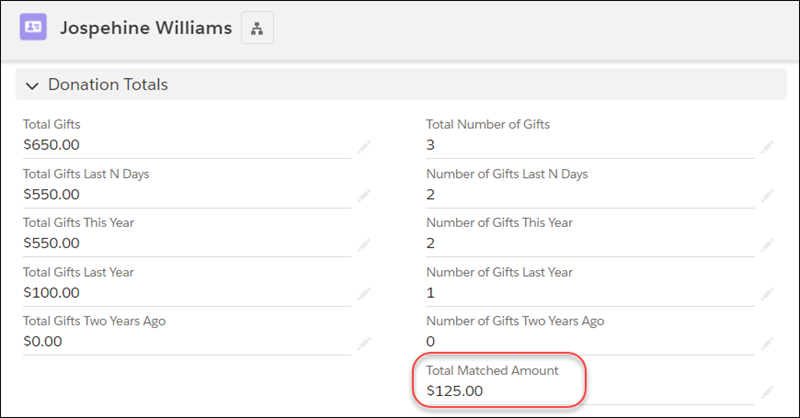
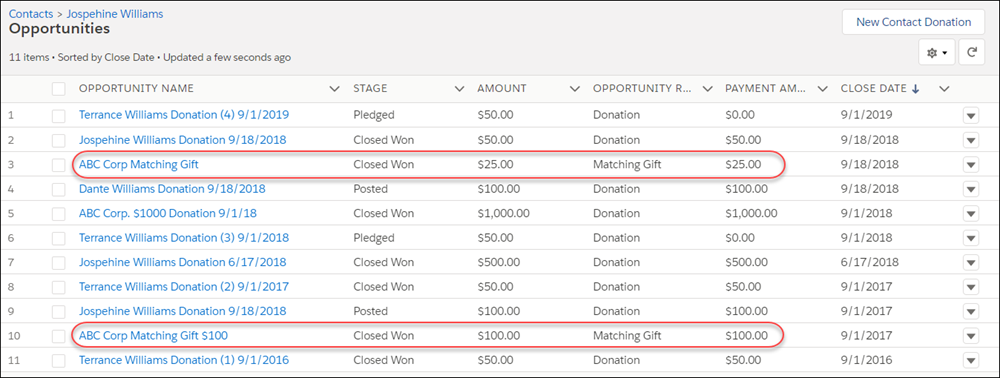
And you can verify that the amount is correct by viewing the Contact's list of Opportunities and adding up those with the Matching Gift record type.
Recipe: First or Last Gift Campaign
Create a first or last gift campaign rollup on a contact record that's missing contact information.
Suppose you have Contacts in your system that don't have email or mailing addresses. Why are they in your system if you can't contact them? This sounds like a use case that requires some investigation.
You could run a report of Contacts where Email = blank and Mailing Address fields = blank, then start examining their related Opportunities looking for a pattern. This is a practical but time-consuming solution. Or, you could save yourself some time and create a Last Gift Campaign rollup on the Contact. When you add that field to your report, you can instantly see if there is a pattern based on Campaigns.
For example, you might find that the Contacts were mostly credit card donors at the door of a tasting event where you didn't collect any personal info. But, the swiping process required the auto-creation of a Contact and an Opportunity with the Campaign field auto-set. These folks were just passing through town, bought a tasting ticket, and that's the first and last you'll hear from them. Since the Last Gift Campaign field is filled in with the same Campaign for most records on the report, you can easily group them together. Mystery solved!
- Create a custom field for First Gift Campaign on Contact (or Account). Note that you could create a similar field for Last Gift Campaign.
- Data Type = Lookup Relationship
- Related to = Campaign
- Field Label = Last Gift Campaign
- Help Text = Displays the Campaign that brought in the Contact's most recent donation. Populated automatically via a Customizable Rollup.
- Description = Displays the Campaign that brought in the Contact's most recent donation. Populated automatically via a Customizable Rollup.
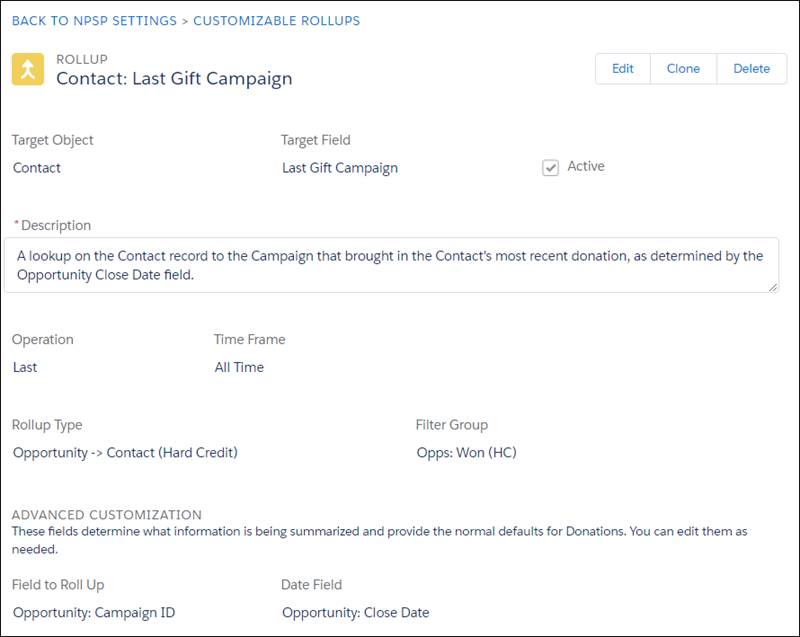
- Create a Customizable Rollup with these values:
- Target Object = Contact (or Account if you want to roll up to Accounts instead)
- Target Field = Last Gift Campaign
- Description = A lookup on the Contact record to Campaign that brought in the Contact's most recent donation, as determined by the Opportunity Close Date field.
- Operation = Last
- Time Frame = All Time
- Rollup Type = Opportunity > Contact (Hard Credit)
- Filter Group = Opps: Won (HC)
- Field to Roll Up = Opportunity: Campaign ID
- DateField = Opportunity: Close Date
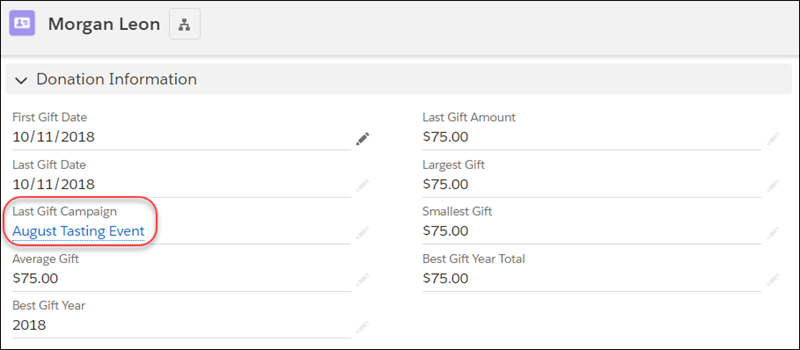
After rollups are recalculated, you can see the updated Last Gift Campaign field on a Contact record.
You could also add it to the report you're using to track donors without contact information.
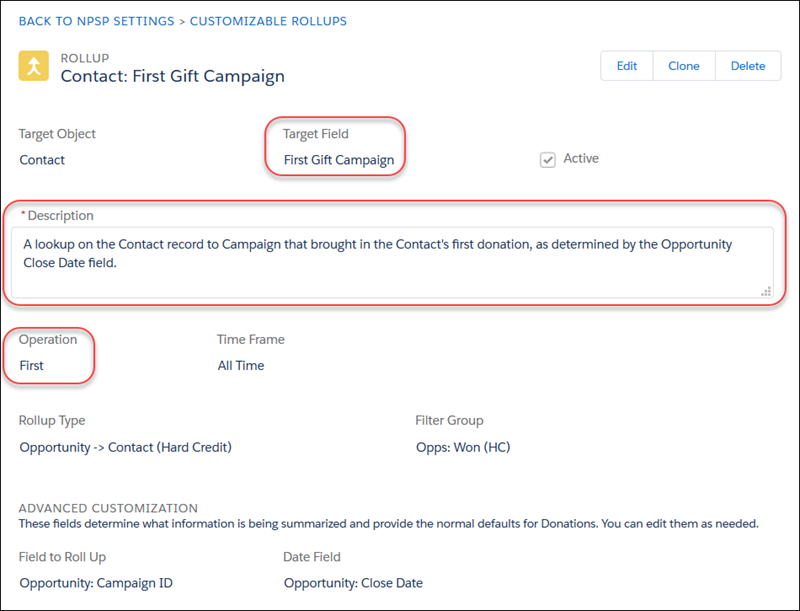
You can easily create another rollup for First Gift Campaign by creating a custom field called First Gift Campaign, cloning the Last Gift Campaign rollup, and changing a few key fields:
- Target Field = First Gift Campaign
- Description = A lookup on the Contact record to Campaign that brought in the Contact's first donation, as determined by the Opportunity Close Date field.
- Operation = First
Recipe: Total Gifts Three Years Ago
NPSP provides out-of-box rollups for total giving this year, last year, and two years ago. But perhaps you want to look back farther, to get a bigger picture of your donors' engagement and donation patterns. You can easily clone existing rollups and update the Years Ago field to see more of a donor's giving history.
- Create a custom field on the Contact object.
- Data Type = Currency
- Field Label = Total Gifts Three Years Ago
- Help Text = Displays the total amount of gifts three calendar years ago for which the Contact was listed as the Opportunity Primary Contact. Populated automatically via a Customizable Rollup.
- Description = Displays the total amount of gifts three calendar years ago for which the Contact was listed as the Opportunity Primary Contact. Populated automatically via a Customizable Rollup.
-
Default = 0
Note We recommend setting the Default Value so that this field isn't blank if a Contact didn't donate three years ago.
- Either clone the Total Gifts Two Years Ago Customizable Rollup or create a new one with these values. If you're cloning, be sure to update the Target Field and Years Ago fields!
- Target Object = Contact
- Target Field = Total Gifts Three Years Ago
- Description = The total of all gifts three calendar years ago where the Contact is the Opportunity Primary Contact
- Operation = Sum
- Time Frame = Years Ago
- Years Ago = 3 Years Ago
- Rollup Type = Opportunity > Contact (Hard Credit)
- Filter Group = Opps: Won (HC)
- Date Field = Opportunity: Close Date
- Amount Field = Opportunity: Amount

As you can see, you can easily create Customizable Rollups for 4, 5, 6, 7, 8, 9, 10 years ago (or whatever year you need to see), simply by creating a new custom field and then cloning an existing rollup and changing a couple of fields.
So, now that you have giving information by year, suppose you want to see the total amount a Contact has given over the past four years (this year + last year + 2 years ago + 3 years ago). You can easily sum up this information using a formula field.
- Create a custom field on the Contact object.
- Data Type = Formula
- Field Label = Total Gifts Last Four Years
- Formula Return Type = Currency
- Formula = npo02__OppAmountThisYear__c + npo02__OppAmountLastYear__c + npo02__OppAmount2YearsAgo__c + Total_Gifts_Three_Years_Ago__c
- Description = Displays the total amount of gifts in the past four years for which the Contact was listed as the Opportunity Primary Contact. Populated automatically using a formula.
- Help Text = Displays the total amount of gifts in the past four years for which the Contact was listed as the Opportunity Primary Contact. This field is populated automatically.
- Be sure to add it to the Contact page layout, then check it out on the Contact record.

Recipe: Identifying Peer-to-Peer Fundraising Influencers
If you plan events that include peer-to-peer fundraising, you want to be able to easily identify constituents who influence others to give. That way you can recognize their contribution by sending a thank you email or posting a note on your event site.
This recipe follows along with Aria Bennett, who is running in the 2018 Race for Literacy. She has been publicizing her participation in the race to raise money, and thus far has received a number of donations from friends and coworkers. In Salesforce, the Event Coordinators use Campaigns to track the event as a whole, as well as each individual fundraiser or team captain. The following setup is required:
- Add a new value, Fundraiser, to the Campaign Type field (on the Campaigns object).
- Add two new Opportunity Contact Roles: Fundraiser, Team Captain.
- Add a custom field on the Contact object.
- Data Type = Currency
- Field label = Total Influenced Gifts
- Description = Displays the total amount of gifts that this Contact has influenced. Includes all Opportunities where the Contact received a soft credit with the role of Fundraiser or Team Captain. Populated automatically via a Customizable Rollup.
- Help Text = Displays the total amount of gifts that this Contact has influenced. Includes all Opportunities where the Contact received a soft credit with the role of Fundraiser or Team Captain. Populated automatically via a Customizable Rollup.
- Create a Campaign for the 2018 Race for Literacy.
- Create a Campaign for Aria Bennett 2018 Race for Literacy. Make the 2018 Race for Literacy its Parent Campaign.
- Create the Opportunities for the people supporting Aria with donations. On each donation, make sure:
- Primary Campaign Source = Aria Bennett 2018 Race for Literacy
- Add Aria Bennett as a Contact Role with the Role = Fundraiser
- Create a Customizable Rollup filter group that only shows Opportunities with the appropriate Contact Roles (Fundraiser, Team Captain).
- Name = Peer to Peer Opps (or whatever you want to call it)
- Add a filter rule that includes the Fundraiser and Team Captain Contact Roles. Note: If you only want to see Won Opportunities, add a second filter rule.
- Object = Contact Soft Credit
- Field = Role Name
- Operator = In List
- Values = Fundraiser, Team Captain
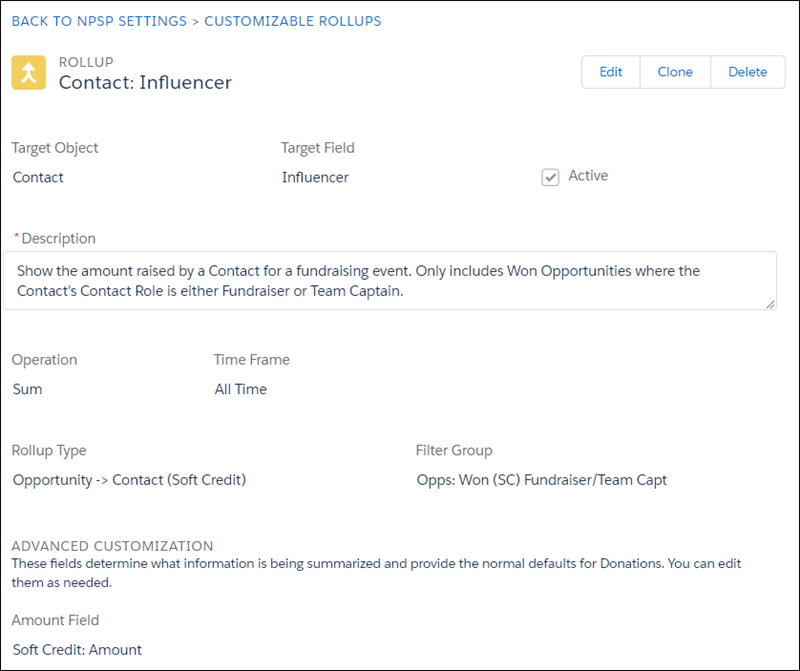
- Create a Customizable Rollup with these values.
- Target Object = Contact
- Target Field = Influencer
- Operation = Sum
- Time Frame = All Time
- Rollup Type = Opportunity → Contact (Soft Credit)
- Filter Group = Peer to Peer Opps (the filter group you created in the previous step)
- Amount field = Soft Credit: Amount
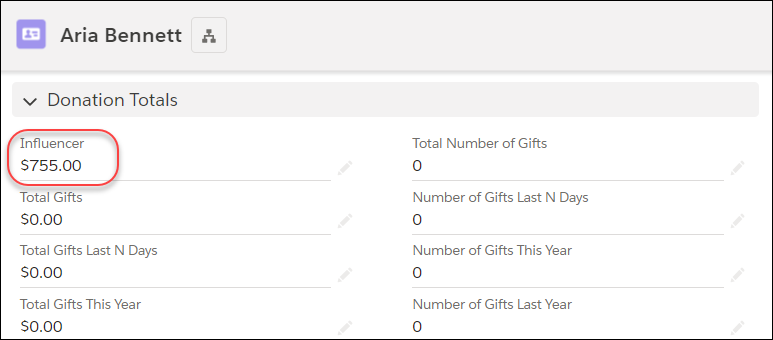
If you look at Aria Bennett's Contact record, you'll see the Influencer field. Reminder: To see the updated field on the record right away, you'll need to manually recalculate rollups.
And you can verify the amount that Aria has influenced by looking at and adding up the Opportunities on her fundraising Campaign.
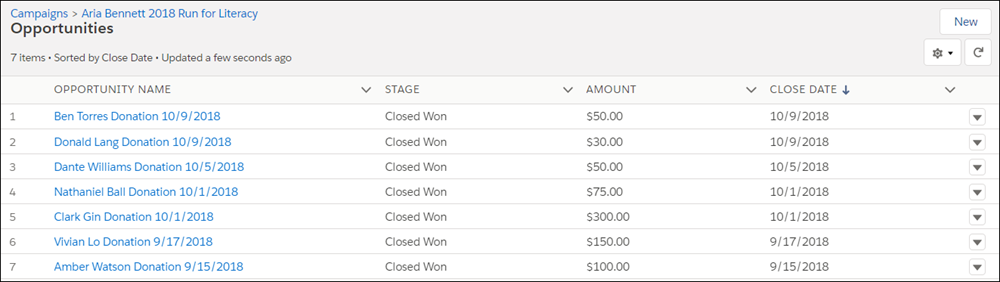
Aria's off to a great start and will definitely make a big impact on the Run for Literacy!
