
You are here:
Swarm in Slack from Slack
Your service team consists of all the people who work to close a customer issue. Start a swarm from a channel in Slack to bring in the right experts and keep record of it in Salesforce.
- From the Service Cloud for Slack app’s About tab, select Start
command for /service-swarm-start. Or invoke a swarm from the
Attachments and shortcuts search, or with a slash command.

- Press the return key to invoke the command.

- Choose how you want to swarm, and then select Next.
Swarm in a New Channel
Create a swarm in a new Slack or Salesforce channel, directly from Slack.
-
Enter the information for your new swarm in the window fields when prompted, and then
click Create.
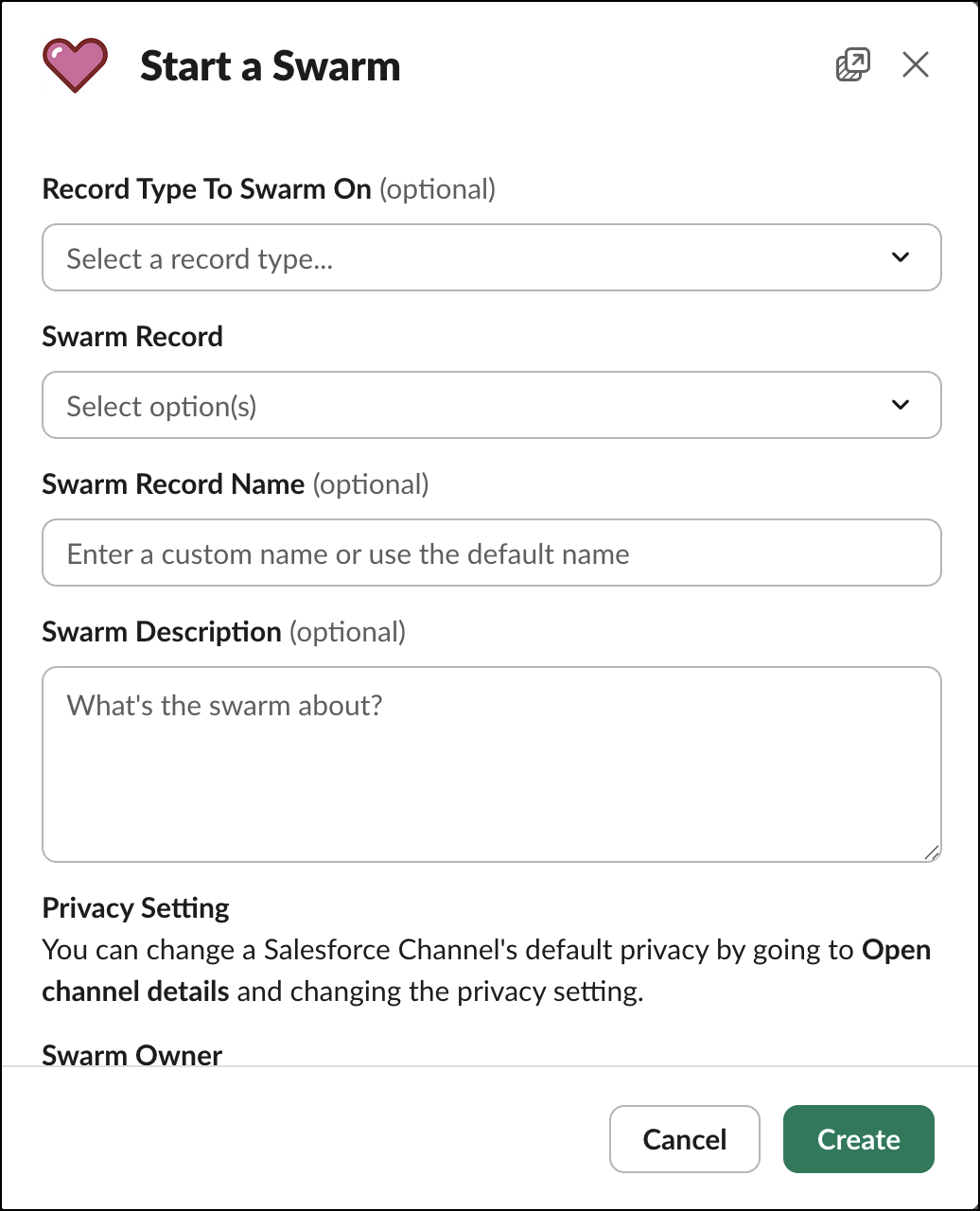
- Go to your new swarm channel to start collaborating with other agents.
-
Select other members to add to the swarm, view the record, or select Finish
Swarming. You can also use the slash command /service-swarm-close to finish
swarming.
 Note Swarm member records are created for users whenever a new member is added to a Slack channel created for swarming.
 -
When you finish swarming, the first post with the record linked in it is marked Closed and is unpinned. Only open swarms are pinned to make them easier to find in channels with
multiple swarms.
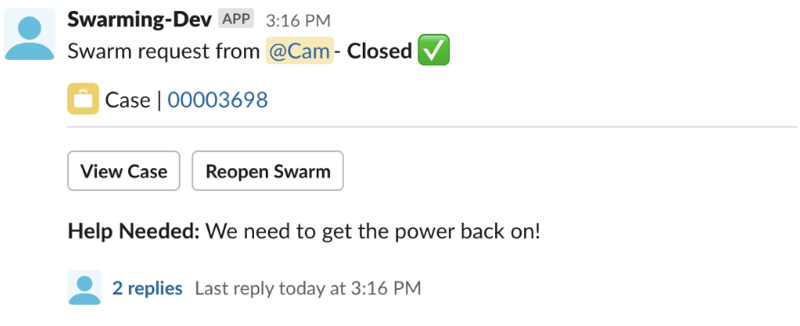
- To revive the swarm, click Reopen Swarm.
Swarm in an Existing Channel
Create a swarm in an existing Slack or Salesforce channel, directly from Slack.
- Enter the information for your new swarm in the window fields when prompted, and then click
Create.
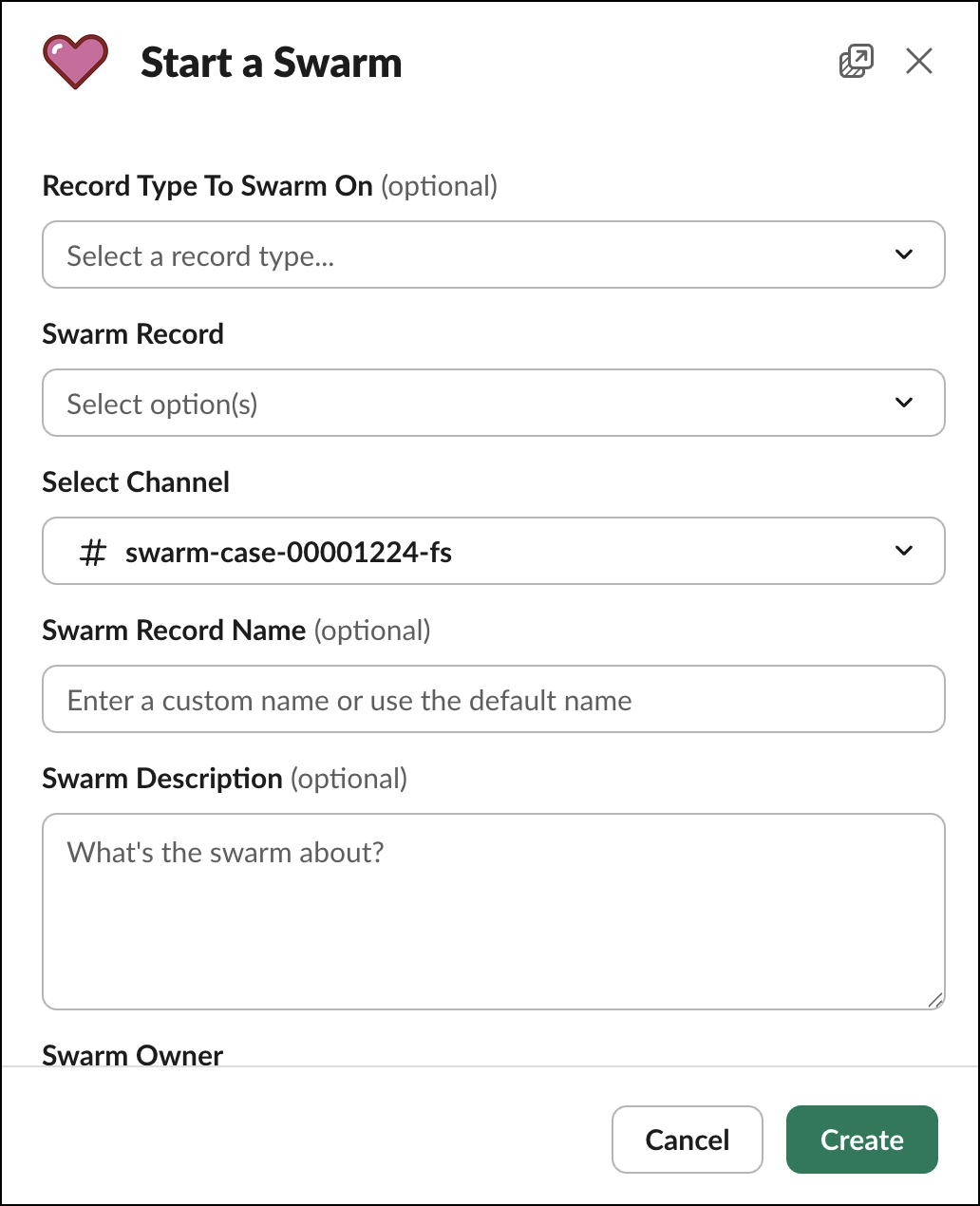
- The Service Cloud for Slack app sends a pinned notification to the channel you select
announcing your new swarm request to the included members. Use the buttons on the request to
quickly view information about the associated record, or to close the swarm when the issue is
resolved.
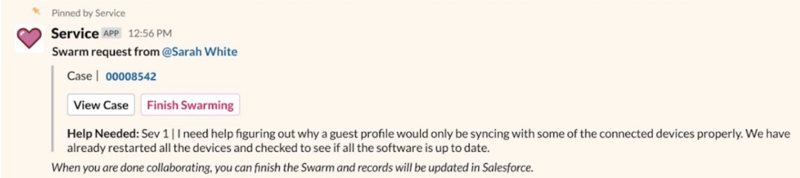
- Select other members to add to the swarm, view the record, or select Finish Swarming.
When you finish swarming, the swarm is marked Closed with the case linked in the first post, which is unpinned. Only open swarms are pinned, to make them easier to find in channels with multiple swarms. Anyone who posted in the thread is listed as a swarm member. You can manually add swarm members and review existing swarm members from the Finish Swarming window.
