
設定從 Salesforce 至 Office 365 的 SSO
讓您的使用者使用單一登入 (SSO),從設定為身分提供者的 Salesforce 組織登入 Office 365。
必要版本
| 提供版本:Lightning Experience 與 Salesforce Classic |
| 提供版本:Enterprise、Performance、Unlimited 及 Developer Edition |
針對 Office 365 將 Salesforce 設定為身分提供者,牽涉到這些高階步驟。
- 在 Salesforce 中,取得 SSL 憑證。
- 在 Office 365 中,設定網域的 Salesforce Identity 資訊。
- 在 Salesforce 中,建立並設定連線的應用程式,以在 Salesforce 中執行 Office 365。
您需要下列內容才能完成這些步驟。
- Office 365 的管理員帳戶
- 適用於 Azure Active Directory 的 Windows PowerShell
另請參照:
下載中繼資料文件
- 進入「設定」,在「快速尋找」方塊中輸入身分,然後選取「身分提供者」。
- 按一下「下載中繼資料」。
在「SAML 中繼資料探索端點」下的相同頁面上,記下 Salesforce Identity,例如 https://MyDomainName.my.salesforce.com/.well-known/samlidp.xml。
設定網域的 Salesforce Identity 資訊
- 啟動 Windows PowerShell 的 Windows Azure Active Directory 模組。
-
執行 $cred=Get-Credential Cmdlet,並提供您「管理員」帳戶的 Windows Azure AD 認證。
PS C:\Windows\system32> $cred=Get-Credential Cmdlet Get-Credential at command pipeline position 1 Supply values for the following parameters: Credential -
執行 Connect-MsolService –Credential $cred Cmdlet。
PS C:\Windows\system32> Connect-MsolService –Credential $cred -
提供所需參數值。
- 您的網域,例如 $dom = salesidentity.info
- Salesforce IdP 的 POST 端點 URL,例如 $url = https://MyDomainName.my.salesforce.com/idp/endpoint/HttpPost
- IdP 發行者,例如 $uri = https://MyDomainName.my.salesforce.com
- IdP 登出 URL,例如 $logouturl = https://MyDomainName.my.salesforce.com
- IdP 憑證,例如 $cert = <您的憑證內容>
 備註 請在不含分行符號的單行中輸入憑證。
PS C:\Windows\system32> $dom = salesidentity.info PS C:\Windows\system32> $url = https://MyDomainName.my.salesforce.com/idp/endpoint/HttpPost PS C:\Windows\system32> $uri = https://MyDomainName.my.salesforce.com PS C:\Windows\system32> $logouturl = https://MyDomainName.my.salesforce.com PS C:\Windows\system32> $cert = <your certificate content> -
執行 Set-MsolDomainAuthentication –DomainName $dom -FederationBrandName $dom -Authentication Federated -PassiveLogOnUri $url -SigningCertificate $cert -IssuerUri $uri -LogOffUri $logouturl -PreferredAuthenticationProtocol SAMLP Cmdlet 以建立信任。
PS C:\Windows\system32> Set-MsolDomainAuthentication –DomainName $dom -FederationBrandName $dom -Authentication Federated -PassiveLogOnUri $url -SigningCertificate $cert -IssuerUri $uri -LogOffUri $logouturl -PreferredAuthenticationProtocol SAMLP -
執行 Get-MsolDomain Cmdlet 以檢查是否啟用「聯合」。
Name Status Authentication ---- ------ -------------- salesforceidentity.info Verified Federated sfidentity.mail.onmicrosoft.com Verified Managed sfidentity.onmicrosoft.com Verified Managed - 執行 Get-MsolDomainFederationSettings Cmdlet 以驗證組態。
在 Salesforce 中建立及設定連線的應用程式
- 進入「設定」,在「快速尋找」方塊中輸入應用程式。如果您使用的是 Lightning Experience,請選取「管理連線的應用程式」。如果您使用的是 Salesforce Classic,請在「管理應用程式」下,選取「連線的應用程式」。
-
在「基本資訊」下:
- 將應用程式命名為 Office 365。
- 輸入您自己的電子郵件地址。
-
在「網頁應用程式設定」下:
-
針對「啟動 URL」,輸入 URL 並包含您網域名稱的 URL。
https://login.microsoftonline.com/PostToIDP.srf?msg=AuthnReq&realm= MyDomainName.my.salesforce.com&wa=wsignin1.0&wtrealm=urn:federation:MicrosoftOnline& wctx=bk%3D1367916313%26LoginOptions%3D3 - 選取「啟用 SAML」。
- 針對「實體識別碼」,輸入 urn:federation:MicrosoftOnline。
- 針對「ACS URL」,輸入 https://login.microsoftonline.com/login.srf。
-
針對「主題類型」,選取「聯合識別碼」或「自訂屬性」。
備註 主題類型隨附 UPN 的 ObjectGUID。
- 針對「名稱識別碼格式」,保留預設選取項 (未指定)。
- 針對「發行者」,保留預設值 (您的子網域)。
- 針對「驗證要求簽章」,保留預設 (未選取)。
- 針對「IdP 提供者憑證」,保留預設 (未選取)。
- 按一下「儲存」。
備註 Salesforce 可能會花上幾分鐘的時間來建立連線的應用程式。 -
針對「啟動 URL」,輸入 URL 並包含您網域名稱的 URL。
-
進入「設定」,在「快速尋找」方塊中輸入應用程式。如果您使用的是 Lightning Experience,請選取「管理連線的應用程式」。如果您使用的是 Salesforce Classic,請在「管理應用程式」下,選取「連線的應用程式」。
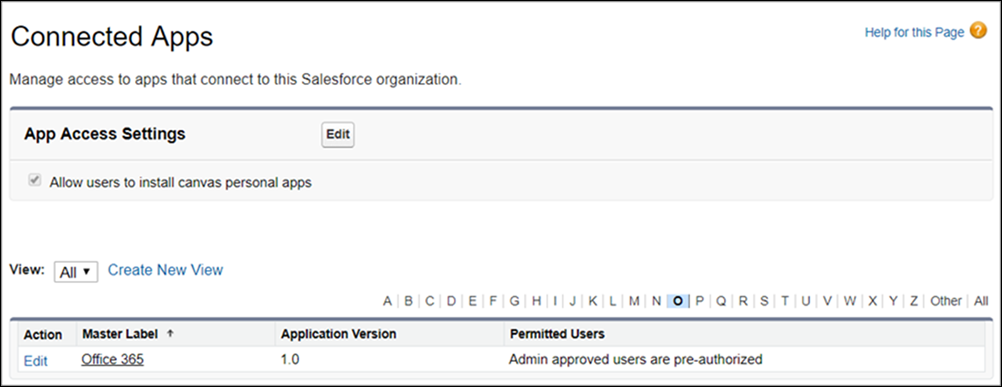
- 選取「Office 365」連線的應用程式。
- 按一下「管理設定檔」或「管理權限集」,然後新增可存取此應用程式之使用者的設定檔與權限集。
-
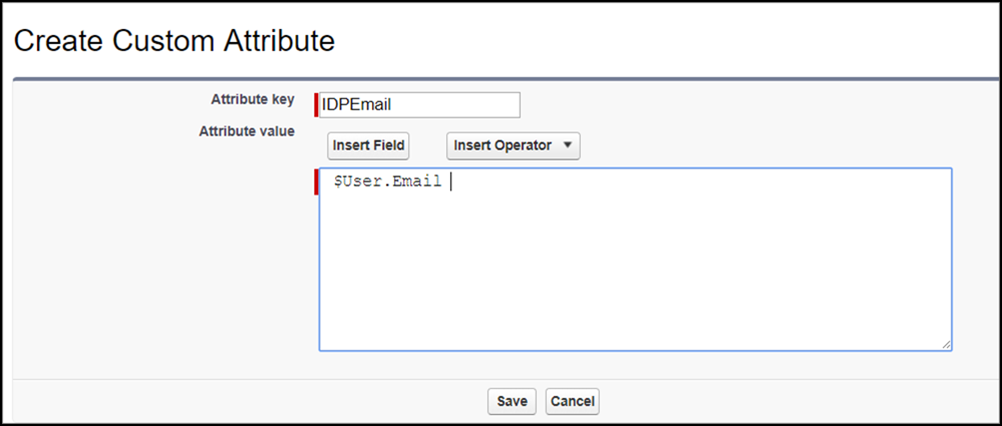
在「自訂屬性」下,按一下「新增」。
- 針對屬性金鑰輸入 IDPEmail,並針對屬性值輸入 $User.Email。
- 按一下「儲存」。
- 若要測試存取,請以使用者的身分執行連線的應用程式。
此文章是否解決您的問題?
請讓我們知道,以便我們改進!
