
You are here:
Action Block (Managed Package)
For the managed package runtime, run multiple Omniscript Actions asynchronously by grouping them in an Action Block. Actions within the Action Block run in parallel and inherit the Action Block's settings.
 This information is for Omnistudio for Managed Packages. For Omnistudio on standard runtime, see Omnistudio Help.
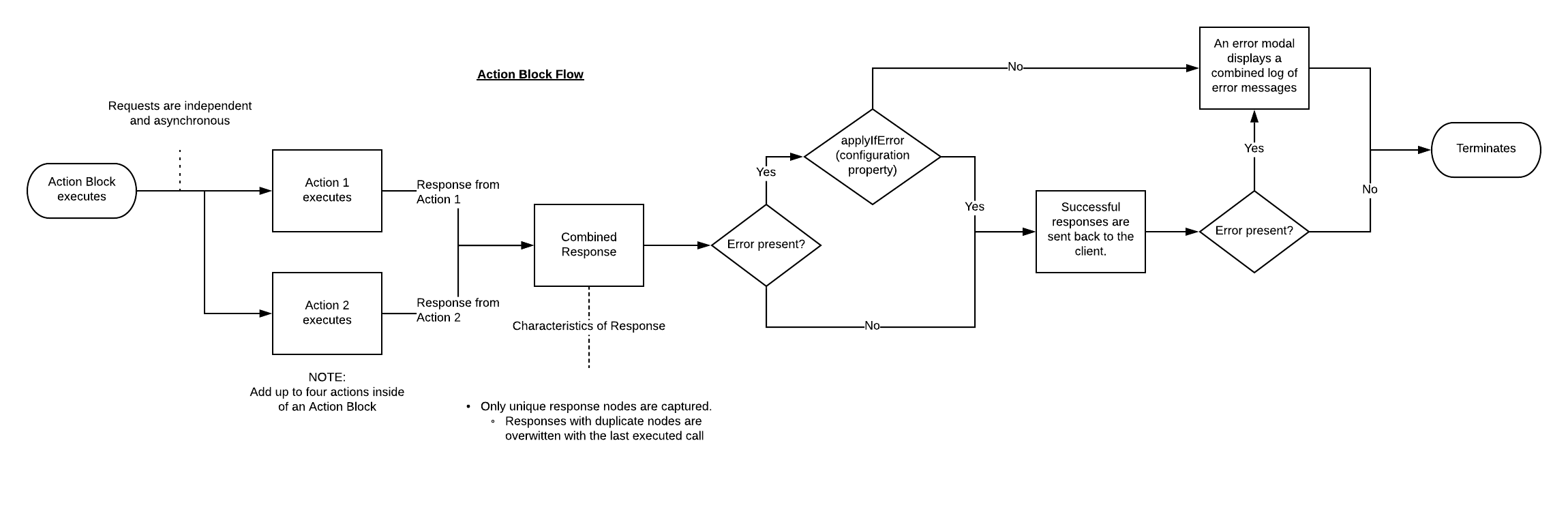
View the Action Block flow chart to understand how actions in the Action Block execute.
Action Block flow chart:
- Drag the Action Block from the element palette into the designer. Place the Action Block inside of a Step, before the first Step, or between Steps.
- Drag up to four Actions into the Action Block.
-
Select an Invoke Mode to control how actions inside the
Action Block run.
Property
Description
Default
The Action blocks the UI with a loading spinner.
Non-Blocking
The Action runs asynchronously, and the response applies to the UI. Pre and Post Omnistudio Data Mapper transforms, and large attachments are not supported.
Fire and Forget
The Action runs asynchronously with no callback to the UI. Pre and Post Data Mapper transforms, and large attachments are not supported. A response still appears in the debug console but does not apply to the Data JSON.
-
(Optional) When Invoke Mode is set to non-blocking, elements using default values
will not receive the response because the element loads before the response returns.
You must configure these properties to map the response to an element:
-
Response JSON Node: VlocityNoRootNode
-
Response JSON Path: The name of the Omniscript Element receiving the value.
-
- (Optional) Check Apply if error to enable actions that run successfully to apply their responses to the Omniscript's data JSON even when other actions in the Action Block fail. When Apply if error is unchecked, successful actions do not apply their responses to the data JSON when another action in the block fails.
- (Optional) When the Action Block is inside of a Step, set Validation Required to Step to prevent the Action Block from running when errors exist in the Step.
- Preview the Omniscript to test the Action Block behavior.
- Action Block Properties (Managed Package)
For the managed package runtime, this page contains information on Action Block properties.
