You are here:
Add Custom Labels to Supported Fields on a Flexcard (Managed Package)
For the managed package runtime, add custom labels to supported Flexcard element fields with the {Label} merge field. Custom labels are custom text values that can be accessed from Apex classes, Visualforce pages, or Lightning components. Add custom labels if your Flexcard supports multiple languages. The values can be translated into any language Salesforce supports.
 This information is for Omnistudio for Managed Packages. For Omnistudio on standard runtime, see Omnistudio Help.
Before You Begin
Confirm available custom labels in your org at Setup > Custom Labels. See Custom Labels.
Enable multi-language support. See Enable Multi-Language Support on a Flexcard (Managed Package).
You can use HTML markup to format a custom label's Value or
Translation Text. For example, to begin on a new line, use
<br/>.
- From the Flexcards tab, click a version of a Flexcard to open the Flexcard Designer.
-
Select a supported element. Flexcards support the
{Label}merge field on the following elements:Element
Supported Fields
Field
Label, Placeholder
Text
Inside the Rich Text Editor
Action
Label
-
From the Properties panel, enter
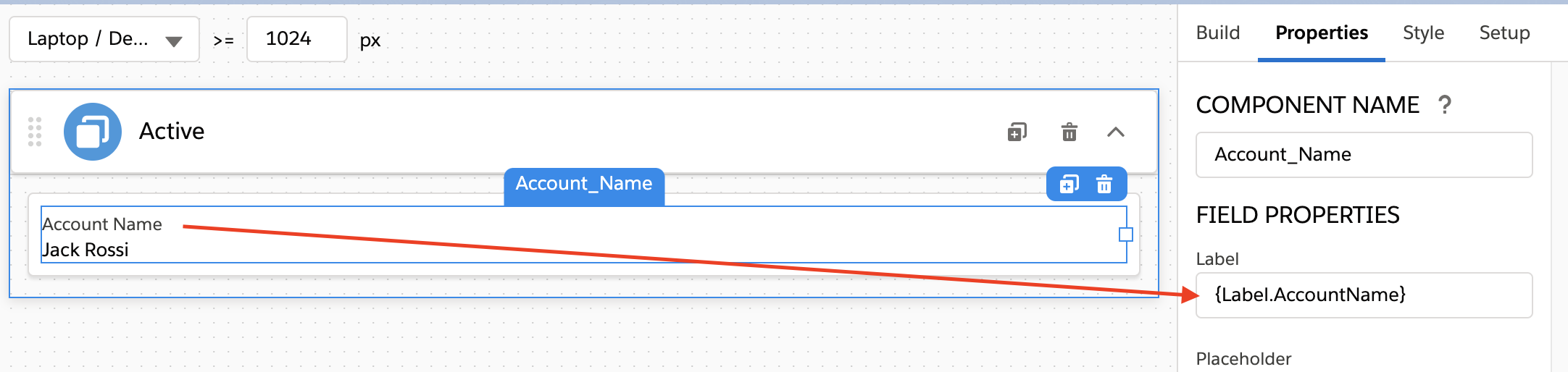
{Label.customLabelName}in a supported field. For example, to display the AccountName custom label as the Label for a Field element that displays the name of an Account, enter {Label.AccountName}.