You are here:
Create a Lightning App Page with a Tracking Manager (Managed Package)
For the managed package runtime, the Vlocity Tracking Manager is a Lightning Web Component that must be included in any Lightning page that includes components tracked with OmniAnalytics. It listens for user interaction events and sends data for those events to VlocityTrackingEntry__c objects, VlocityTrackingEvent__e Platform Events, or both.
 This information is for Omnistudio for Managed Packages. For Omnistudio on standard runtime, see Omnistudio Help.
If the Vlocity Tracking Group to which the components belong is configured to communicate with an external tag manager, the Vlocity Tracking Manager sends event data to that tag manager.

To be tracked, an Omniscript must be in the same page context as a Vlocity Tracking Manager component. An Omniscript called from a Flexcard cannot be tracked if the current page is replaced or destroyed.
If you are following the workflow example, in this task you add the example Omniscript and Flexcard to a Lightning App Page.
- In Setup, in the Quick Find box, type lightning app, then click Lightning App Builder.
- Click New.
- Select App Page, then click Next.
- In the Label field, type Analytics Test Page, then click Next.
- Click One Region, then click Finish. The new page opens in Lightning App Builder.
- Drag the Documentation/OmniAnalytics/English custom component onto the page canvas.
- Drag the DocumentationTestCard custom component onto the page canvas below the first component.
- Drag the Vlocity Tracking Manager custom component onto the page canvas below the others. This component has no UI.
- Click Save, then Activate.
- (Optional) Click Lightning Experience, select an existing app, then click Add page to app.
- Click Save, then click Back to exit Lightning App Builder.
- Click the App Launcher and go to the Analytics Test Page.
-
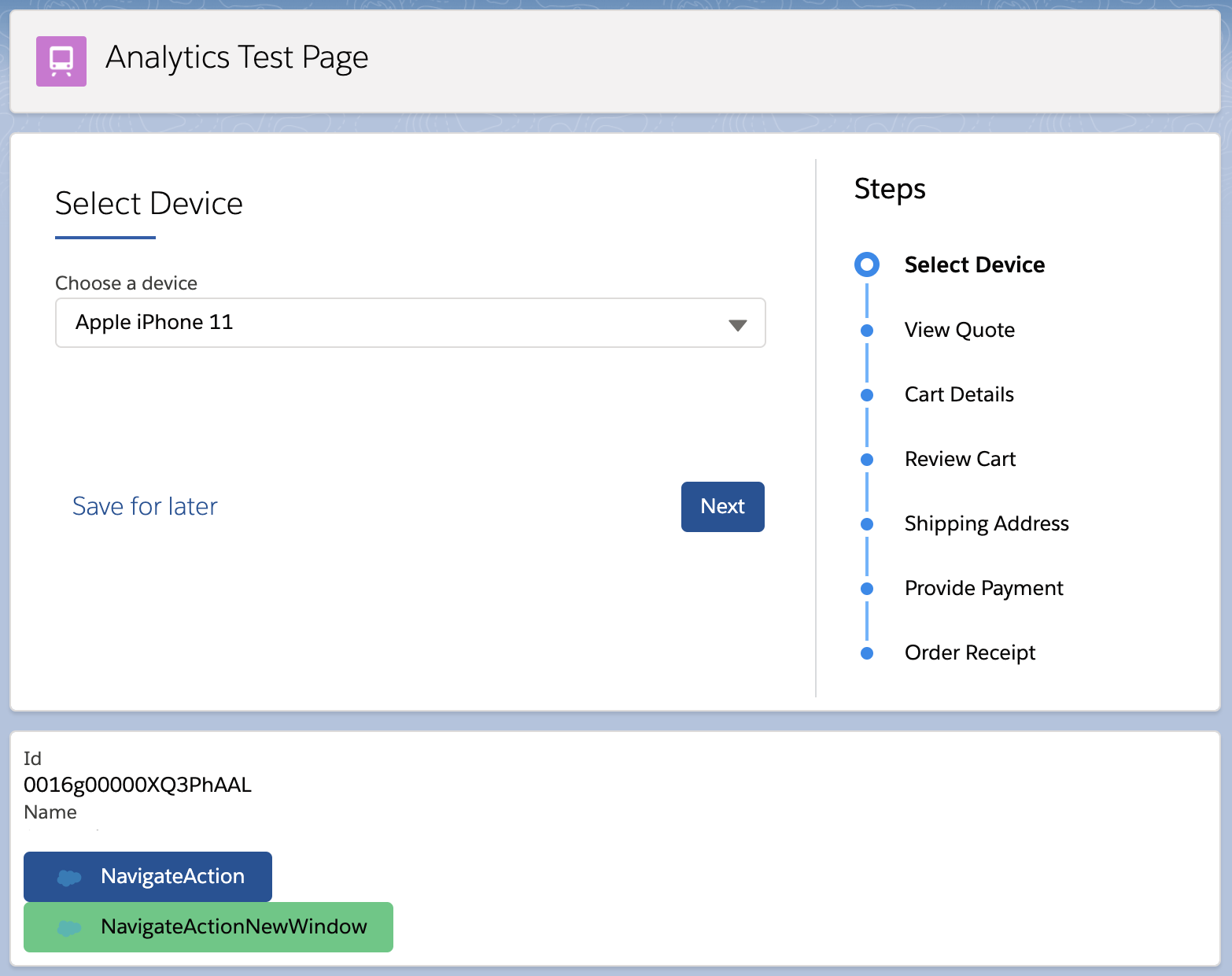
Verify that the Analytics Test Page looks like this:
What’s next: After you have created the Lightning App Page, the next task is to Interact with the Example Omniscript and Card (Managed Package) to generate tracking data.
