
You are here:
Lookup Element (Managed Package)
For the managed package runtime, run a query using text input to retrieve Salesforce data using the Lookup element. The retrieved data is returned in Value/Label pairs and becomes available for selection in a dropdown list.
 This information is for Omnistudio for Managed Packages. For Omnistudio on standard runtime, see Omnistudio Help.
The Lookup element calls the Omnistudio Data Mapper Extract service to query sObject tables based on the parameters configured in the Properties section. To avoid performance issues, keeping the number of value results under 150 is recommended. To use a custom Apex class to perform the lookup, select the Custom type. Lookup elements display values from Salesforce based on a standard SOQL query built using the parameters of the Lookup elements.
SObject Type
To query for SObject data:
- Set the Data Source Type to SObject.
-
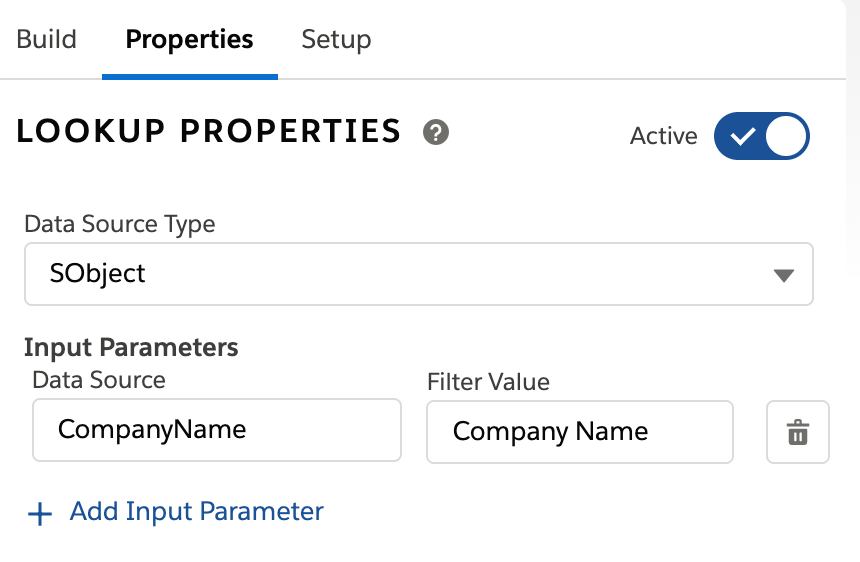
Under Input Parameters, configure these fields:
- Data Source: Select an Element Name from the dropdown to send that element's JSON value in the lookup request. For example, suppose the Data Source is a Text input element named CompanyName that asks the user for the name of an Account.
- Filter Value: Enter a name for the JSON value to use in the lookup query. You can use any value as long as it matches a Filter Value in a Lookup Query Configuration.
-
Configure the Lookup Query Configuration:
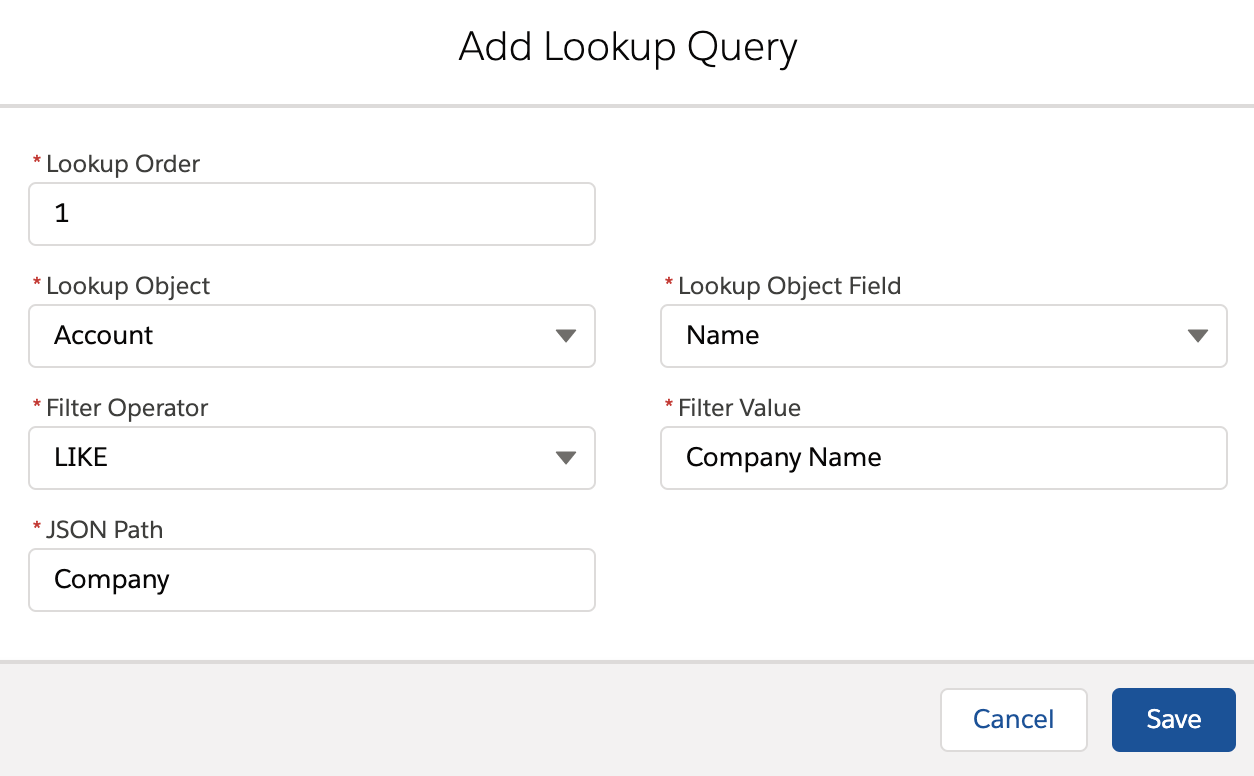
- Click + Add New Lookup Query Configuration.
- (Optional) In Lookup Priority, enter a number to set priority for the Lookup order if there are multiple queries.
- In Lookup Object, select an SObject.
- In Lookup Object Field, select an SObject field to run the query on.
- Click Filter Operator to select an operator. For example, to return an exact match, use the = operator, or to select matches similar to the filter value, select the LIKE operator.
- In Filter Value, enter the name of a Filter Value used in the Input Paramters section. In the previous example, this value is Company Name.
- Set the return path for the filtered values by adding the Element Name of the Lookup element into the JSON path.
-
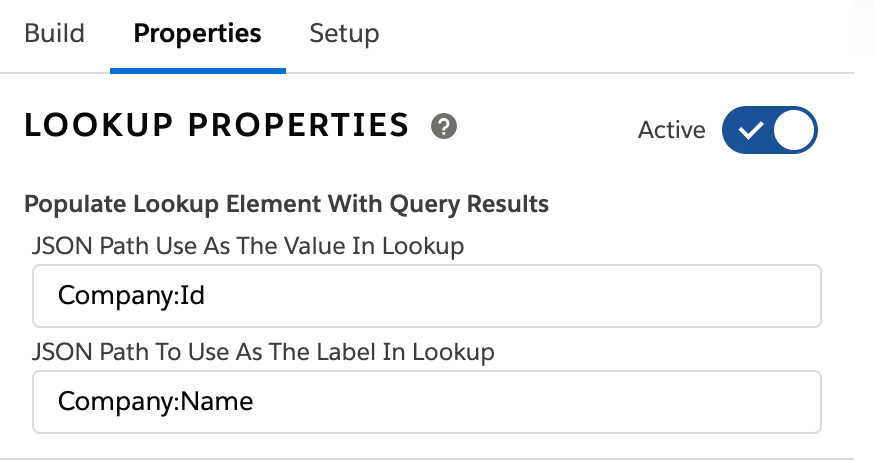
In the Populate Lookup Element with Query Results section, set a label and a
value for the Lookup results by configuring these fields:
- Label: Set the label for a Lookup Element's dropdown list to a JSON Value returned by the query. Because the query returns the values in the Lookup Element's JSON Path, you must set the full path. For example, to display an Account Name as a label in a Lookup Element named Company, the full path is Company:Name.
- Value: Set the Value to an Object field that populates the Lookup Element's JSON Node using the full path. When a user selects a label, the value populates the Lookup element's JSON Node. For example, to use an Account Id for a JSON value when a user selects an Account Name from the Lookup element, the full path is Company:Id.
- Preview the Omniscript to ensure the query is working and the value is being set correctly.
Picklist Filter by Record Type
Enable the filtering of picklist options by record type.
You can look up picklist fields and record types for an object in Setup in the Object Manager.
Before using the Record Type filter, set up a Remote Site to enable the options to load into the Omniscript preview Visualforce page.
- Navigate to the Omniscript Designer home page.
-
Copy the text in the URL bar from
httpstocom, for examplehttps://doc-demo-vlocity.visualforce.com. - From Setup, enter Remote Site into the quick find box, and click Remote Site Settings.
- Click New Remote Site.
- For the Remote Site Name, enter vlocity.
- For the Remote Site URL, paste the URL from Step 2.
- Click Save.
-
To filter options:
- In the Picklist Object and Field property, enter the picklist in the following format: ObjectAPIName.FieldAPIName.
- Filter the picklist by Record Type by entering the Record Type into the Record Type property. This property supports %MergeFields%.
