
Loading
Salesforce Data Pipelines
Table des matières
Sélectionner des filtres

          Aucun résultat
          Aucun résultat
          Voici quelques conseils de recherche

          Vérifiez l'orthographe de vos mots-clés.
          Utilisez des termes de recherche plus généraux.
          Sélectionnez moins de filtres pour élargir votre recherche.

          Recherchez dans toute l’aide de Salesforce
          Edit Attributes Transformation: Change the Column Names and Value Formats

          Edit Attributes Transformation: Change the Column Names and Value Formats

          In Salesforce Data Pipelines, to make column names more descriptive and apply consistent formats to column values, use the Edit Attributes transformation in a Data Prep recipe. You can set the labels and API names of all columns. You can also set the precision and scale for number columns, character length for text columns, and date formats for date columns.

          Required Editions

          Edit Attributes Transformation: Change the Column Names and Value Formats

          User Permissions Needed
          To create a recipe: Edit CRM Analytics Dataflows OR Edit Dataset Recipes
          1. In a Transform node of a Data Prep recipe, select the column in the Preview tab.
          2. In the Transform toolbar, click the Edit Attributes button (Edit Attributes button).

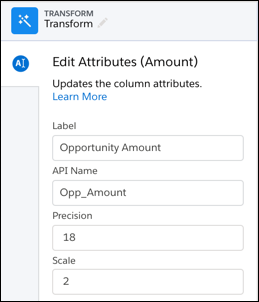
            The Edit Attributes panel shows the column label, API name, precision, and scale for the Amount column.

          3. Change the column attributes.

            Based on the column datatype, you can set these attributes.

            AttributeDescription
            Label

            The display label for the column, the one that appears in charts and dashboards. Column labels can each be up to 255 characters.

            API Name

            The API name of the column. The column API name can each be up to 255 characters. The API name must also be unique within the recipe.

            Precision

            The maximum number of digits in a numeric (measure) column. Includes all numbers to the left and to the right of the decimal point (but excludes the decimal point character). Enter an integer from 1 through 18, inclusive. If a numeric value exceeds the specified precision, the value is set to 0 or null, depending on whether null measure handling is enabled. For example, if precision is set to 5 and null measure handling is enabled, the numeric value 123456.78 is replaced with null.

            Scale

            The number of digits to the right of the decimal point in a numeric column. Enter an integer from 0 through 17, inclusive. The scale must be less than the precision. For example, if the numeric value is 123456.789 and you set the scale to 2, the number appears as 123456.78.

            Length

            The maximum number of characters in a text (dimension) column. Enter an integer from 1 through 32000, inclusive. The default length is 255 characters.

            Date Format

            The date format of a date column.

            For more guidelines, see the “Field Name Restrictions” section in this help topic.

          4. Click Apply to add the transformation to the Transform node.

            If applicable, Preview shows the new column label.

          5. To view the Graph area, click the Collapse button (Collapse button).
          6. Save the recipe.
           
          Chargement
          Salesforce Help | Article