You are here:
Create or Modify a Remediation Step for a Security Investigation Remediation Plan
Security Center's Security Investigations feature includes several pre-defined remediation plans and remediation steps. Remediation steps tell a remediation plan what actions need to be followed to remediate security detections. A step can have multiple versions, but only one version can be active at a time. An active step can be used in multiple remediation plans.
| Available in: Lightning Experience |
| Available in: Enterprise and Unlimited Editions with the Security Center add-on license. |
| Available for free in: Developer Edition |
| User Permissions Needed | |
|---|---|
| To view Security Center pages: | View Security Center Pages |
| To create and edit security investigation remediation plan steps and versions: | Manage Security Center |
You can create a step or modify an existing step and save it as a new version and add it to a remediation plan. Steps can also be rearranged within a plan.
- From the App Launcher, find and select Security Center.
- Click the Configuration tab and then click Security Investigations in the left panel.
- Click Remediation Steps.
-
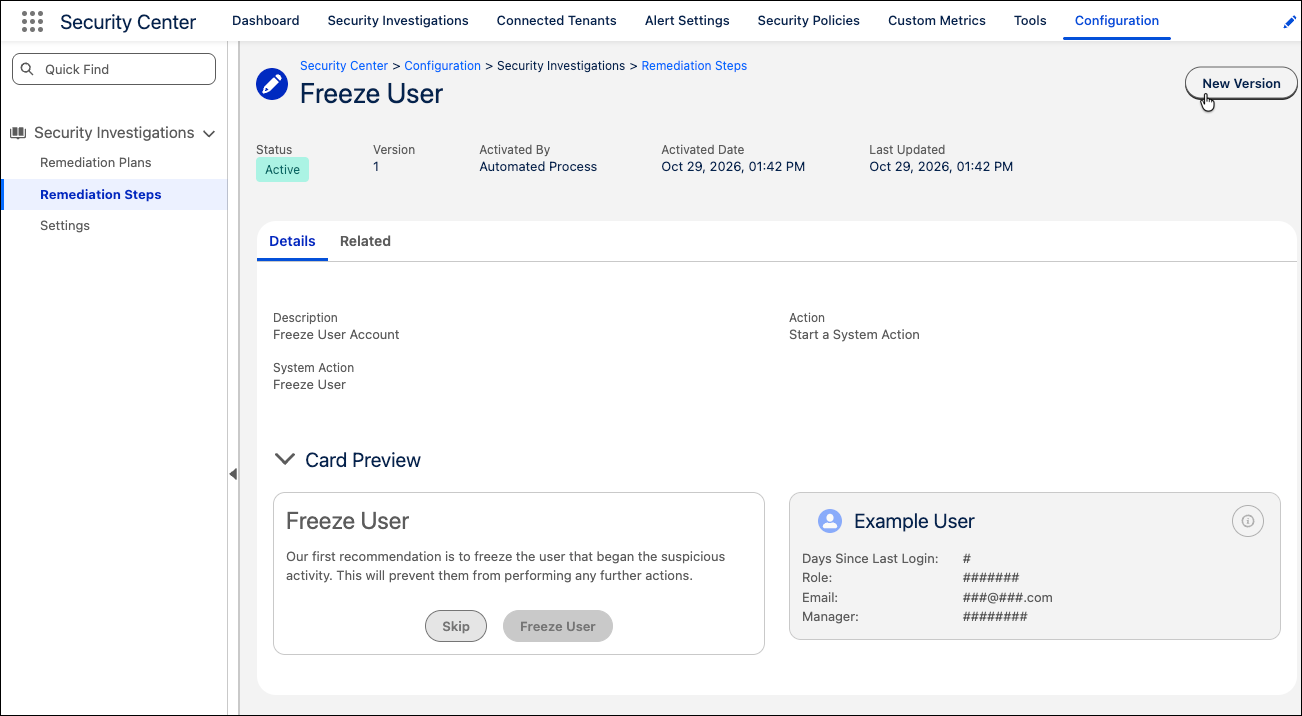
To create a new step, click New Step, give your step a name
related to its purpose, and then define the remaining fields. To create a new version of a
step, click the name of the step and click New Version.
-
Select the action the step should take during the security investigation.
- An external action is performed by a user, such as a security admin. For example, validating a login anomaly detection or notifying stakeholders when the investigation reaches the Remediated stage.
- A standard action is initiated by a user and performed by the system. For example, freezing a user during a session hijacking investigation.
- A flow can be selected for the step and started later by a security admin directly from the security investigation.
- When you're satisfied with the new step or version, save it and activate it. Add the step to any remediation plan that needs to include it. Any plan that already uses the step is updated to use the active version.
Did this article solve your issue?
Let us know so we can improve!
