You are here:
Configure and Activate the Consumption Threshold Alerts Flow
Quickly configure consumption thresholds alerts using the provided Consumption Threshold Alerts template. Alerts trigger only for consumption cards with active entitlements.
Before you begin:
- Confirm the Default Workflow User isn't set to the Integration User. Be sure to select an active user who has a verified email address. See Salesforce Help: Identify Your Salesforce Org’s Default Workflow User for details.
- Be sure to activate the flow in only a production org with Digital Wallet. You can't activate or run the flow in a sandbox because Digital Wallet invocable actions aren't supported in sandbox environments.
The template is pre-configured to send notifications to users who are assigned the System Administrator profile. It also comes with a set of recommended threshold values that trigger the alerts. However, you have options to modify the behavior of the consumption alerts flow. See “Understand the Flow Logic” in Manage Consumption Threshold Alerts and Notifications for more information about the flow’s default behaviors.
- To change the recipients, see Change Who Gets Consumption Threshold Alerts.
- To change thresholds for all cards, see Change a Percentage Threshold for all Cards.
- To change thresholds for one specific card, see Change a Consumption Threshold for a Specific Card.
- To add Slack notifications, see Configure Slack Notifications about Consumption Thresholds.
You can make some minor modification to the flow in the default template. If the default behavior works for you, no further configuration is necessary, and you can just save and activate the flow.
- In Setup, find and select Flows.
- Click New Flow, then find and select Consumption Threshold Alerts template.
-
(Optional) Change the schedule when the flow runs.
If you leave the default schedule, the flows runs at the next available scheduled interval.
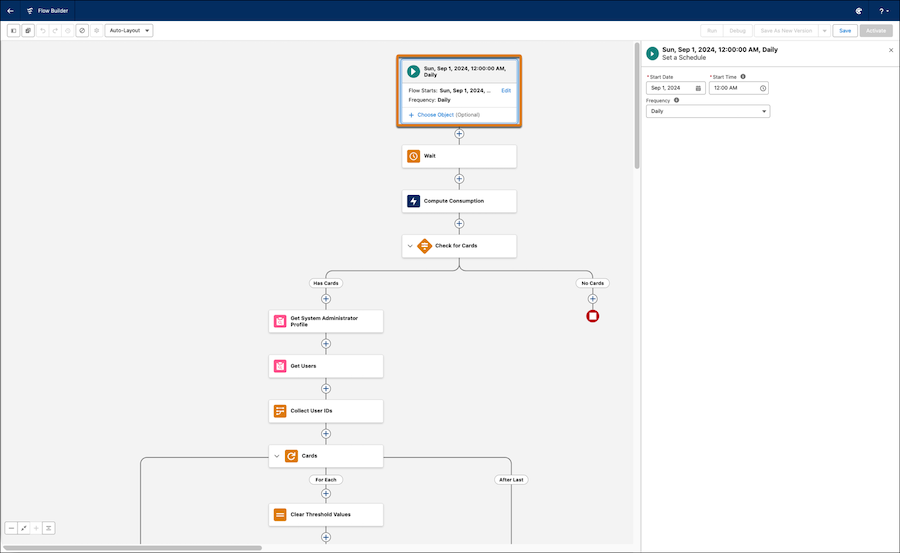 If the default behavior works for you, save and activate the flow. Skip to step 6.
-
(Optional) Change the profile in which to send notifications.
By default, the Consumption Threshold Alerts flow sends notifications to users who are assigned the out-of-the-box System Administrator profile.
- Select the Get System Administrator Profile element.
- Delete the System Administrator value, then enter the name of the profile to use.
In this example, users who are assigned the Financial Operations profile receive notifications when thresholds are crossed.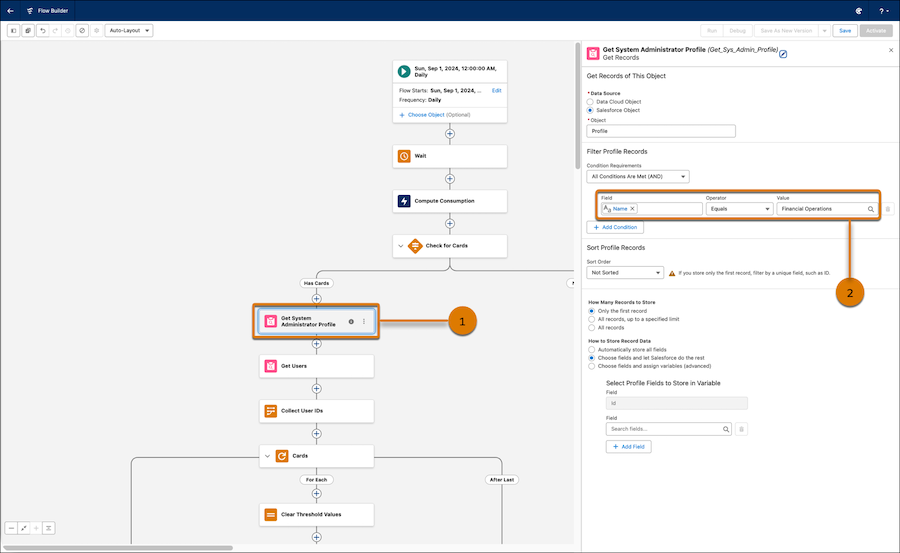
-
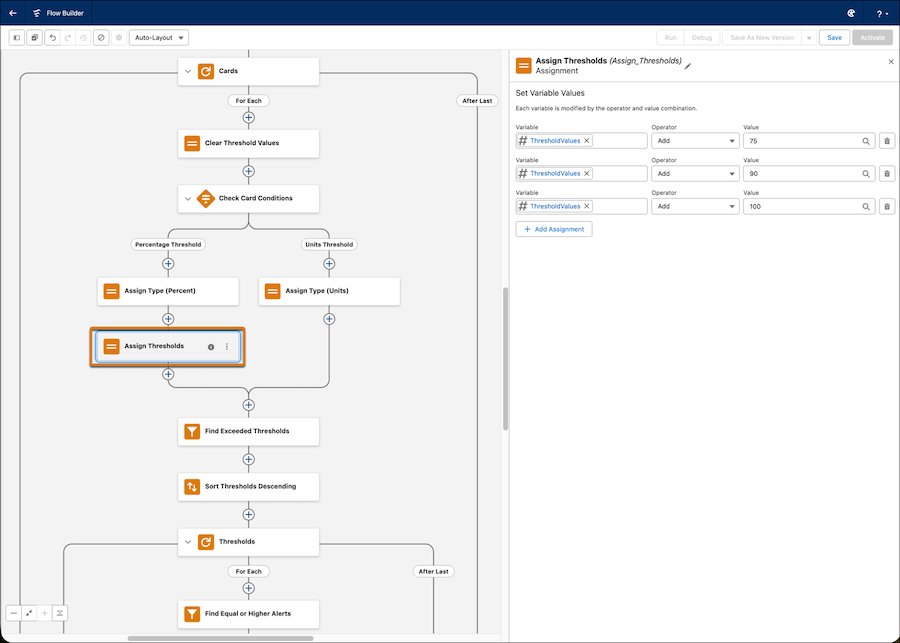
(Optional) Modify the thresholds that trigger alerts.
The template indicates to trigger an alert whenever usage crosses 50%, 70%, 80%, 85%, 90%, 95%, or 100% of a consumption card’s purchased entitlement. Delete or add thresholds as desired.In this example, alerts are triggered when the usage for all consumption cards crosses 75%, 90%, and 100%.
- Click Save, then Activate.
