You are here:
Reinstall the Consumption Tagging App If the Installation Fails
If the app installation fails, you see a red error toast on the Setup page. You must delete the failed installation of the Consumption Tagging app before you attempt to install it again.
-
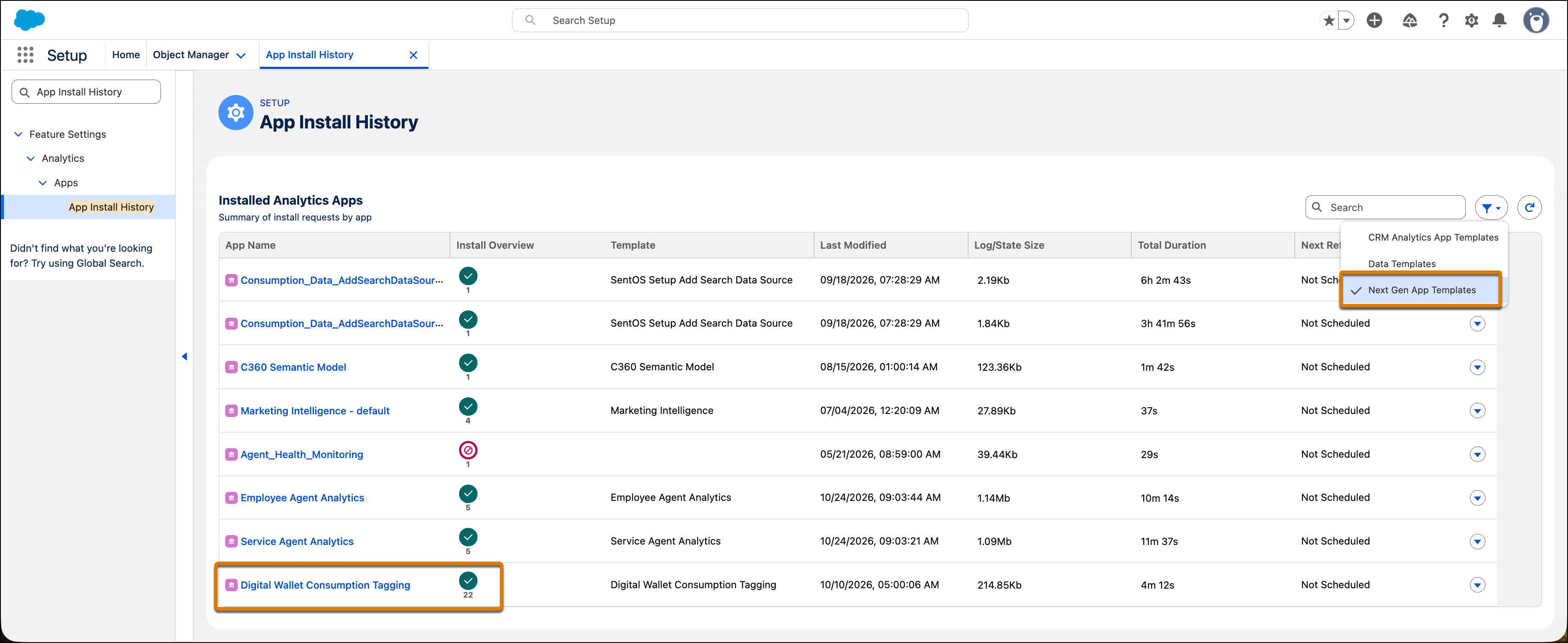
In Setup, go to the App Install History.
If you don’t see the Digital Wallet Consumption Tagging app, use the filter to select Next Gen App Templates.
-
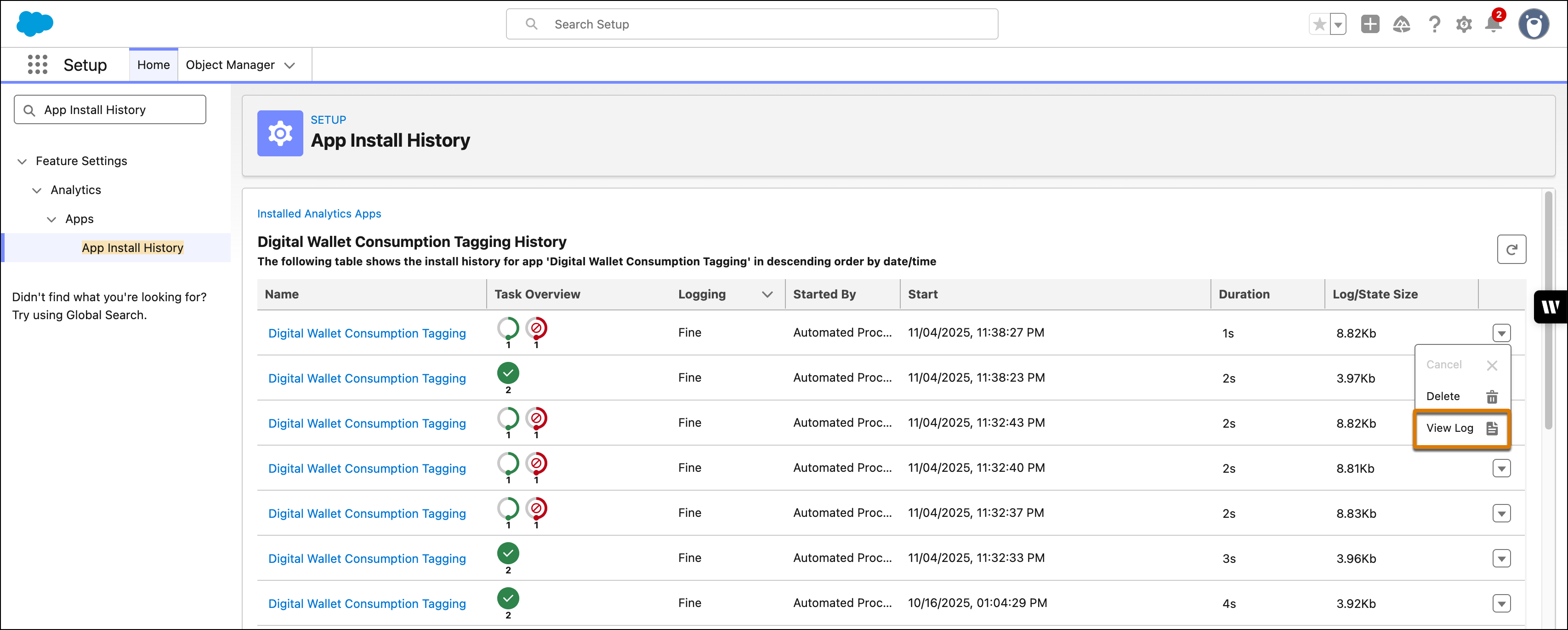
From the row-level actions menu, view the log to understand the reasons for the
failure, then resolve any issues.
-
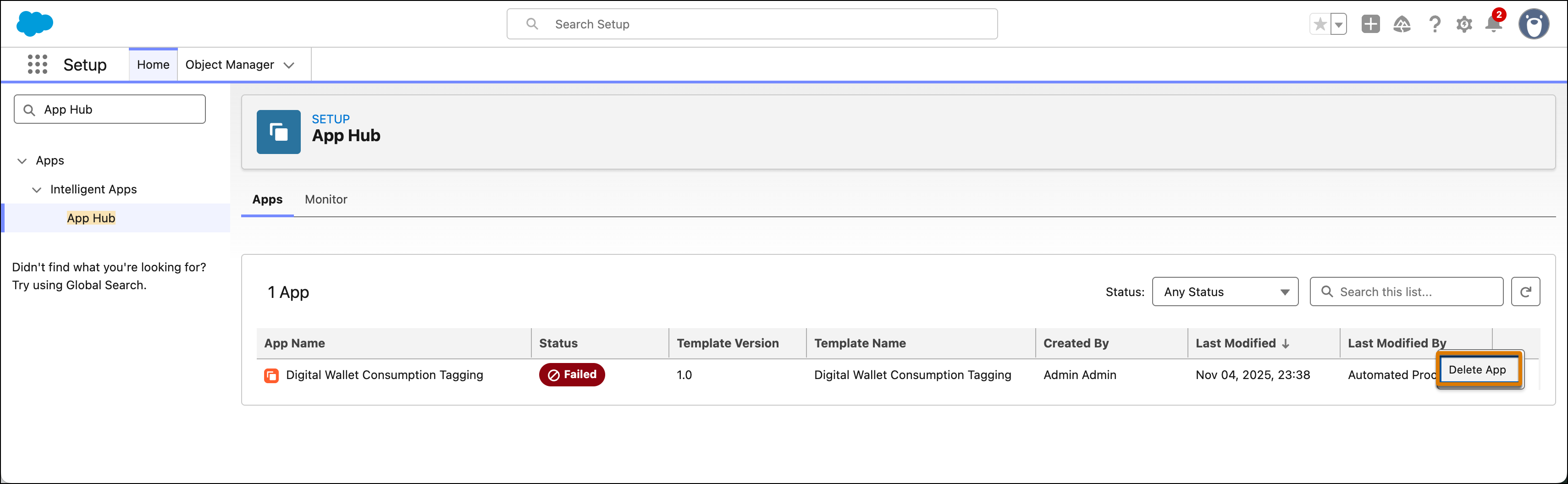
In Setup, go to App Hub to delete the failed installation of the Consumption Tagging
app.
From the row action menu, select Delete App.
- From Digital Wallet setup, click Install to restart the installation process.
After the app is successfully installed, you’re all set to view the Custom Analytics dashboard. From the App Launcher, find and select Digital Wallet, then select Consumption Analytics.
Did this article solve your issue?
Let us know so we can improve!
