You are here:
Remind About Expiring Points Widget Template
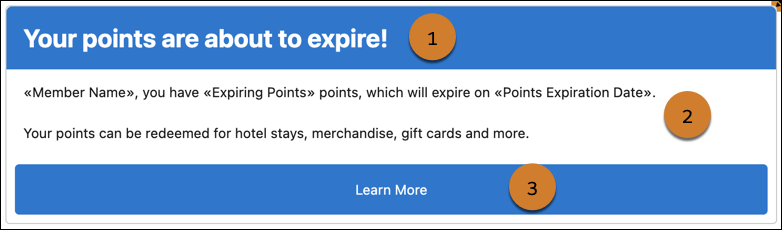
The Remind About Expiring Points widget template lets members view the number of points about to expire and the date that the points are set to expire on. The widget shows members the points set to expire for their non-qualifying currency. If a loyalty program has two non-qualifying currencies, then the expiring points of the primary currency are shown.
Required Editions
| Available in: Lightning Experience in Enterprise, Performance, Unlimited, and Developer Editions with Loyalty Management |
The Remind About Expiring Points widget template displays points about to expire for fixed-model non-qualifying points. The widget gets information about the points that are set to expire from the Loyalty Aggregated Point Expiration Ledger object. If you want to use the Remind About Expiring Points widget template, you turn on the setting to consolidate member points for expiration. Also, ensure that you use the Aggregate Fixed Non-Qualifying Points in Expiration Ledgers and the Expire Fixed Non-Qualifying Points Using Aggregated Expiration Ledgers Data Processing Engine definitions to consolidate and expire fixed-value non-qualifying points.
Widget Content
The Remind About Expiring Points widget has the default state and the error state. You can customize both states.
| State | Section | What You Can Customize |
|---|---|---|
| Default | Background | Consists of the widget’s background. You can add a color or image for the background and change the background’s height and padding. |
| Header (1) | Consists of a banner and a message. You can change the banner, the message text, and the padding. | |
| Body (2) | Consists of a message that shows the number of points set to expire and the date that the points expire on, by using merge fields. You can remove the merge fields and change the text of the message. | |
| Footer (3) | Consists of a button that the members can use to get additional details of their expiring points and points balance. You can customize the label of the button. | |
| Error | Background | Consists of the widget’s background. You can add a color or image for the background and change the background’s height and padding. |
| Message | Consists of the message that is shown to the members when the widget can’t show any data to the members. You can change the text in the message. |
In Loyalty Widget Designer, you can also decide the members who can view the widget. You can show the widget to:
- All members
- Members who belong to the tiers that you specify
- Members whose points balance for the currency that you specify isn’t less than the value that you specify
Example for Customizing the Widget in Widget Designer
The loyalty program manager of an airline wants to update the text of the widget to make it specific to the airline industry.
The program manager switches to the default state of the widget and selects the Body section. In the widget properties, the manager expands Message Text and changes the header from ‘Your points are about to expire!’ to ‘Your miles are about to expire!’ Next, the program manager selects the widget body and expands Message Text. The program manager changes the text to: Redeem ‘{memberPointsExpirationDetails.pointsBalance} miles before {memberPointsExpirationDetails.pointsExpirationDate}. Use your miles to buy tickets, access our lounges, upgrade your tickets, or buy our exclusive merchandise.’ Finally, the program manager changes the label of the button in the footer from ‘Learn More’ to ‘Fly with Us.’
Example for Customizing the Widget in FlexCard Designer
The loyalty program manager of a company wants to replace the word ‘points’ with ‘coins’.
The program manager expands the default state of the widget and selects the header components. On the Properties tab, the program manager changes the header text to ‘Your coins are going to expire.’ Then, the program manager selects the default state message and changes all instances of ‘points’ to ‘coins’ on the Properties tab.
Preview the Widget
After customizing the widget, the program manager previews the widget. In preview, here are the values that the program manager provides, to view how members view their expiring points.
- Program Name—Enters the name of the loyalty program that the widget is previewed for.
- Membership Number—Enters the membership number of the member that the widget is previewed for.
- Explore Further Url—Enters the URL of the company website where members can purchase tickets.
- Threshold Days—Enters 30 to see the points that expire for the member in the next 30 days. To see the member’s points that expire in the next five days, enter 5.
