
You are here:
Use Case Feed in Salesforce Classic
Case Feed streamlines the way you create, manage, and view cases. It includes case actions like creating case notes, logging calls, changing the case status, and communicating with customers in a Chatter feed. Case Feed displays important case events in chronological order, so it's easy to see the progress of each case.
Required Editions
| View supported editions. |
Sales reps assigned to a Case Feed page layout see a page that looks similar to the page shown in the screenshot. Administrators can customize case page layouts, so your org’s page layout can look different.
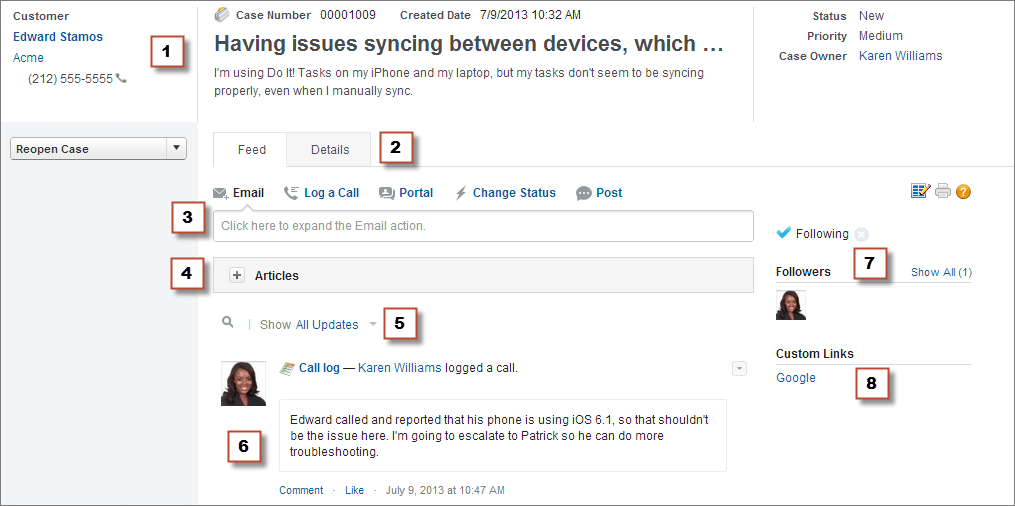
- Highlights Panel (1)—Provides an overview of the most important information about a case, such as the contact information, case name, case description, status, priority, and case owner. Support reps can use the column dividers to resize sections of the highlights panel so they can see more of the info that’s most relevant.
- Feed and Detail Views (2)—From the feed view, which includes the publisher and feed, support reps can easily switch to the case detail view to see more in-depth information and work with related lists.
- Publisher (3)—Contains the actions support reps use to work with cases, such as the Email, Case Note, and Change Status actions.
- Articles Tool (4)—Lets support reps find Knowledge articles that can help them resolve cases, and then attach them to a case or email them to customers.
- Feed Filters (5)—Help support reps quickly find specific information in the feed by limiting the feed items that appear.
- Feed (6)—Offers a chronological view of the case’s history. Feed items are
created for:
- Case record creation
- Incoming and outgoing email related to the case
- Comments related to the case on a customer portal or Chatter Answers
- Calls logged about the case
- Changes to the case status
- Comments made on the case
- Links or files added to the case
- Milestone activity related to the case
- Case actions that result from workflow events
- New tasks and events related to the cases
- Follow Button and Followers List (7)—Let support reps follow the case so they’re notified in Chatter of updates to it, and let them see other followers.
- Custom Buttons and Links (8)—Give support reps access to more tools and functionality.
Administrators can customize most aspects of Case Feed, including:
- Fields in the highlight panel
- Actions that appear and the fields they include
- Feed filters that are available and where on the page the list appears
- Width of the feed
- Availability of tools, custom buttons, and custom links, and where they appear on the page
Here’s some more information about using the case feed.
- Use Actions to Work with Cases in Case Feed
Case Feed actions make it easy for support reps to do tasks like send email, post to portals and Experience Cloud sites, log calls, change case status, and write case notes, all on the same page. - Use Feed Filters in Case Feed
Feed filters make it easy for support reps to see all updates of one type, such as all call logs or all email messages, when working with cases in Case Feed. By using filters, support reps can find the information they need more quickly, without having to browse through each case event. - Case Feed and Related Lists
In the traditional case interface, support reps complete tasks such as logging calls and sending emails primarily by working with related lists. In Case Feed, support reps can do several of these tasks directly in the feed. - Find, Attach, and Email Articles with the Case Feed Articles Tool
Knowledge articles can help you solve cases more quickly by providing in-depth troubleshooting steps and other detailed information. Use the articles tool in Case Feed to search for articles relevant to the case you're working with, attach articles to the case, and email them to customers. - View and Edit Cases from the Case Detail Page in Case Feed
Use the Case Detail page to see and update detailed information about a case and work with related lists. - Post on Cases and Experience Cloud Site Questions with the Experience Action in the Case Feed
The Experience action in the case feed is your default option for responding to customers on cases that originated from an Experience Cloud site or customer portal. - Printable View in Case Feed
Use the printable view option to view and print a comprehensive list of the information related to a case.
Did this article solve your issue?
Let us know so we can improve!
