You are here:
Log Inspector
The Log Inspector is a context-sensitive execution viewer in the Developer Console. It shows the source of an operation, what triggered the operation, and what occurred next. Use this tool to inspect debug logs that include database events, Apex processing, workflow, and validation logic.
The panels displayed in the Log Inspector depend on the selected perspective. To switch perspectives, select . For details on default and custom perspectives, see Managing Perspectives in the Log Inspector.
Some features in the Log Inspector, such as filtering and searching, are available only after a debug log has finished loading and processing. To access a log that is still processing, select .
Log Panels
The Log Inspector can contain the following panels:
To design a custom perspective from the available panels, select , or press Ctrl+P .
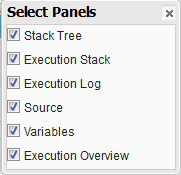
If you design a custom perspective you want to use again, select and give it a memorable name. After a custom perspective is saved, you can select it any time you use the Log Inspector by selecting .
Most panels refresh automatically when you click an item in a related panel. For example, if you click a folder in the Stack Tree panel, the Execution Stack, Execution Log, and Source panels are updated to display information about the related object. Similarly, if you click a line in the Execution Log, the Stack Tree, Execution Stack, and Source panels are all updated with details on that line. Clicking an item in the Executed Units tab in the Execution Overview updates the Execution Log, Stack Tree, Execution Stack, and Source panels.
Stack Tree
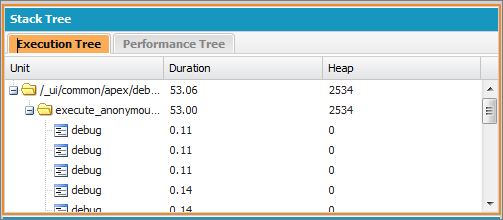
The Stack Tree panel displays two tree views that show information “top down”—from initiating calls to the next level down—so that you can see the hierarchy of items in a process. For example, if a class calls a second class, the second class displays as a child node of the first class.
The Execution Tree shows each operation. For example, if a for loop calls System.debug() eight times, the Execution Tree shows the duration of
each call.
The Performance Tree aggregates operations to give you a better look at the
performance of an operation as a whole. Using the previous example, the Performance
Tree lists the total duration of every call to debug.
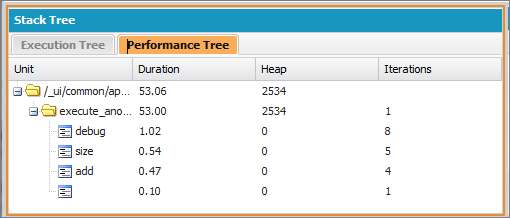
This log was generated from the Execute Anonymous window. Calls to debug and other methods from other locations in
your code are aggregated in the executed unit.
Each section in the Stack Tree panel includes this information:
| Column | Description |
|---|---|
| Scope | Delimited region within the process, such as workflow, a class, or DML. |
| Unit | Name of the item (region). |
| Duration | Amount of time (in milliseconds) the item took to run. |
| Heap | Amount of heap (in bytes) the item used. |
| Iterations | Number of times the item was called. |
Execution Stack
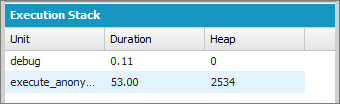
The Execution Stack panel displays a “bottom-up” view of the currently selected item in the debug log, starting with the lowest level call, followed by the operation that triggered that call, and so on.
Execution Log
The Execution Log panel contains the debug log for the current process. The debug log contains every action that occurred in the process, such as method calls, workflow rules, and DML operations. To view long lines that are truncated in the view, hover over the line to display a popup.
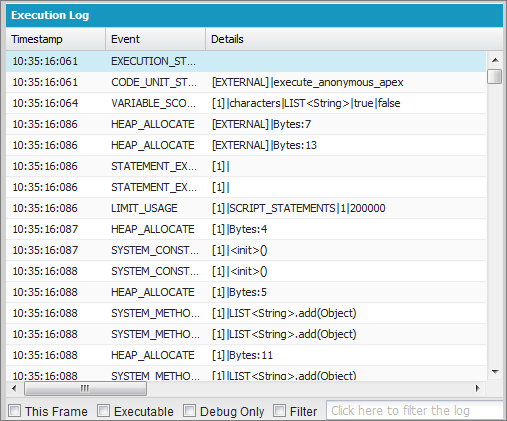
Use the Execution Log to retrace steps through a process. You can step through lines on your own or filter the log to lines of specific interest:
- This Frame—Displays only this region of the
process, or only the items that are associated with the level. For example, if
you select a trigger that calls a class, only the trigger operations are
displayed. If you click
CODE_UNIT_STARTEDand select This Frame, only the items in the process that occur betweenCODE_UNIT_STARTEDand its associatedCODE_UNIT_ENDEDare displayed. - Executable—Displays only the executable items in
the debug log. The cumulative limits information is hidden, such as the number
of SOQL queries made and the number of DML rows.
 Tip Always keep Executable selected. Only deselect it when you are working on optimizing your process and need specific limits information.
 - Debug Only—Displays only the debug statements that you have added to the code.
- Filter—Displays items that match what you enter in the associated field. For example, if you select Filter and enter DML, only the lines in the execution log with the string “DML” in either the event or details are displayed. The filter is case-sensitive.
The Execution Log panel contains this information:
| Column | Description |
|---|---|
| Timestamp | System time when the process began, shown in the local user’s time. The format is: HH:MM:SS:MSS. |
| Event | The Debug event. |
| Details | Details pertaining to the event, such as line number and parameters. |
Source
The Source panel contains the executed source code or the metadata definitions of entities used during the process, and lists how many times a line of code was executed. The content displayed in the panel depends on what's selected elsewhere in the view.
To go to a specific line of code, enter a line number in the entry box at the bottom of the source panel, and click Jump.
Click Open to open executed source code in Source Code Editor view.

ValidationRule and
Workflow in the
Lightning Platform Metadata API Developers Guide.Variables
Use the Variables panel to discover when a variable is assigned a value and what that
value is. Click a Variable event to populate
the section.
Another way to view the contents of variables is to use checkpoints, which give you more details about entities held in memory at a point of execution. For details, see Set Checkpoints in Apex Code.
Execution Overview: Save Order, Limits, Timeline, and Executed Units
The Execution Overview panel at the bottom of the Log Inspector contains four tabs:
- The Save Order tab displays a color-coded timeline of DML actions. For each DML
action taken, save order elements are shown as boxcars in the timeline.
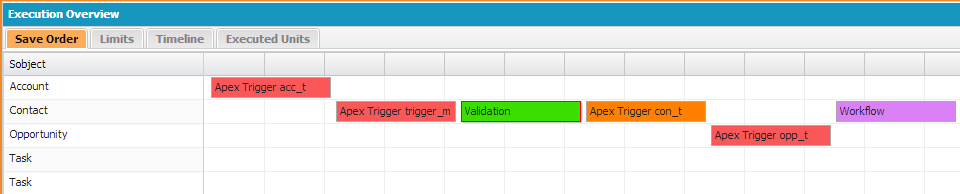
The following colors are used to differentiate between elements:
Color Type Red Before trigger Orange After trigger Green Validation rule Blue Assignment rule Purple Workflow rule For details on a specific element, click the associated boxcar in the timeline. The popup window displays additional information, including a link to navigate directly to the relevant place in the log.
To view the IDs of affected records, click the name of the sObject in the left pane.
- The Limits tab displays overall system limits by name and amount used and
contains this information:
Column Description Limit Name of the limit. Used so far Amount of the limit used by this process at this point of execution. Request Total Amount of this limit used by the request at completion. Total Available Total amount for the limit. - The Timeline tab provides a visual representation of the time taken by each
process. Select the Scale option that results in the most
useful view.
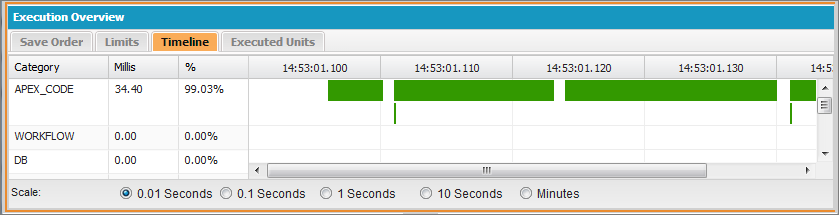
The Timeline tab contains this information:
Column Description Category Type of process. Millis Milliseconds of time taken by the process. % Percent the process took of the entire request. - The Executed Units tab displays the system resources used by each item in the
process.
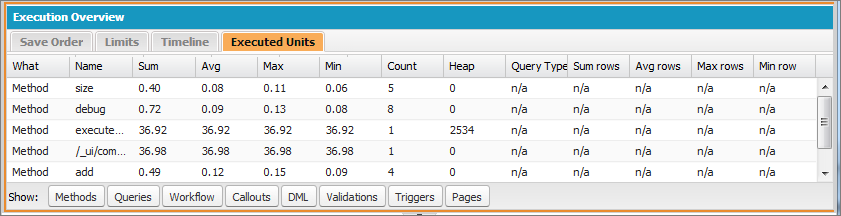
The buttons at the bottom of the tab can be used to filter out information by item type. For example, if you don’t want to view details for methods, click Methods. Click the button a second time to clear the filter.
The Executed Units tab contains the following information:
Column Description What Type of process item. Types include:
- Method
- Queries
- Workflow
- Callouts
- DML
- Validations
- Triggers
- Pages
Name Name of the process item. Sum Total duration for the item. Avg Average duration for the item. Max Maximum duration for the item. Min Minimum duration for the item. Count Number of times the item was called during the process. Heap Amount of space the item took on the heap. Query Type Type of query. Possible values are:
- SOQL
- SOSL
Sum rows Total number of records changed for the item. Avg rows Average number of records changed for the item. Max rows Maximum number of records changed for the item. Min row Minimum number of records changed for the item. To sort information by a specific column, click the column header.

- Examples of Using the Log Inspector
Here are some of the ways you can use the Log Inspector to diagnose and solve problems.
