You are here:
Search for Files Connect External Files
Search an external data source, like Google Drive, Box, or SharePoint, right within Salesforce.
Required Editions
| Available in: both Salesforce Classic and Lightning Experience |
| Files Connect for cloud-based external data sources is available in: Professional, Enterprise, Performance, Unlimited, and Developer Editions |
| User Permissions Needed | |
|---|---|
| To access cloud-based data sources like SharePoint Online: | Files Connect Cloud |
Search in a Specific External Data Source
In Salesforce Classic:
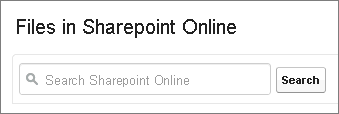
- From the left column of Files home or your Chatter feed, click the data source name.
- In the search box, enter terms such as document title or author. (The specific information that you can search for depends on the configuration of the external data source.)

Note You can also search external data sources from the file selector when attaching a file
to a Chatter post. In Salesforce Classic, click File above the
feed, and then select a file from Salesforce. In Lightning Experience, click the paperclip
icon below the post to open the Select File window.
Search Globally for Salesforce and External Data
If your administrator enables global search for an external data source, you can search its contents along with your Salesforce data.
In Salesforce Classic:
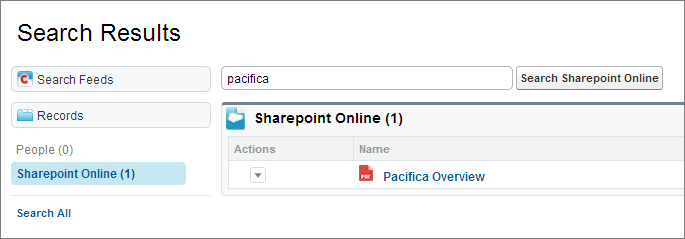
- In the global search box at the top of the Salesforce window, enter your search terms.
- To filter the results down to a specific external data source, click its name in the left column (for example, “SharePoint Online”).

Tip If you often want to see content
from a specific external data source, pin it to the top of global search results. To pin it,
in the left column, hover over the data source name, and click the pin icon. (If you don’t
see the data source listed, click Search All.)
In Lightning Experience:
- From Files home, enter a search term into the global search box in the header.
- Optionally, filter your search results to return only Files.
- Select in Files after entering your search in the global search box.
- Do a global search and then select Files from the global search results.
- Select Files from the global search Suggested For You menu, and then enter your search term.
Did this article solve your issue?
Let us know so we can improve!
