Create Compact Layouts
Use compact layouts to customize the fields that display for object records when viewed in the Salesforce mobile app and Lightning Experience.
Required Editions
| Available in: both Salesforce Classic and Lightning Experience |
| Available in: All editions except Database.com |
| User Permissions Needed | |
|---|---|
| To customize compact layouts: | Customize Application |
| To view compact layouts: | View Setup and Configuration |
- From the management settings for the object that you want to edit, go to Compact Layouts.
- Create a new compact layout and give it a label.
- Add up to 10 fields.
-
Sort the fields by selecting them and clicking Up or
Down.
The order you assign to the fields determines the order in which they display.
- Save the layout.
- To set the compact layout as the primary compact layout for the object, click Compact Layout Assignment.


Example

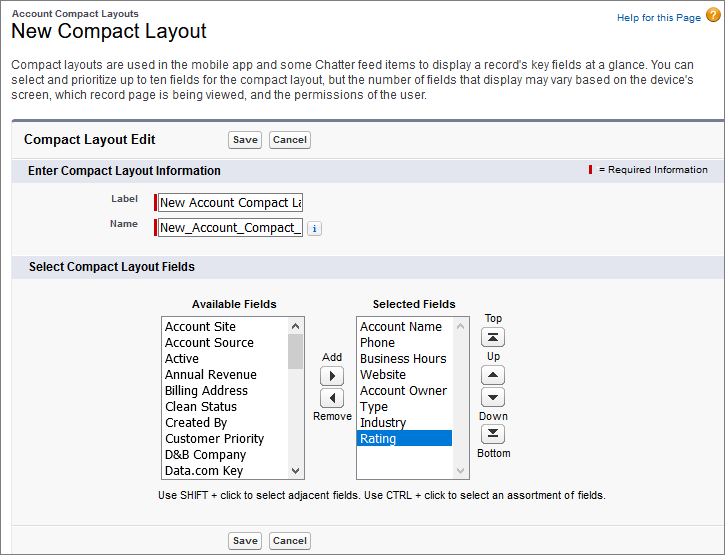
Here’s a sample compact layout edit page for the Account object. It shows the name of the layout and a list of fields to display.
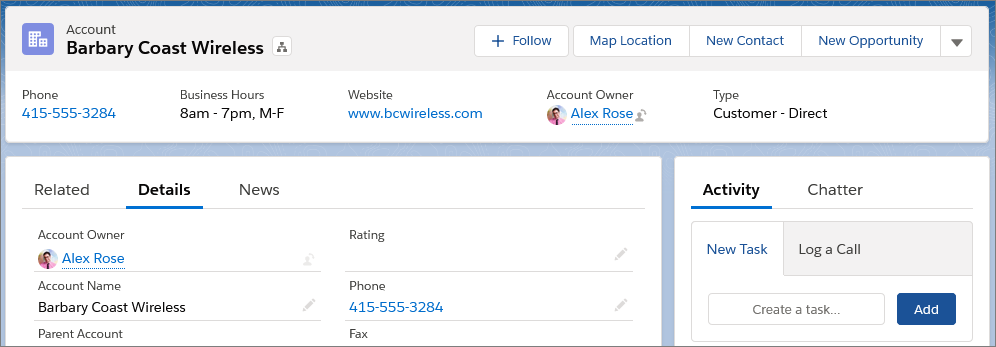
Here’s the related page for the same account object in Lightning Experience, displaying six of the eight fields assigned to the compact layout. You can see the account’s name, phone number, business hours, website, owner, and type at the top of the page.
And here’s what that same account record looks like in the mobile app.
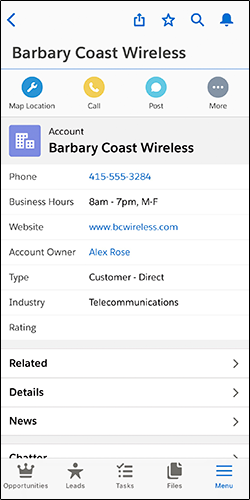
Note Up to ten fields on your compact layout populate the record highlights section at
the top of each record view in the Salesforce mobile app. The record highlights
section in Lightning Experience uses the first seven fields on the compact layout.
However, the number of fields that display can vary based on the width of your
screen, which record page is being viewed, and the permissions of the user.
Did this article solve your issue?
Let us know so we can improve!
