The Enhanced Page Layout Editor
The enhanced page layout editor is a tool for customizing your page layouts in Salesforce, the Self-Service Portal, and the Salesforce Customer Portal. The enhanced page layout editor has all the functionality of the original page layout editor, but has more features and an easier-to-use interface.
Required Editions
| Available in: both Salesforce Classic and Lightning Experience |
| Available in: All Editions |
The enhanced page layout editor has two parts: a palette on the upper portion of the screen and the page layout on the lower portion of the screen. The palette contains the user interface elements that you can add to your page layout, such as fields, actions, buttons, links, and related lists.
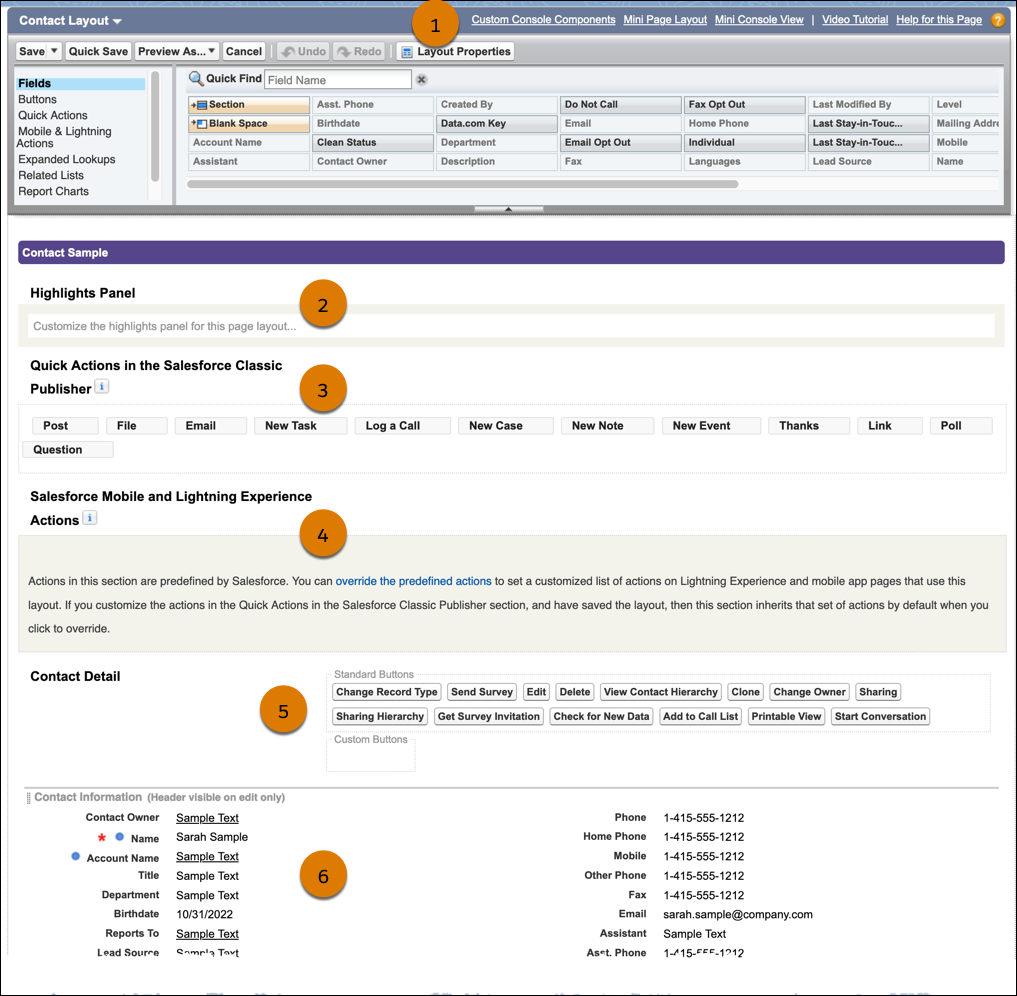
With the enhanced page layout editor you can:
- Add custom console components, customize the Mini-Page Layout for record pages in Salesforce Classic, configure Multi-Line layouts (on supported objects), and select which objects appear in the mini view of the console.
- Customize the highlights panel on Salesforce Classic pages (2). This section isn’t used in Lightning Experience.
- Manage the quick actions that appear in the Salesforce Classic publisher (3) and in Lightning Experience and the Salesforce mobile app (4). See Quick Actions.
- Add, remove, and reorder:
- Custom and standard buttons on the record page (5).
- Fields in the record details (6).
- Custom links.
- Report charts.
- Customize the related lists that appear on record pages, including configuring related list buttons and selecting which fields appear on a related list. See Customize Related Lists.

Note You can only view object page layouts in Lightning Experience using the enhanced page
layout editor. Accessing an object page layout in Lightning Experience with the original page
layout editor can cause an "Insufficient Privileges" error. To confirm that the enhanced page
layout editor is enabled, in Setup, go to User Interface | User Interface, then ensure that Enable Enhanced Page Layout Editor is
selected.
- Customize Page Layouts with the Enhanced Page Layout Editor
Tailor your page layouts to the needs of your users with the enhanced page layout editor. Add, remove, or reorder actions, buttons, fields, and sections on a record’s detail page. - User Interface Elements for the Enhanced Page Layout Editor
This list describes the enhanced page layout editor user interface elements and how you can use them in your page layout. To add elements, drag them from the palette to the layout. Valid drop locations show up in green. To remove elements, drag them off the layout and back to the palette. - Standard Object Record Page Save Options on Page Layouts
With save options, you can make object-specific checkboxes appear on the edit pages for certain standard objects. Save options trigger additional processes when a record is saved. You can also set the checkboxes to be selected by default. - Tips for Using the Enhanced Page Layout Editor
Keep these tips in mind when customizing page layouts in the enhanced page layout editor.
See Also
Did this article solve your issue?
Let us know so we can improve!
