Salesforce App Considerations
Keep these considerations in mind when working with apps in either Lightning Experience or Salesforce Classic.
Required Editions
| Available in: Salesforce Classic, Lightning Experience, and the Salesforce mobile app |
| Available in: Contact Manager, Group, Professional, Enterprise, Performance, Unlimited, and Developer Editions |
General
- You can delete custom apps, but not standard apps. Deleting a custom app removes it from the apps menu and the App Launcher, but doesn’t delete any associated objects. If you created objects for an app, consider deleting them as well.
- Salesforce Classic console apps are custom apps.
- You can’t change an app’s type—such as standard to connected or vice versa—after you create it.
- For Salesforce Platform and Salesforce Platform One license users, the Platform standard app is the only app listed in the Lightning Platform app menu and the Lightning Experience App Launcher. For details about specifying a unique label for the Platform standard app in Salesforce Classic, see Create Custom Apps for Salesforce Classic.
- To assign apps to user profiles in Professional Edition, you must have user profiles enabled for your org.
- You must prefix a namespace to a custom app API that is retrieved from a managed package before you deploy it.
Classic Apps
Consider these requirements when selecting a custom app logo for a Classic app from the document library:
- The image must be in GIF or JPEG format and less than 20 KB.
- If the image is larger than 300 pixels wide by 55 pixels high, it’s scaled to fit.
- For the best on-screen display, we recommend that you use an image with a transparent background.
- Select the Externally Available checkbox on the document’s properties so that users can view the image.
Lightning Apps
- The number of Lightning apps you can create in an org varies by edition.
Edition Lightning Apps Limit Professional Edition 10 Enterprise Edition 260 Unlimited Edition Unlimited - A Lightning app’s description appears in the App Launcher, so we recommend that you keep the description concise.
- Users can’t remove the items you include in the navigation bar, and they can’t personalize the navigation bar when it contains more than 50 items. For example, if you include 32 items in an app’s navigation bar, users can add 18 more personal items.
- Consider these requirements when selecting a custom app image for apps in Lightning
Experience:
- App images represent your app in both Lightning Experience and the Salesforce app.
- Choose a JPG, PNG, BMP, or GIF image that's smaller than 5 MB.
- For best results, upload an image that's 128 by 128 pixels. Images larger than the maximum display of 128 by 128 pixels are automatically resized.
- Even if you haven’t selected the option to override themes in the App Manager, your app’s brand image and color always override the Lightning Lite and Lightning Blue themes.
- If you have SLDS 2 enabled in your org, the Primary Color Hex Value you set for your custom app isn't respected. For more information, see "Primary Color Hex Value is not working for SLDS 2."
- If you restrict an app to one type of device, only users viewing the app on that device can access it. For example, if you assign your app to the Phone form factor, your desktop users don’t see the app in the App Launcher. Only your Salesforce mobile app users can see it.
- Not all objects that appear in the App Launcher can appear in an app, but it’s easy to figure out which ones can. When you start the wizard from the Lightning Experience App Manager, you see all available items for a navigation bar.
- Navigation items in a Lightning app installed from a managed package are locked. You can’t remove or reorder them. However, you can append other navigation items so that they’re accessible in the Lightning app.
- You can create records and access recent records and lists for certain items directly
from the navigation bar. Items with
 next to their name support this feature, with a few exceptions. Tasks and Notes
allow you to create a record but you can't access recent records or lists. Reports and
Dashboards allow you to see recent records but you can't see recent lists or create a
record.
next to their name support this feature, with a few exceptions. Tasks and Notes
allow you to create a record but you can't access recent records or lists. Reports and
Dashboards allow you to see recent records but you can't see recent lists or create a
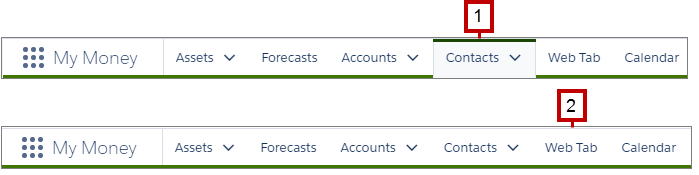
record. - Some tabs, such as web tabs and Visualforce tabs, aren't highlighted when you select
them on the navigation bar. For example, when you select Contacts,
the tab is highlighted (1). However, when you select a web tab, the page appears but the
tab isn’t highlighted (2).
Did this article solve your issue?
Let us know so we can improve!
