Change Your My Domain Details
If you don’t like your My Domain or circumstances warrant a change, you can rename it. For example, you can change the name when your company’s name or branding changes. In some orgs, the admin can also choose a different domain suffix, enable enhanced domains, and remove instance names from certain My Domain URLs.
Required Editions
| Available in: both Salesforce Classic and Lightning Experience |
| Available in: Group, Essentials, Professional, Enterprise, Performance, Unlimited, and Developer Editions |
| User Permissions Needed | |
|---|---|
| To edit My Domain settings: | Customize Application |
| To define a My Domain name: | Customize Application AND Modify All Data |
We recommend that you test a change to your My Domain details in a sandbox. To review the high-level steps, the recommended practices, and how to reduce the impact on your users and customers, see Plan for a My Domain Change.
- From Setup, in the Quick Find box, enter My Domain, and then select My Domain.
-
Under My Domain Details, select Edit.
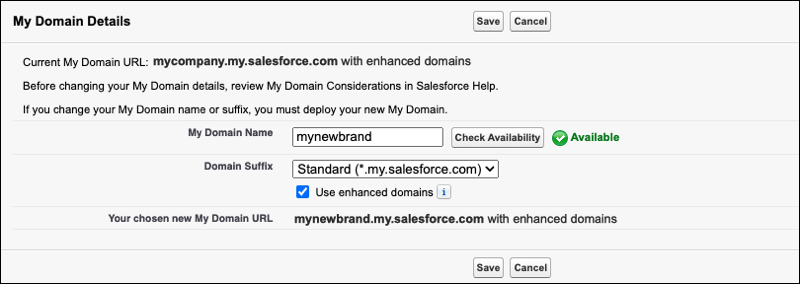
The My Domain Details edit page appears.
-
To change your My Domain, enter your new My Domain or suffix. Your chosen My
Domain Login URL is displayed.
-
To change your My Domain name, enter a new domain name. To confirm that
your new name is available, click Check
Availability. If your name is already taken, choose a
different one.
Avoid entering personal information in your domain name. Instead, enter only public information.
In production and sandbox orgs, your name must contain at least 3 characters and no more than 34 characters. In Developer Edition orgs, your name must contain at least 3 characters and no more than 27 characters. It can include letters, numbers, and hyphens, but you can’t start the name with a hyphen.
-
If other suffixes are available for your org’s My Domain, a suffix
dropdown list appears. To change your My Domain suffix, select a new
suffix.
 Tip Unsure of which suffix to pick? For most orgs, the Standard suffix is the best option.
 Note To avoid potential conflicts between follow-up processes such as CNAME and DNS updates, you can’t make a change that requires provisioning for 15 minutes after you change your My Domain name or enable enhanced domains. Changes that require provisioning include changing your My Domain name or suffix, enabling enhanced domains, moving to Salesforce Edge Network, and removing your previous My Domain.
 -
To change your My Domain name, enter a new domain name. To confirm that
your new name is available, click Check
Availability. If your name is already taken, choose a
different one.
-
If your suffix is Standard, select Use enhanced
domains.
Enhanced domains were enforced in Winter ’24. After enhanced domains are deployed, you can’t disable this feature. Only a limited number of orgs are using legacy My Domain without enhanced domains.
This feature allows your Salesforce login process and related URLs to meet the latest browser requirements. It also stabilizes your My Domain URL by removing the Salesforce instance, preventing user login disruption when your org moves to another Salesforce instance.
 Important Enhanced domains change URL formats across your org. For more information, see My Domain URL Format Changes with Enhanced Domains Deployment. Before you deploy your updated My Domain in production, test it in a sandbox.
 -
Optional: Stabilize your Visualforce, Experience Builder, Site.com Studio, and
content file URLs.
-
Select Stabilize Visualforce, Experience Builder, Site.com
Studio, and content file URLs.
Note If you disabled Use enhanced domains, this option is enabled by default. To revert your URLs to their prior formats before enhanced domains were deployed, if this My Domain setting was previously disabled, deselect Stabilize Visualforce, Experience Builder, Site.com Studio, and content file URLs.
To determine whether this setting was disabled before enhanced domains were deployed, check the Setup Audit Trail and find the audit trail action for the deployment of your My Domain with enhanced domains. If you see the action, “Enabled the My Domain setting, Stabilize Visualforce, Experience Builder, Site.com Studio, and content file URLs”, immediately before the deployment of enhanced domains, then this My Domain setting was disabled before enhanced domains were deployed.
-
Optional: Select Include the instance name in Visualforce
URLs when third-party cookies are blocked.
This option only applies to the Standard, Database.com, and Cloudforce suffixes when Visualforce URLs are stabilized without enhanced domains.
Third-party cookie blocking can cause issues loading Visualforce pages with stabilized URLs.
Note If enhanced domains are enabled, these URLs are stabilized and these settings aren’t available. Several browsers and operating systems updated their URL requirements after this option was first made available. Enhanced domains provide the latest standard for stabilizing the URLs that Salesforce hosts for your org.Unless you disabled enhanced domains in a prior step, these settings apply upon saving, without redeploying your My Domain.
-
Select Stabilize Visualforce, Experience Builder, Site.com
Studio, and content file URLs.
-
Save your changes.
If you changed your My Domain name or suffix, or if you enabled or disabled enhanced domains, Salesforce provisions your My Domain. Those changes take effect after you deploy your new My Domain.
The provisioning process usually finishes in a few minutes, but it can take up to 24 hours. You receive an email when your My Domain is ready to be deployed and tested.
When you change your My Domain details, Salesforce redirects your previous My Domain URLs to your current My Domain. If you change your My Domain more than one time, only the last set of My Domain URLs for your org are redirected. For more information, see My Domain Redirections.
Next Steps:
- Salesforce provisions your updated My Domain URLs. The provisioning process usually finishes in a few minutes, but it can take up to 24 hours. You receive an email when your updated My Domain is ready to be deployed and tested.
- Review the changes to your org’s URLs in My Domain URL Formats.
- Deploy your new My Domain, update your org, and test the changes.
