
You are here:
My Unresolved Items
Einstein Activity Capture, Lightning Sync, Salesforce for Outlook (Retiring), and Email to Salesforce let you integrate the work you do from your email and calendar applications with Salesforce. Microsoft or Google items that aren’t automatically associated with Salesforce records appear in My Unresolved Items. Sales reps can review the unresolved items and associate them manually.
Required Editions
| Available in: both Salesforce Classic and Lightning Experience |
| Available in: All Editions |
As part of your daily routine, use the My Unresolved Items page to manage unresolved items.
Recurring events or event series don’t appear on the My Unresolved Items page. To associate a recurring event or event series with Salesforce records, go to the event in your Salesforce calendar.
If you use Einstein Activity Capture, emails don’t appear on the My Unresolved Items page.
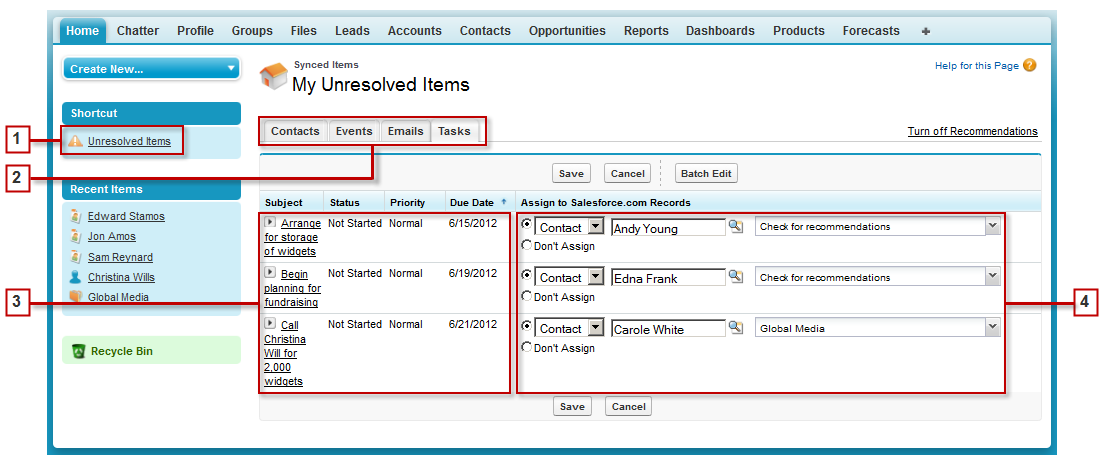
- In Salesforce Classic, you can access your unresolved items from the sidebar shortcut Unresolved Items. In Lightning Experience, click your profile picture, and then click Settings. Enter Email in the Quick Find box, and then select My Unresolved Items.
- To review unassigned items by type, select a tab.
- View your unassigned items.
- Assign your items to Salesforce records manually or using Salesforce recommendations. If you don’t want to assign an item to a record, select Don’t Assign. Unassigned items aren't linked to other records and are visible to you only.
Use Features that Make Resolving Items Easy
Use the Batch Edit and Recommendations features to resolve items quickly and easily.
| Goal | Feature | This feature helps you save time because |
|---|---|---|
| Assign multiple items simultaneously | Batch Edit | You can assign up to 50 items in any one queue simultaneously. |
| Find related accounts, cases, and opportunities | Recommendations | Salesforce provides recommendations for accounts, cases, and opportunities to which you can assign your items. If you don't want to see these recommendations, click Turn off Recommendations. If you change your mind, click Turn on Recommendations. Recommendations display only when you select a contact from the lookup and the related list is empty. Salesforce displays recommendations based on the following criteria.
|
- Resolve Your Synced Contacts
When contacts sync from your email app with Einstein Activity Capture, Lightning Sync, or Salesforce for Outlook, some contacts are automatically assigned to accounts based on their company. The rest are added to My Unresolved Items, where you can either assign contacts to Salesforce accounts or confirm that you want to leave them unassigned. - Resolve Your Synced Events
When non-recurring events sync from your email app with Einstein Activity Capture, Lightning Sync, or Salesforce for Outlook, they appear in your Salesforce calendar and on the My Unresolved Items page. Use this page to either assign events to related Salesforce records or confirm that you want to leave them unassigned. - Resolve Your Synced Outlook Tasks
When tasks sync from Outlook with Salesforce for Outlook, they appear on the My Unresolved Items page. Use this page to either assign tasks to related Salesforce records or confirm that you want to leave them unassigned.
