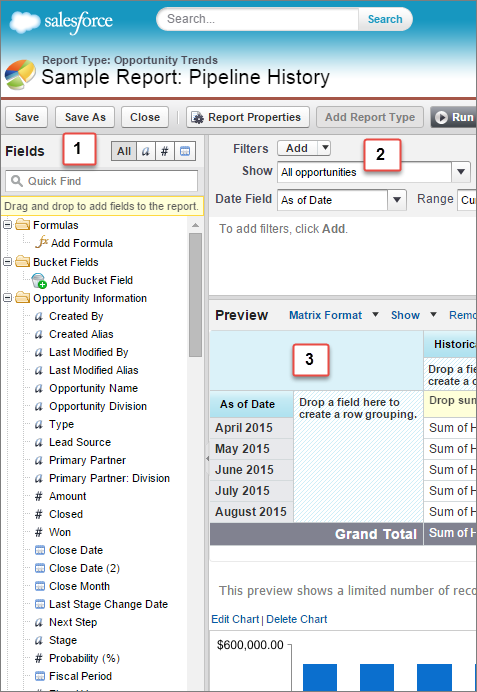
Report builder is a visual editor for reports. The
report builder screen lets you work with report fields and filters, and shows you a preview of
your report with just some of the data.
Required Editions
Available in: Salesforce Classic
Available in: Group, Professional, Enterprise,
Performance, Unlimited, and Developer Editions
Available in: Enhanced Folder Sharing
To optimize screen real estate, report builder uses a compressed page header. To view your
application tabs, simply close the builder or click the Salesforce logo.
Fields Pane (1): Find the fields you want using the Quick Find search box and field type
filters, then drag them into the Preview pane to add them to the report. You can create,
view, edit, and delete custom summary formulas and bucket fields in the Fields pane as
well.
In the joined report format, the Fields pane displays fields from all report types
added to the report, organized by report type.
Filters Pane (2): Set the view, time frame, and custom filters to limit the
data shown in the report.
Preview Pane (3): The dynamic preview makes it easy for you to customize your report. Add,
reorder, and remove columns, summary fields, formulas, groupings, and blocks. Change the
report format and display options, or add a chart. The preview shows only a limited number
of records. Run the report to see all your results.
We use three kinds of cookies on our websites: required, functional, and advertising. You can choose whether functional and advertising cookies apply. Click on the different cookie categories to find out more about each category and to change the default settings.
Privacy Statement
Required Cookies
Always Active
Required cookies are necessary for basic website functionality. Some examples include: session cookies needed to transmit the website, authentication cookies, and security cookies.
Functional Cookies
Functional cookies enhance functions, performance, and services on the website. Some examples include: cookies used to analyze site traffic, cookies used for market research, and cookies used to display advertising that is not directed to a particular individual.
Advertising Cookies
Advertising cookies track activity across websites in order to understand a viewer’s interests, and direct them specific marketing. Some examples include: cookies used for remarketing, or interest-based advertising.