You are here:
Controlling Access Using the Role Hierarchy
Determine whether users have access to records they don’t own, including records to which they don’t have sharing access, but someone below them in the hierarchy does.
Required Editions

| Available in: both Salesforce Classic and Lightning Experience |
Available in: Professional, Enterprise, Performance, Unlimited, Developer, and Database.com Editions Territories aren’t available in Database.com |
| User Permissions Needed | |
|---|---|
| To set default sharing access and change the Grant Access Using Hierarchies option: | Manage Sharing |
Watch how you can use the role hierarchy to extend access to records.
The role hierarchy opens up access vertically so that users assigned to roles higher in the hierarchy have access to records owned by or shared with their subordinates. For example, you set up the role hierarchy so that the Sales Manager role is above the Sales Rep role. Users assigned to the Sales Manager role have automatic access to all records that Sales Reps own or have access to through sharing rules, manual sharing, or other features.
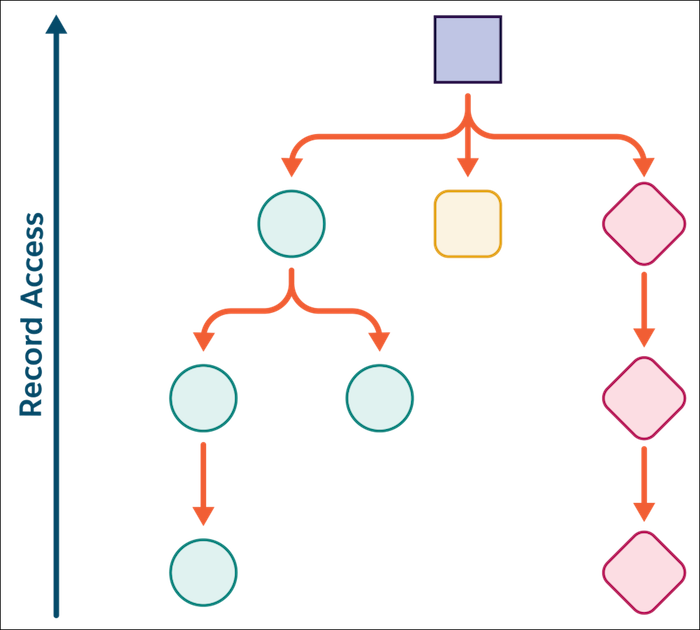
The role hierarchy simplifies collaboration by providing managers with visibility in to their reports' data. There's no need for you to use sharing rules or other features to extend this access.
The role hierarchy doesn't need to match your company's hierarchical structure. For easier maintenance and better performance, consolidate different titles into single roles when their access is the same. When setting up the role hierarchy, think of each role as representing a level of data that a group of users needs. You can also reference the role in sharing rules, manual sharing, and public groups to extend record access in other ways.
For custom objects only, you can disable access through the role hierarchy. To control sharing access using hierarchies for any custom object, from Setup, in the Quick Find box, enter Sharing Settings, and then select Sharing Settings. Next, click Edit in the Organization Wide Defaults section and enable or disable Grant Access Using Hierarchies. This setting can't be modified for standard objects and is enabled for most standard objects, but not all of them.
- Assign Users to Roles
Assign users to a role in the role hierarchy. - Guidelines for Success with Roles
Understand key rule behaviors, and apply best practices for success with roles. - Role Fields
The fields that comprise a role entry have specific purposes. Refer to this table for descriptions of each field and how it functions in a role. - Role and Territory Sharing Groups
Salesforce creates sharing groups for each role and territory in your Salesforce org. - See Your Managers in the Role Hierarchy
The Managers in the Role Hierarchy related list shows all of the users above you in the hierarchy. These users have the same access to your data as you do—they have access to all data you own or that has been shared with you. - Manage Roles in the Enhanced Role List View
View, sort and filter user roles, and edit multiple records inline with the Enhanced Role List View.
