You are here:
Security Health Check
As an admin, you can use Health Check to identify and fix potential vulnerabilities in your security settings, all from a single page. A summary score shows how your org measures against a security baseline like the Salesforce Baseline Standard. You can upload up to five custom baselines to use instead of the Salesforce Baseline Standard.
Required Editions
| Available in: both Salesforce Classic and Lightning Experience |
| Available in: Professional, Enterprise, Performance, Unlimited, and Developer Editions |
| User Permissions Needed | |
|---|---|
| To view Health Check and export custom baselines: | View Health Check OR View Security Center Or Manage Security Center |
| To import custom baselines: | Manage Health Check OR View Security Center Or Manage Security Center |

From Setup, use the Quick Find box to find and select Health Check.
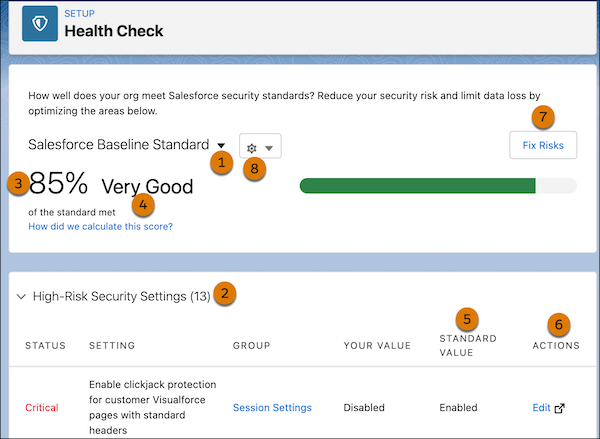
In the baseline dropdown (1), choose the Salesforce Baseline Standard or a custom baseline. The baseline consists of recommended values for High-Risk, Medium-Risk, Low-Risk, and Informational Security Settings (2). If you change settings to be less restrictive than in the baseline, your health check score (3) and grade (4) decreases.

Your settings are shown with information about how they compare against baseline values (5). To remediate a risk, edit the setting (6) or use Fix Risks (7) to quickly change settings to your selected baseline’s recommended values without leaving the Health Check page. You can import, export, edit, or delete a custom baseline with the baseline control menu (8).

Suppose that you changed your password minimum length from 8 (the default value) to 5, and changed other Password Policies settings to be less restrictive. These changes make your users’ passwords more vulnerable to guessing and other brute force attacks. As a result, your overall score decreases and the settings are listed as risks.
Fix Risks Limitations
Not all settings can be changed using the Fix Risks button. If a setting you want to adjust doesn’t appear on the Fix Risks screen, change it manually using the Edit link on the Health Check page. The Health Check detail page in the Security Center app saves you time by aggregating multiple Health Check scores and settings in one place. For more information, see Take Charge of Your Security Goals with Security Center.
- How Is the Health Check Score Calculated?
The Health Check score is calculated by a proprietary formula that measures how well your security settings meet the Salesforce Baseline Standard or your selected custom baseline. Settings that meet or exceed compliance raise your score, and settings at risk lower your score. - Set Up Security Health Check Score Notifications
Configure who receives weekly notifications if your Health Check score decreases. These alerts keep admins informed without the need for manual monitoring. - Create a Custom Baseline for Health Check
You can import up to five custom baselines to compare your security settings with your standards instead of the Salesforce recommended standards. For example, if you’re in financial services, you can create a custom security baseline by using FINRA standards. - Custom Baseline File Requirements
To import your Health Check custom baseline successfully, make sure that your file and settings meet the requirements.
