Generate a BYOK-Compatible Certificate
To encrypt data in Salesforce with Bring Your Own Key (BYOK) key material for any feature, such as field-level encryption or Search Encryption, use Salesforce to generate a 4096-bit RSA certificate. You can generate a self-signed or certificate-authority (CA) signed certificate. Each BYOK-compatible certificate’s private key is encrypted with a derived, org-specific tenant secret key.
Required Editions
| Available in both Salesforce Classic (not available in all orgs) and Lightning Experience. |
| Available in: Enterprise, Performance, and Unlimited Editions with the Salesforce Shield or Shield Platform Encryption licenses. |
| Available for free in Developer Edition. |
| User Permissions Needed | |
|---|---|
| To generate, destroy, export, import, upload, and configure tenant secrets and customer-supplied key material: | Manage Encryption Keys |
| Edit, upload, and download HSM-protected certificates with the Shield Platform Encryption Bring Your Own Key service | Manage Certificates AND Customize Application AND Manage Encryption Keys |
This task shows how to create a self-signed certificate using Setup. If you’re not sure whether a self-signed or CA-signed certificate is right for you, consult your organization’s security policy. For more information about what each option implies, see Certificates and Keys.
To create a CA-signed certificate, follow the instructions in Generate a Certificate Signed By a Certificate Authority. To make sure that your certificate is BYOK-compatible, remember to set the Exportable Private Key, Key Size, and Platform Encryption settings as per the requirements for a self-signed certificate.

To create a self-signed certificate:
- From Setup, in the Quick Find box, enter Platform Encryption, and then select Key Management.
- Click the tab for the feature for which you want to create a BYOK certificate. For example, Fields and Files (Probabalistic) or Search Index, or Database Encryption
-
Click Bring Your Own Key.
Salesforce shows the Bring Your Own Key page.
-
Click Create Self-Signed Certificate.
Salesforce shows the Certificate and Key Edit page.
 Note Database Encryption and Search Index Encryption only accept a self-signed certificate, so the self-signed certificate form shows automatically.
 -
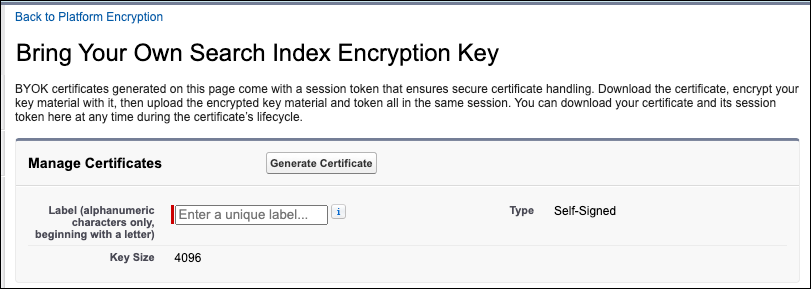
Enter a unique name for your certificate in the Label field. The Unique Name field
automatically assigns a name based on what you enter in the Label field.
The Exportable Private Key (1), Key Size (2), and Use Platform Encryption (3) settings are preset. (For a BYOK certificate, you must select 4096 for the key size). These settings ensure that your self-signed certificate is compatible with Salesforce Shield Platform Encryption.
-
When the Certificate and Key Detail page appears, click Download
Certificate (for Files and Fields) or Download Certificate and
Token (for Search Index and Database Encryption).
The certificate and optional session token are saved to your computer.
- Back up the certificate file and session token to a secure location.
