You are here:
Field History Tracking Overview
Select certain fields to track and show field history in an object history list. When Field Audit Trail is turned off, Salesforce retains field history data for up to 18 months, and up to 24 months via the API. If Field Audit Trail is turned on, Salesforce retains field history data until you manually delete it. The retention values serve as reminders and field history data can be deleted at any time. Field history tracking data does not count against storage limits.
Required Editions
| Available in: Salesforce Classic, Lightning Experience, and the Salesforce app |
Available in: Contact Manager, Group, Essentials, Professional, Enterprise, Performance, Unlimited, Developer, and Database.com Editions Standard Objects aren’t available in Database.com Edition |
You can track the field history of most custom and standard objects. When you modify a field on a supported object, Salesforce adds an entry to the History related list. All entries include the date, time, nature of the change, and who made the change. Not all field types are available for historical trend reporting. Certain changes, such as case escalations, are always tracked.
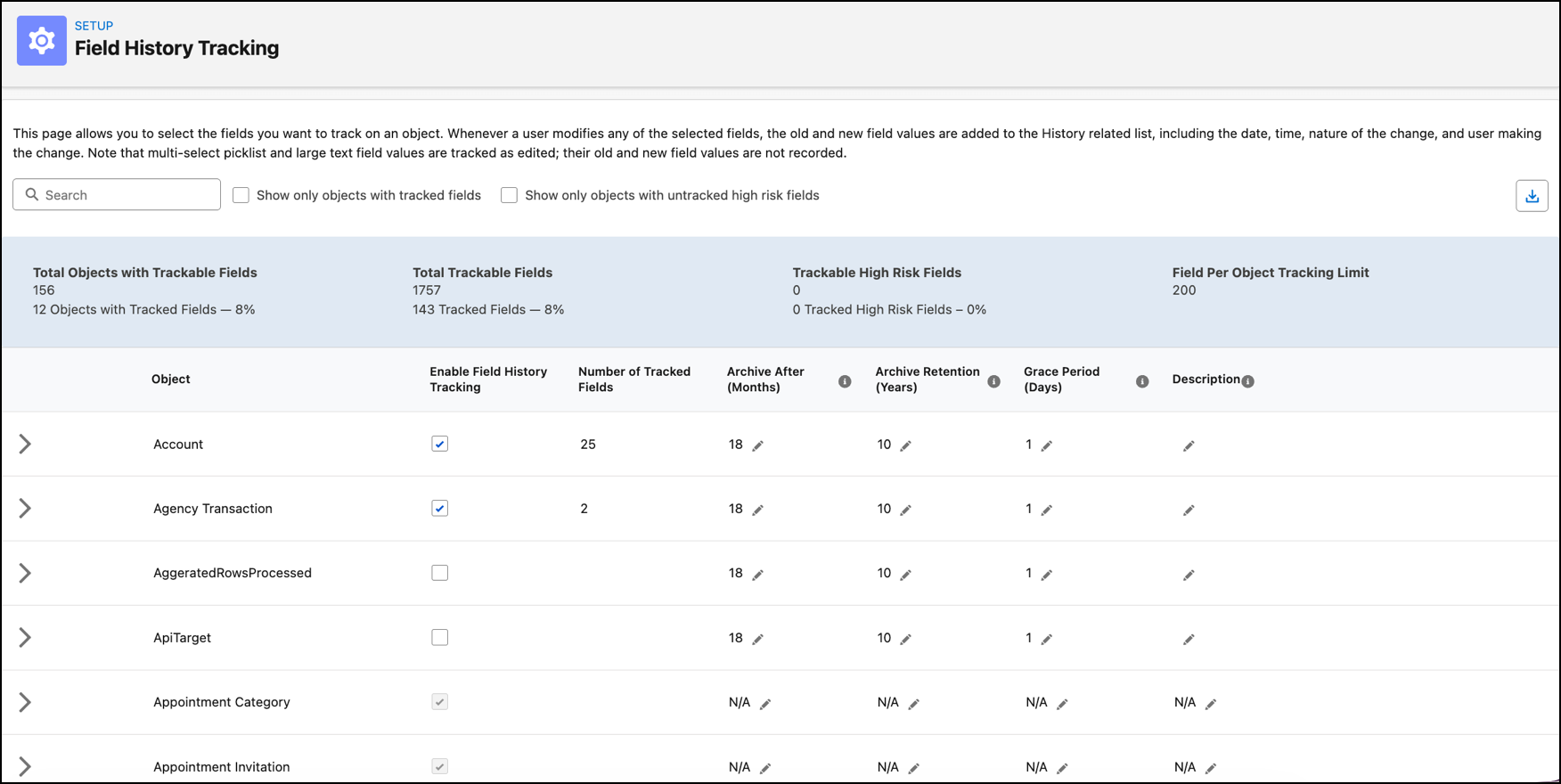
Salesforce stores an object’s tracked field history in a related object called StandardObjectNameHistory or CustomObjectName__History. For example, AccountHistory represents the history of changes to the values of an Account record’s fields. Similarly, MyCustomObject__History tracks field history for the MyCustomObject__c custom object.
You can create a field history tracking report for custom objects that are defined as detail objects. In the report, you can group or filter the data to show records for specific tracked fields, users, or time.
General Considerations
Consider these general points when you work with field history tracking.
- Salesforce starts tracking field history from the date and time that you turn it on a field. Salesforce excludes changes made before this date and time and doesn't create an entry in the History related list.
- Use Data Loader or the
queryAll()API to retrieve field history that's 18–24 months old. - When changes are made to long text fields (those with more than 255 characters), Salesforce records only that the field was edited and that a change occurred, but doesn't store or display the actual before and after values of the field.
- The Field History Tracking timestamp is precise to a second in time. In other words, if two users update the same tracked field on the same record in the same second, both updates have the same timestamp. Salesforce can't guarantee the commit order of these changes to the database. As a result, the display values can look out of order.
- You can't create a record type on a standard or custom object and turn on field history tracking on the record type in the same Metadata API deployment. Instead, create the record type in one deployment and turn on history tracking on it in a separate deployment.
- Salesforce doesn't turn on the recently viewed or referenced functionality in the
{StandardObjectName}History or {CustomObjectName}__History objects. As a result, you can't
use the FOR VIEW or FOR REFERENCE clauses in SOQL queries on these history objects. For
example, this SOQL query isn't
valid:
SELECT AccountId, Field FROM AccountHistory LIMIT 1 FOR VIEW - The Contact Name field is a multi-column field that includes the Salutation field. When field history tracking is enabled on the Contact Name field, and the Salutation field is changed, the picklist value translation for Contact Name field isn't applied to Old Value or New Value columns.
- In Lightning Experience, a History related list for a number field rounds any decimals to the thousandth. In Salesforce Classic, the same History related list shows all values after the decimal point.
- When you enable field history tracking for the User object, standard fields (eligible) are available through the metadata API.
Interactions with Other Salesforce Features
- In Lightning, you can see gaps in numerical order in the Created Date and ID fields. Salesforce still commits and records all tracked changes in your audit log. However, the exact time that those changes occur in the database can vary widely and Salesforce doesn't guarantee that they occur within the same millisecond. For example, there can be triggers or updates on a field that increase the commit time, and you can see a gap in time. During that time period, Salesforce creates IDs in increasing numerical order but can also generate gaps for the same reason.
- If Process Builder, an Apex trigger, or a Flow causes a change on an object that the current user doesn't have permission to edit, Salesforce doesn't track that change. Field history honors the permissions of the current user and doesn't record changes that occur in the system context.
- Salesforce attempts to track all changes to a history-tracked field, even if a
particular change is never stored in the database. For example, an admin defines an Apex
trigger on an object that changes a Postal Code field value from
12345 to 94619. A user adds a record to
the object and sets the Postal Code field to 12345. Because of the
Apex trigger, the actual Postal Code value stored in the database is
94619. Although only one value was eventually stored in the
database, the tracked history of the Zip Code field has two new entries:
- No value through 12345 (the change that the user made when they inserted the new record)
- 12345 through 94619 (the change that the Apex trigger made)
Event and Task History Considerations
- It can take up to a few minutes for changes to appear in history.
- You can track up to six fields per object on events or tasks.
- Field history tracking is available only for standard event and task fields. It’s not available for custom fields on events or tasks.
- After you delete an activity, the history for the activities can be visible via API queries for up to a few days. The history remains available because it's deleted asynchronously from the activity.
- Salesforce doesn't track all changes to recurring and child events.
- You can't delete specific field history records.
- Bulk processes such as Bulk API transactions or event syncing can be delayed when you turn on field history tracking. If processes are delayed, consider turning off activity field history tracking.
- Salesforce locks the parent record of an activity when the activity history is updated. For example, if an activity is linked to thousands of accounts, each account is locked when the history is updated. As a best practice, avoid data skew. If processes fail because of parent-child row locking, consider turning off activity field history tracking.
- Salesforce tracks field value changes caused by process builder, Apex triggers, or flows in an activity's history. Users see the change only if their field-level security settings permit them to. In other objects, Salesforce tracks field changes from processes, triggers, and flows only if the current user has permission to edit the modified fields.
- If you unencrypt a field used for tracking, Salesforce doesn't show the values tracked while the field was encrypted. Salesforce tracks the unencrypted field values in the history.
- Activity history is available in APIs only for admins with permission to modify all data.
- Activity history doesn't support Salesforce ID. The ID field is still available with
value
000000000000000AAAin Describe and Select calls. - For activities, field history is shown in a Lightning component that looks like a related list. Instead of managing the history on the page layout, you place the Activity Record History component on Lightning pages for event and task records. You can add the Activity Record History component to custom event and task pages or remove it from the default pages. The history list stays empty until you turn on field history tracking in the Object Manager.
- Field history tracking doesn't support the fields that show decimal values, such as currency and percent field types.
- The history list isn't available in Salesforce Classic or in the mobile app.
- An org can track up to 60,000 task and event field-history transactions daily. If your org has more than 80,000 field-history transactions daily, we recommend that you avoid using Field History Tracking to prevent delays and loss of future change history.
Contact History Considerations
- When you convert a lead to a new or an existing contact, the contactCreatedFromLead or contactUpdatedByLead field appears in the History related list for the contact. The presence of these fields in the contact history indicates that the contact was created or updated from a lead. The field value is always empty.
Translation and Locale Considerations
- Salesforce doesn't translate tracked field values and shows them in the language that they were entered in. For example, if you change a field from Green to Verde, Salesforce shows Verde regardless of the user's language, unless you translated the field value into other languages by using the Translation Workbench. This behavior also applies to record types and picklist values. A field value translation applies only to the field on the object that you select in Translation Workbench. For example, translating the Status field on Case doesn't translate the Status field on CaseHistory when you group a Case Lifecycle report by Case Status History.
- Salesforce shows changes to custom field labels that you translated by using the Translation Workbench in the locale of the user who views the History related list. For example, if a custom field label is Red and translated into Spanish as Rojo, then a user with a Spanish locale sees the custom field label as Rojo. Otherwise, the user sees the custom field label as Red.
- Salesforce shows changes to date fields, number fields, and standard fields in the locale of the user who views the History related list. For example, a date change to August 5, 2012 appears as 8/5/2012 for a user with the English (United States) locale, and as 5/8/2012 for a user with the English (United Kingdom) locale.
User Considerations
- Field history tracking is enabled for internal users only.
- If you enable the User Field History Tracking (Beta) setting and then disable it, any changes made while it was enabled remain recorded. When you enable the org preference again, the fields previously selected for tracking remain selected.
- These fields are available for tracking. You can select a maximum of 20 fields:
- Name
- Alias
- Company Name
- Division
- Department
- Title
- Address
- Phone
- Extension
- Time
- Locale
- Language
- Mobile Phone
- Start Day
- End Day
- Manager
- Contact
- Is Active
- Profile
- Role
- Username
- Delegated Approver
- When you assign a role on the Roles Setup page, the change isn't tracked. When you edit the user directly to update their role, the role change is tracked.
- Custom fields with Auto Number, Formula, Rich Text Area, and Long Text Area data types aren't tracked.
- The Email field is available for tracking only after it has been verified.
- The Field column supports exact match search. The User column supports prefix search, which returns results that start with the entered text.
- After you enable user field history tracking, view the tracking data on the user's access summary page.
