You are here:
Salesforce for Outlook (Retiring)
Sync contacts, events, and tasks between your desktop-based version of Outlook and Salesforce. Select an email in Outlook to see related Salesforce records, like leads, contacts, tasks, and opportunities. And relate that email to the Salesforce records of your choice.
Required Editions
| Available in: Salesforce Classic |
| Available in: Lightning Experience, if Salesforce Classic is available in your org. |
| Available with the purchase of Sales Cloud or Government Cloud in: Personal, Contact Manager, Professional, Enterprise, Performance, Unlimited, and Developer Editions |

Watch a Demo:  Get Started with Salesforce for
Outlook (English only)
Get Started with Salesforce for
Outlook (English only)
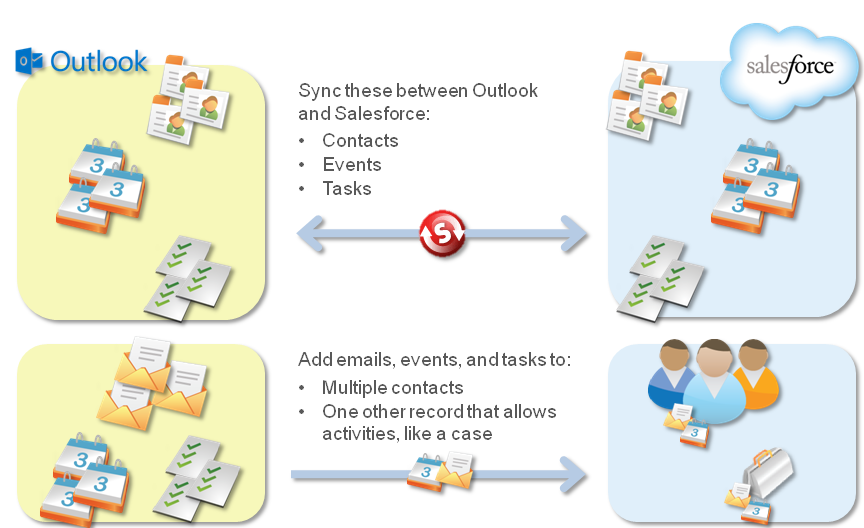
Salesforce for Outlook, a Microsoft® Outlook® integration application that you install, syncs contacts, events, and tasks between Outlook and Salesforce. In addition to syncing these items, you can add Outlook emails, attachments, events, and tasks to multiple Salesforce contacts, and view Salesforce records related to the contacts and leads in your emails and events—all directly in Outlook.
You’re able to customize what you sync and the sync directions between Outlook and Salesforce. Your administrator determines the level at which you can customize these settings in Salesforce.
Here's a quick look at how Salesforce for Outlook helps you avoid duplicating your work and boost your productivity.
For a start-to-finish Salesforce for Outlook setup guide, see Getting Microsoft® Outlook® and Salesforce in Sync.
Get Started with Salesforce for Outlook
- Move from Salesforce for Outlook (Retiring) to the Next-Generation Products
To help your sales reps continue syncing and working between Salesforce and Microsoft Outlook, learn about moving to the Outlook integration and Einstein Activity Capture. - Salesforce for Outlook (Retiring) Supported Languages
Salesforce for Outlook supports these languages. - Salesforce for Outlook (Retiring) System Requirements
Your computing environment must meet these system requirements to install and use Salesforce for Outlook. - View and Work with Salesforce for Outlook (Retiring) Records from Microsoft® Outlook®
Use Salesforce for Outlook to get insight into Salesforce contacts and leads related to your important Outlook emails—directly in Outlook. The Salesforce Side Panel displays Salesforce records to which you can add Outlook emails, events, and tasks. View and Work with Salesforce Records from Microsoft® Outlook®. - Syncing Between Salesforce for Outlook (Retiring) and Microsoft® Outlook®
Stop duplicating your contacts, events, and tasks in Outlook and Salesforce and start syncing between the two systems with Salesforce for Outlook. - Create Cases from the Outlook Ribbon with Salesforce for Outlook (Retiring)
If you track cases in Salesforce, you can create ones from your Microsoft® Outlook® emails. Your administrator needs to first create Email-to-Case destinations that appear in the dropdown list button Create Cases in Outlook. For each destination, you can choose the assignee, which can be either individual users or queues. When you create cases, you can add up to ten emails simultaneously for each destination. - Salesforce for Outlook (Retiring) Configurations and Email Application Publisher Layouts
To set up your Salesforce for Outlook users with the settings they need, create Outlook configurations and email application publisher layouts. - Set Up Salesforce for Outlook on Your Desktop (Retiring)
Set Up Salesforce for Outlook on your Microsoft® Windows® desktop. That way, you can work with Salesforce from earlier versions of Microsoft® Outlook®, like Microsoft Outlook 2010. - Manage How Microsoft® Outlook® Items Sync with Salesforce for Outlook (Retiring)
Manage your contacts, events, and tasks using Outlook categories to get your Outlook items to sync with Salesforce the way you want—by either selecting the items you want to sync, or syncing all your items, and selecting the items you want to prevent from syncing. - Access Salesforce for Outlook Settings and Tools (Retiring)
Access Salesforce for Outlook settings and tools through the system tray application. - Salesforce for Outlook (Retiring) FAQ
Find answers to frequently asked questions about Salesforce for Outlook.
