
Actions in Lightning Experience
In Lightning Experience, actions appear in the Global Actions menu in the header, on related lists, and on list view items. Actions also appear on a record page, in one of several places depending on the action’s type.
Required Editions
| Available in: both Salesforce Classic and Lightning Experience |
Quick actions available in: Group, Professional, Enterprise, Performance, Unlimited, Contact Manager, Database.com, and Developer Editions Custom canvas actions available in: Professional (with Canvas enabled), Enterprise, Performance, Unlimited, and Developer Editions |

Actions in the Global Actions Menu
The Global Actions menu displays a subset of global actions from the Salesforce Mobile and Lightning Experience Actions section of the global publisher layout.
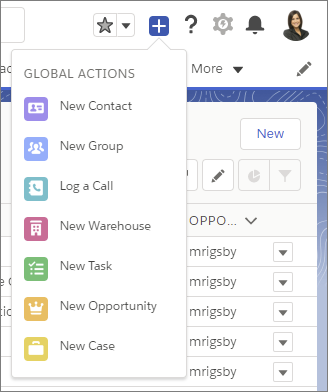
The items in the menu appear in the order that they’re listed in the Salesforce Mobile and Lightning Experience Actions section of the global publisher layout.
Actions associated with objects that aren’t supported in Lightning Experience don’t appear in the Global Actions menu. Also, the Global Actions menu doesn’t support standard Chatter actions.
Actions on List Views and List View Items
Custom list buttons, list view actions, and certain standard buttons are supported on all list views, except Recently Viewed. To have a custom list button appear on a list view, add the button to the object’s List View Button Layout.
In the Kanban view, only the standard New action is supported.
List view items support only specific standard actions, like Edit, Delete, or Change Owner.
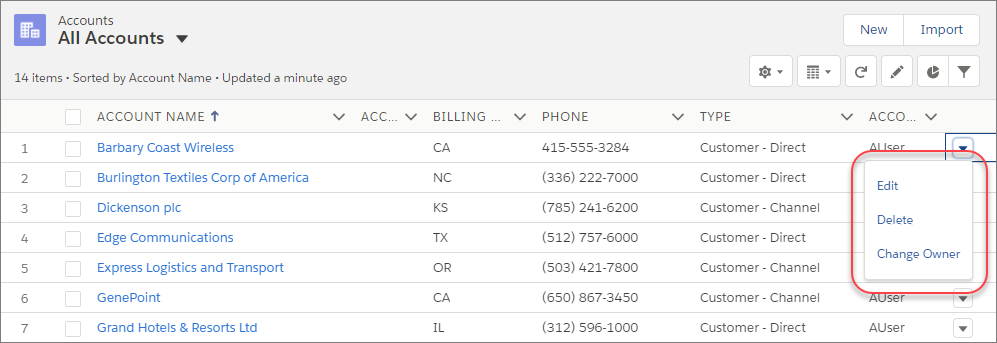
For Tasks, table format list views and the Kanban view support only standard buttons. Tasks list view items in table view, and the task item detail pane in split view contain the complete list of available actions for tasks.
Actions on the Home Page
On the Home page, you can find actions on recommendations in the Assistant. For example, imagine that a sales rep receives an update that an opportunity doesn’t have any open activity. The rep can create a task or event directly from the recommendation.
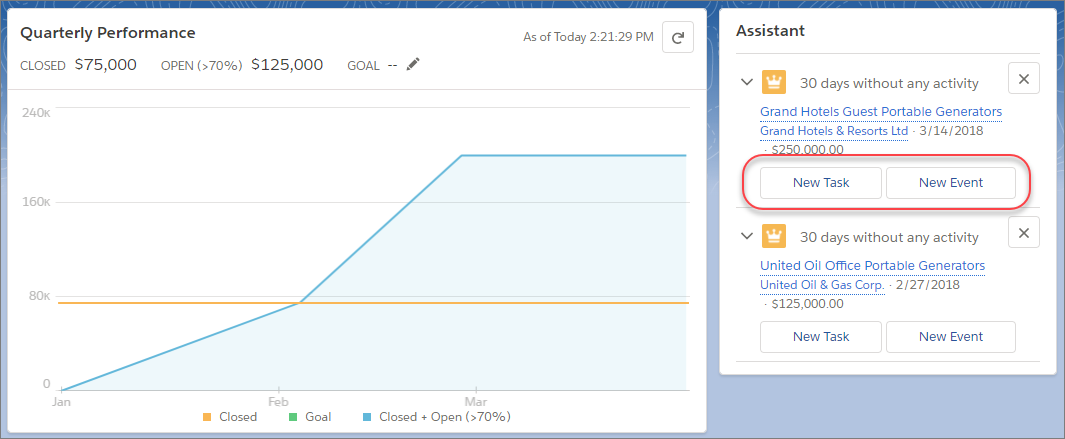
The actions that appear depend on the type of recommendation. To appear in the Assistant, actions must be added to the Salesforce Mobile and Lightning Experience Actions section of the global publisher layout. Supported actions include:
- New Task
- New Event
- Edit
After you complete an action, the related recommendation disappears from the Assistant.
Actions on the Chatter Page
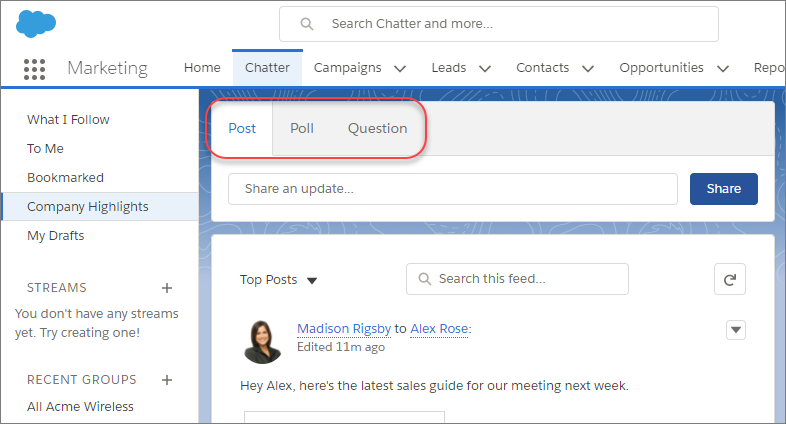
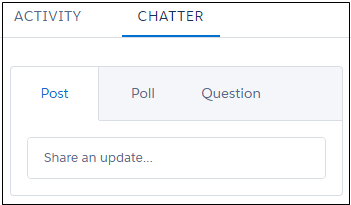
The Chatter page, like the Chatter tab on record pages, contains only standard Chatter actions. By default, only the Post, Poll, and Question actions are supported, and if you have Groups, the Announcement action. You can add, remove, or reorder the actions on the Chatter page from the Salesforce Mobile and Lightning Experience Actions section of the global publisher layout.
Actions on Record Pages
Here’s a sample contact page in Lightning Experience.

The page-level action menu in the record’s highlights panel (1) contains:
- Productivity actions
- Global and object-specific quick actions, except for those actions related to creating tasks, creating events, and logging calls
- Standard buttons
- Custom object-specific Lightning component and Lightning web component quick actions
- Custom flow actions
- Custom Visualforce quick actions
- Custom Visualforce buttons
- Canvas actions
The actions that appear in the page-level action menu are listed in the order that they appear in the Salesforce Mobile and Lightning Experience Actions section of the page layout.
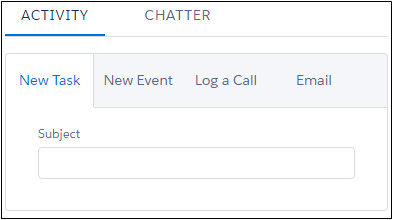
The Activity tab (2) contains Create a Record quick actions that point to the Event and Task objects. It also contains Log A Call and Send Email actions.
The Chatter tab (3) contains standard Chatter actions. By default, only the Post, Poll, and Question actions are supported, and if you have Groups, the Announcement action. Some objects support other standard Chatter actions predefined by Salesforce.
- Actions on the user profile page come from the Quick Actions in the Salesforce Classic Publisher section of the global publisher layout. Only standard Chatter actions appear on the user profile page, regardless of which actions are assigned to the User Page Layout or the global publisher layout.
- When feed tracking is enabled for cases or work orders, the page-level action menu on those records contains only custom buttons and supported standard buttons. Quick actions appear on the Chatter tab. On Experience Builder sites, quick actions for work orders appear on the page-level action menu.
Actions on Related Lists
Related lists in Lightning Experience (4) show custom list buttons, supported quick actions, and supported standard buttons that are assigned to the related list. Not all related list standard buttons are supported in Lightning Experience.
Actions on Reports
Actions on reports come from the Quick Actions in the Salesforce Classic Publisher section of the global publisher layout. Only standard Chatter actions appear on reports, regardless of which other actions are assigned to the global publisher layout.

Let’s say you have these actions on your Contact page layout in the Salesforce Mobile and Lightning Experience Actions section.

You have quick actions (New Account, New Event, New Task), a productivity action (Call), standard buttons (Edit, Delete, Clone, Send an Email), and Chatter actions (Poll, Post). Here’s how those actions appear on a contact record page in Lightning Experience.
- The actions in the page-level action menu are a combination of the quick actions,
productivity actions, and standard buttons. These actions appear in the order that they’re
listed on the page layout. Although they’re quick actions, New Event and New Task don’t
show up here.
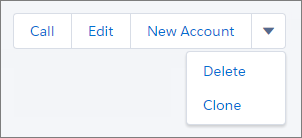
- The Chatter actions from the front of the action list are on the Chatter tab.
- The Activities-related actions—Email, New Event, New Task—display on the Activity tab.
- How Actions Are Ordered in Lightning Experience
In Lightning Experience, the actions on record pages are derived from the list of actions in the Salesforce Mobile and Lightning Experience Actions section of the page layout for that object. The same section on global publisher layouts determines the global actions that appear in the Global Actions menu.
