You are here:
View and Edit Email Templates in Salesforce Classic
You have several options for viewing and editing your Classic email templates. You can add attachments and preview email templates too.
Required Editions
| User Permissions Needed | |
|---|---|
| To create or change HTML email templates: | Edit HTML Templates |
| To create or change Visualforce email templates: | Customize Application |
| To create or change public email template folders: | Manage Public Classic Email Templates |
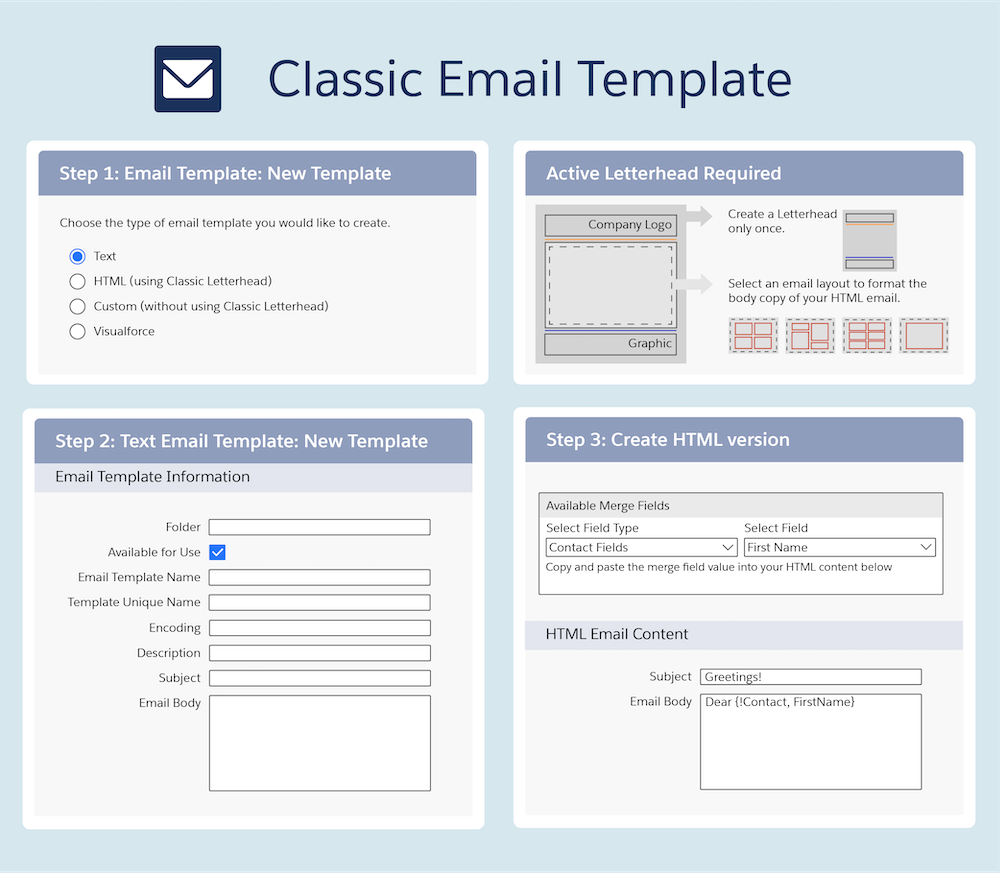
Access Classic Email Templates
To access your email templates, do one of the following:
- If you have permission to edit public templates, from Setup, enter Classic Email Templates in the Quick Find box, then select Classic Email Templates.
- If you don’t have permission to edit public templates, go to your personal settings. Enter Templates in the Quick Find box, then select Email Templates or My Templates—whichever one appears.
Click the name of any email template to go to the Classic Email Templates page.
- To edit or delete a template, click Edit or Del next to the template name in the list.
- Click New Template to create any type of Classic email template.
- If you have the “Manage Public Classic Email Templates” permission, you can click [Change] next to the Author field to select a different author. By default, the author is the person who created the email template.
- If Developer Mode is enabled, see what components the template references by clicking Show Dependencies.

Edit Classic Email Templates
Editing options vary depending on the template type.
- For text templates, click Edit to change the message content, subject, or merge fields.
- For custom and HTML templates:
- Change the content or merge fields of the HTML version by clicking Edit
HTML Version.Note All custom and HTML email templates include a text-only version for recipients who can’t view HTML emails. If you leave the text-only version blank, the text-only version is generated automatically when you edit the HTML version.
- Change the content or merge fields of the text-only version by clicking Edit Text
Version.
 Warning We recommend that you leave the text-only version blank. If you leave it blank, Salesforce automatically creates the text-only content based on the current HTML version. If you enter content manually, subsequent edits to the HTML version aren't reflected in the text-only version. When left blank, the text-only content is automatically created when sending an email via the UI. If you use that same template to send email via the API, Apex, or Flow or Process Builder email actions, you must provide the text-only content. Remember to update text-only content when you change the HTML content.
- Change the content or merge fields of the HTML version by clicking Edit
HTML Version.
- For Visualforce templates:
- Change the markup of the template page by clicking Edit Template.
- The Visualforce Attachments related list indicates which attachments are being generated through Visualforce markup.
- If the Visualforce markup references components in installed managed packages, the Version Settings related list shows the package versions of the installed packages containing the components. Some kinds of components in installed managed packages can include another class, a trigger, or a custom object.
- If the email template includes encrypted data, remember that the data is shown as encrypted within the generated email and in the Visualforce template page. For security reasons, it isn’t shown in plain text.
Add Attachments
Click Attach File from the Attachments related list. The attached file is included in every email based on the template.
-
To select a file:
- To search for files in the Documents tab, click the Search in Documents link. If you select an image logo or other graphics file, mark the document Externally Available on the Documents tab.
- Alternatively, select a file from your computer or from a document folder by choosing an option from the File Location dropdown list.
Preview Classic Email Templates
View a sample of the template populated with data from records that you select and send a test email by clicking Send Test and Verify Merge Fields.
