
Building Agents in Canvas View
Get to know the features of Agentforce Builder’s Canvas view that help you build powerful and reliable agents with Agent Script.
Required Editions
| Available in: Lightning Experience |
| Available in: Enterprise, Performance, Unlimited, and Developer Editions. Required add-on licenses vary by agent type. |
When you open an agent in Agentforce Builder, it opens in Canvas view. This view simplifies agent configuration by summarizing Agent Script into easily understandable blocks. It also provides shortcuts for common tasks.
Whether you use Canvas or Script view to build your agent, your agent’s configuration and any edits you make are consistent across both views.
The console includes a list of errors and warnings that could interfere with your agent’s performance, such as syntax errors or unexpected values. To quickly address a problem, click an error or warning in the console in Canvas or Script view. The builder opens the element or line with the issue in the view you’re currently in. You can commit an agent that has warnings, but not one with errors.
When you save your changes, Agentforce Builder completes validation checks in both views. Errors are underlined in Canvas view, but you can switch to Script view for more details. It’s possible to make changes in Script view that make Canvas view unavailable. To switch back to Canvas view, fix the errors in Script view first.
AI Assistance
Agentforce can help with all aspects of agent building, from answering questions to creating subagents and actions. Here are some ways that Agentforce can help.
- Generate Agent Script. Use natural language to explain what you want your agent to be able to do, and Agentforce can generate Agent Script for you based on your request. You can review and accept or decline its changes.
- Evaluate your instructions to improve and refine them. For example, you can ask Agentforce to make your instructions more deterministic.
To ask Agentforce for help with a specific line of instructions, hover over a line of
instructions and click  . Or type / on an existing line of instructions and
select Ask AI from inline actions. To get more general help,
chat with Agentforce in the Agentforce panel in Agentforce Builder.
. Or type / on an existing line of instructions and
select Ask AI from inline actions. To get more general help,
chat with Agentforce in the Agentforce panel in Agentforce Builder.
Resources
Resources are explicit references to subagents, actions, and variables. Like resources in flows and prompt templates, resources in reasoning instructions resolve like merge fields. It’s almost always best to use resources to reference subagents, actions, and variables in reasoning instructions to more reliably guide agent behavior. Learn more about variables.
In Canvas view, access resources using the @ symbol. You can also create a custom variable that's set to an action output. Next to an action output, click Select Variable and then select Create a variable.
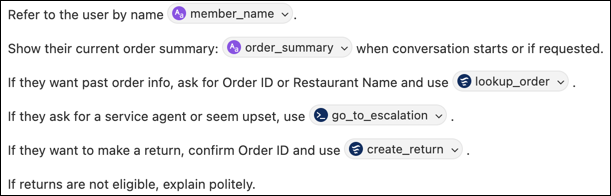
In this example, in reasoning instructions, explicit
references to variables and actions are intermixed with natural language instructions.
The member_name and order_summary variables are used
in agent responses to personalize the response and control the format. The
lookup_order and create_return agent actions are
used to ensure that the agent runs the correct action based on different possible user requests.
Inline Actions
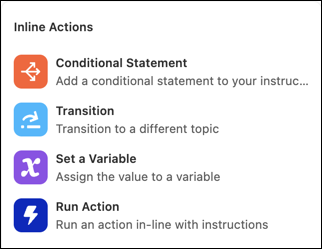
Inline actions are shortcuts for adding deterministic logic to your agent. When you include an inline action in your instructions, they run before any reasoning takes place. Learn more about how the agent uses inline actions in subagent instructions.
In Canvas view, access inline actions using the / symbol.
- Conditional Statement
-
Conditional statements control your agent’s behavior based on the values of one or more variables. You can think of a conditional statement as a fork in the road for your agent. If a condition is met, then the agent follows one path. Otherwise, the agent follows another. Conditional statements can be used in reasoning instructions. They contain at least one variable, one operator, and one value, but they can be more complex. Inside conditional statements, you can reference subagents and actions, run actions, set variables, and transition to other subagents.
 Note When you write a conditional statement, the data type of your variable determines the required format for the value.
- Boolean: True, False
- List: [item 1, item 2, item 3]
- Number: 60
- Object: {Contact}
- String: “example@salesforce.com”
Use conditional statements to define when an agent applies a particular instruction, runs an action, sets a variable, or transitions to another subagent.
In this example, in reasoning instructions, the agent evaluates the
days_since_ordervariable to determine whether the customer placed the order within the last 60 days. If the value is 60 or less, the resolved prompt instructs the agent to offer to process a return using thecreate_returnaction. If the value is greater than 60, the resolved prompt instructs the agent to explain that the customer’s order is outside of the return period.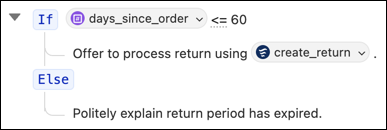
- Transition
-
Transitions give you control over subagent routing by defining when an agent moves to another subagent. If at any point in the reasoning instructions the agent executes a transition to another subagent, the agent redirects the conversation before the instructions are resolved and any reasoning occurs.
In actions available for reasoning, use utilities to transition or escalate instead of the inline action.
In this example, in the reasoning instructions, the agent evaluates the value of the
loyalty_tiervariable and transfers the conversation directly to a representative via theEscalationsubagent if the customer is a Platinum VIP member. Otherwise, the agent continues the conversation with the customer.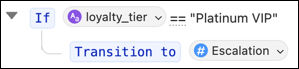
- Set a Variable
-
Set a variable to a value. Setting a variable is useful when you want to store values that you plan to reuse in some way, such as creating a conditional based on the variable, using the variable as an input to an action in a different subagent, or using the variable in a response to a user. You can also set a variable to clear the value of a variable when you enter a new subagent.
Note When you set a variable, the data type of your variable determines the required format for the value.- Boolean: True, False
- List: [item 1, item 2, item 3]
- Number: 60
- Object: {Contact}
- String: “example@salesforce.com”
When you run an action in instructions, you must manually set variables for the inputs and outputs because the action is run before any reasoning takes place. The action uses the set variable’s value as input, or stores the output value in the set variable. When you run an action in actions available for reasoning, setting variables is optional, but can be useful when you want to require the agent to use one action’s output as input to another action. Often, your agent can determine the best input for an action. In actions available for reasoning, use the utility for setting a variable instead of the inline action.
In this example, in reasoning instructions, the agent runs the
lookup_current_orderaction to fill theorder_summaryvariable when the variable is empty. Theorder_summaryvariable is set to theorder_summaryoutput, so when the agent runs the action, the value of theorder_summaryoutput is stored in theorder_summaryvariable. In the following instruction, the variable is referenced to include the customer’s order summary in the agent’s initial response.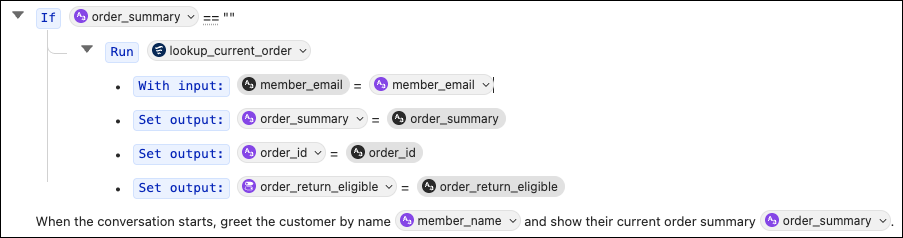
- Run an Action
-
Running an action deterministically runs an agent action. In reasoning instructions, run an action to complete a prerequisite task or gather information to give your agent necessary context.
Note When you run an action in instructions, you must manually set variables for the inputs and outputs because the action is run before any reasoning takes place.In actions available for reasoning, use follow-up actions to run an action instead of the inline action.
In this example, in reasoning instructions, running an action is included in a conditional statement. If the
order_summaryvariable doesn’t already contain a value from earlier in the conversation, the agent uses thelookup_current_orderaction to fill the variable. Including this conditional statement in the reasoning instructions ensures that the agent always has access to the order summary before reasoning.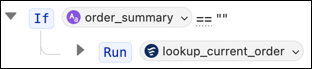
- Reasoning Instructions
- Add a line to the subagent's reasoning instructions.
- Add Action for Reasoning
- Add a line to the subagent's actions available for reasoning.
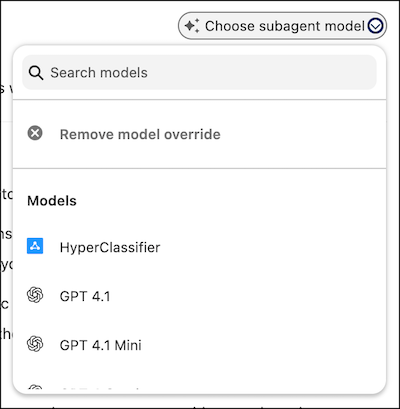
- Model Override
- Select which AI model the subagent uses. By default, every agent and its
subagents use the model specified on the Einstein Audit, Analytics, and
Monitoring Setup page. See Choosing an AI Model for a Subagent.
Features in Actions Available for Reasoning
- Utilities
-
Utility types include transitions to set subagents, escalations to a representative, or setting a variable. Create a utility and add it to your actions available for reasoning to make this functionality available for your agent to select during reasoning. After you add a utility to your actions available for reasoning, you can use a resource to reference it as an action and other inline actions in reasoning instructions to tell your agent how to use it.
This is what a transition utility looks like in Canvas view.
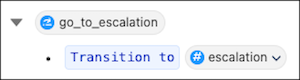
The escalation utility is only available for agents that use the Messaging or Enhanced Chat v2 connection. Agent's can't escalate conversations in Agentforce Builder. To test escalation, deploy your agent and then chat with it on a connected channel.
Unlike traditional agent actions, any utilities you add in actions available for reasoning don’t show up in your subagent's actions section in the Explorer panel.
- Filters (Make this action available when:)
-
Filters ensure that your agent can use a subagent or action only when one or more conditions are met.
In this example, in the actions available for reasoning, a filter has been applied to the
create_returnaction. The action is only available when an order is within the return window (return_eligibilityvariable equals True).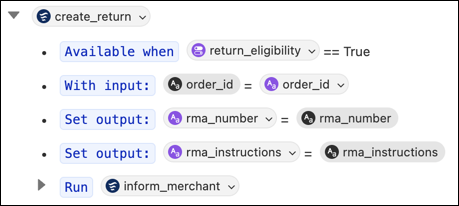
To determine whether the customer’s order meets the filter conditions, in reasoning instructions, the agent evaluates the
days_since_ordervariable to determine whether the customer placed the order within the last 60 days. If the value is 60 or less, the agent sets the value of thereturn_eligibilityvariable to True, which meets the filter conditions for access to thecreate_returnaction. Then the agent is able to offer to process a return.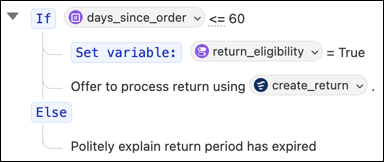
- Follow-Up Actions (After this action is run:)
-
Follow-up actions define steps that your agent takes after it chooses and runs an action during its reasoning process. Follow-up actions can include saving outputs to variables, transitioning to a different subagent, or running another action.
In this example, in actions available for reasoning, when the agent runs the
validate_user_readyaction as part of agent reasoning, the agent always transitions from the current subagent to theanalyze_issuesubagent.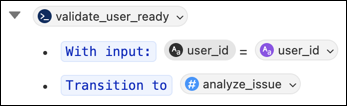
Keyboard Shortcuts
Quickly navigate Agentforce Builder’s Canvas view with these keyboard shortcuts for macOS and Windows.
To use autocomplete in Script view, enter the @ symbol and then find the resource that you want to reference using the arrow keys. Use the Tab or Enter key to select the resource.
| Action | MacOS | Windows |
|---|---|---|
| Select a line | Command+A | Ctrl+A |
| Select a reasoning block | Command+A+A | Ctrl+A+A |
| Copy | Command+C | Ctrl+C |
| Cut | Command+X | Ctrl+X |
| Paste | Command+V | Ctrl+V |
| Insert a resource | @ | |
| Insert an inline action | / | |
| Save changes | Command+S | Ctrl+S |
| Switch between Canvas and Script view | Option + M | |
