
Customize the Persona of Your Agent
Select a persona that you want your agent to use when talking to your customers. Consider the type of persona that is most suitable for your agent’s job or purpose.
Required Editions
| Available in: Lightning Experience |
| Available in: Enterprise, Unlimited, and Developer Editions with Foundations or Agentforce 1 Editions, and Salesforce Voice add-ons. |
| User Permissions Needed | |
|---|---|
| To build and manage Service Agents: | Manage Agentforce Service Agents AND Manage AI Agents OR Customize Application |
Customize the Persona for Your Agent in Agentforce Builder
Customize your agent’s voice by modifying the voice settings. While the voice settings can be updated at any stage, we recommend adding a voice-enabled connection such as Telephony to your agent first. The voice settings apply to all voice-enabled connections for that agent. To modify the voice settings, first make sure that your agent is deactivated.
- From the App Launcher, enter Agent, and then select the Agentforce Studio app. On the Agents tab, click the name of your agent.
-
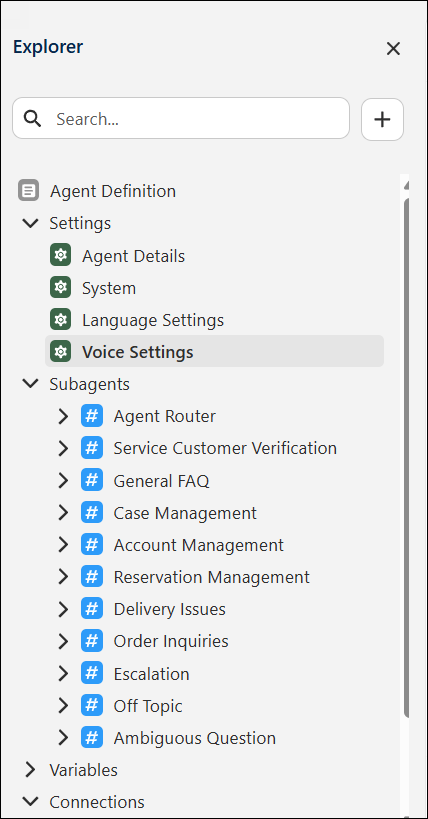
In the Explorer panel, under Agent Definition Settings, select Voice
Settings. These voice settings apply to all voice-enabled connections that you
add to this agent.
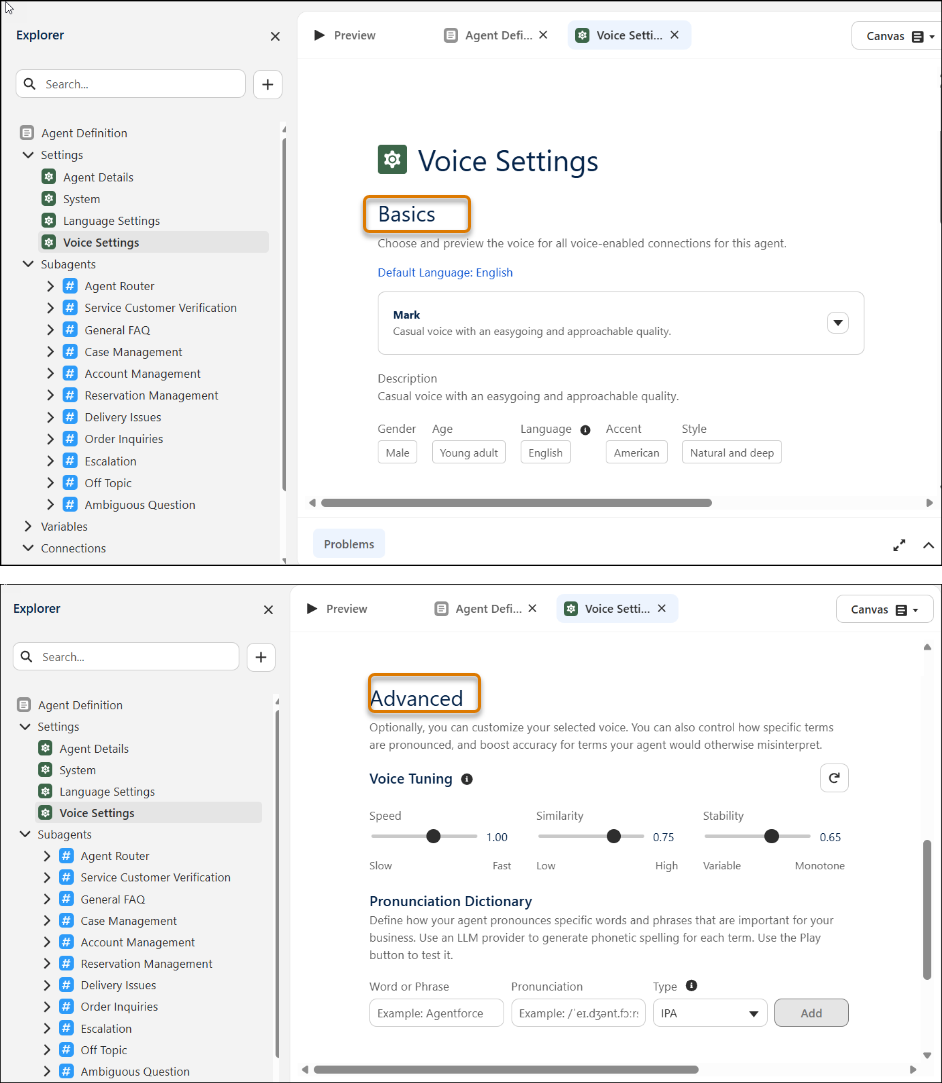
- Select a persona from the drop down menu and review its description. Enter a message in the Preview Message field and click Play to test the audio.
-
Use the Advanced section to further fine-tune the persona. Make sure to test the settings
and consider your audience and content and adjust the settings if necessary.
- Speed: Allows you to either speed up or slow down the pace of the generated speech.
- Similarity: Controls how closely the generated speech matches the original persona you selected.
- Stability: Determines how stable the voice is and the randomness between each generation. Lower values allow for more expressiveness and higher values make speech less expressive or more monotone.
-
Under the Pronunciation Dictionary, add any words or phrases that are unique to your
organization or use case and are likely to be mispronounced. This is an optional step. Review
the Agentforce Voice Best
Practices guide for more details.
- Word: Add the word or phrase.
- Pronunciation: Specify the pronunciation for the word or phrase you entered.
- Type: Select the type of pronunciation dictionary to use: Select CMU for English and IPA for non-english speech. The Carnegie Mellon University (CMU) dictionary is an American English pronunciation dictionary using a simplified ASCII-based phoneme set (ARPA) for speech technology (e.g., "cat" is K AE T). The International Phonetic Alphabet (IPA) is a global system using unique characters, often from Latin and Greek, to represent speech sounds (e.g., "cat" is /kæt/). Tip Listen to the agent pronouncing the word or phrase in the voice preview to determine if the word or phrase required adding it to the pronunciation dictionary.
-
Under the Key-term Boosting, enter single terms or phrases that are unique to your
organization or might be difficult to translate to text. Key-term prompting can improve the
ability of the model to correctly recognize terms and phrases you specify. While the
pronunciation dictionary provides the phonetic spellings or pronunciation guidance, key-term
prompting helps the model recognize the terms and phrases and transcribe more
accurately.
- Enter single terms or phrases such as uncommon words, proper nouns, product names, and industry-specific terms.
- Capitalize keywords as you want them to appear in transcripts.
- Limit to 100 keywords.
 Note This is an optional step it should only be used if words or terms are being misinterpreted or transcribed incorrectly and after careful testing. Review the Agentforce Voice Best Practices guide for more details.
Customize the Persona of Your Agent in the Legacy Builder
-
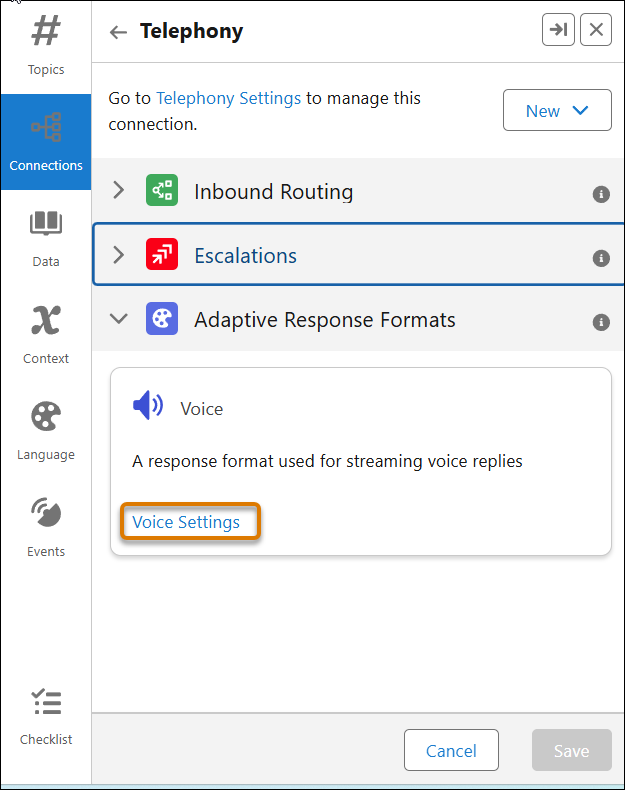
In Agentforce Builder, within the Connections tab, select the Telephony connection and
click Voice Settings.
-
Expand Basic and select a voice from the list. Review the
description and other characteristics such as gender, age, accent and style.
 Important Voice-enabled agents only support specific languages, and you must ensure the agent's default language (set in language settings) aligns with the voice setting you select. See Agentforce Voice Considerations.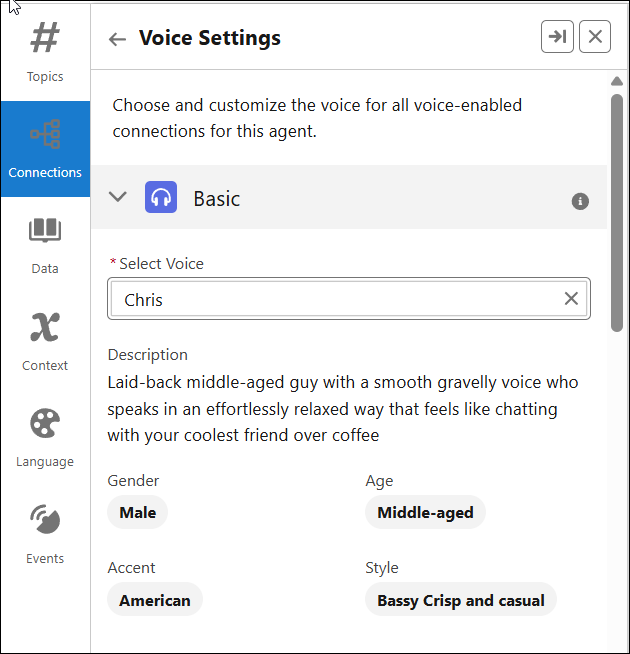
-
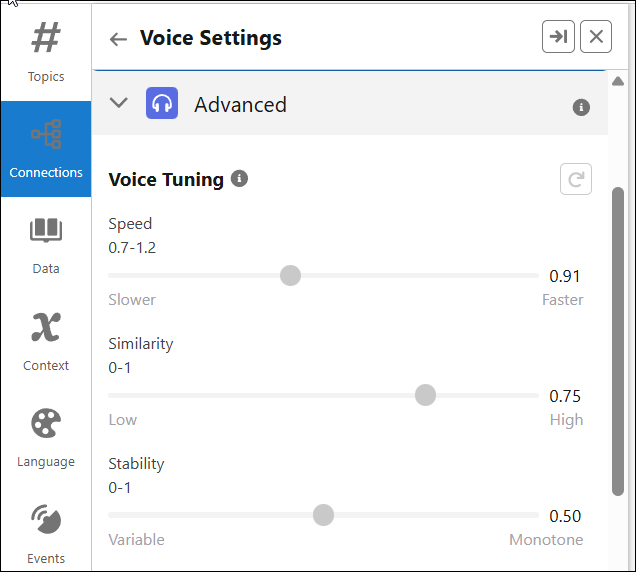
Expand Advanced. Advanced settings allow you to fine tune the voice
to your preferences. Make sure to test the settings and consider your audience and content and
adjust the settings if necessary.
- Speed: Allows you to either speed up or slow down the pace of the generated speech.
- Similarity: Controls how closely the generated speech matches the original voice you selected.
- Stability: Determines how stable the voice is and the randomness between each generation. Lower values allow for a broader emotional range for the voice. High values make the speech closer to serious or monotone.
-
Under Pronunciation Dictionary, add any words or phrases that are unique to your
organization or use case and are likely to be mispronounced. This is an optional step. Review
the Agentforce Best Practices
guide.
- Word: Add the word or phrase.
- Pronunciation: Specify the pronunciation for the word or phrase you entered.
- Type: Select the type of pronunciation dictionary to use: The International Phonetic Alphabet (IPA) is a global system using unique characters, often from Latin and Greek, to represent speech sounds (e.g., "cat" is /kæt/). The Carnegie Mellon University (CMU) dictionary is an American English pronunciation dictionary using a simplified ASCII-based phoneme set (ARPA) for speech technology (e.g., "cat" is K AE T).
-
Under the Key-term Prompting, enter single terms or phrases that are unique to your
organization or might be difficult to translate to text. Key-term prompting can improve the
ability of the model to correctly recognize terms and phrases you specify. While the
pronunciation dictionary provides the phonetic spellings or pronunciation guidance, key-term
prompting helps the model recognize the terms and phrases and transcribe more
accurately.
- Enter single terms or phrases such as uncommon words, proper nouns, product names, and industry-specific terms.
- Capitalize keywords as you want them to appear in transcripts.
- Limit to 100 keywords.
Note This is an optional step it should only be used if words or terms are being misinterpreted or transcribed incorrectly and after careful testing. Review the Agentforce Voice Best Practices guide for more details.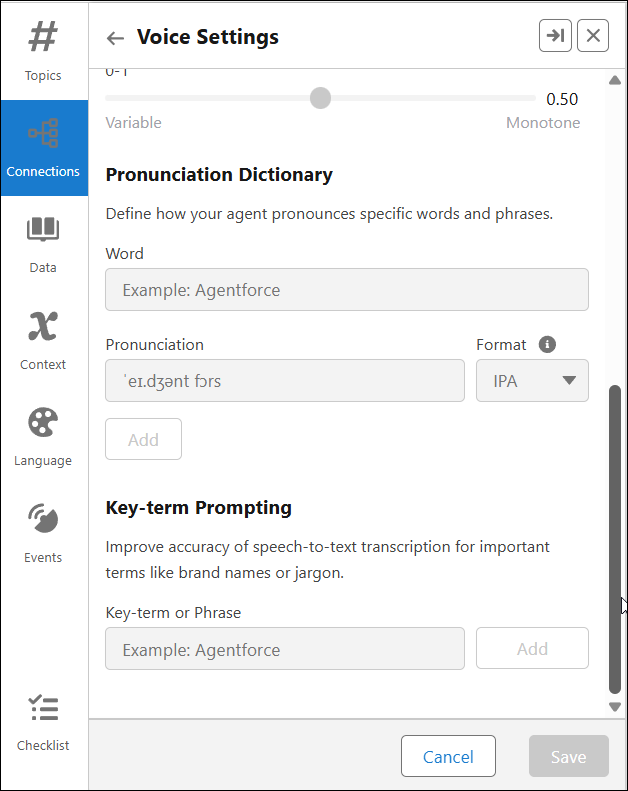
-
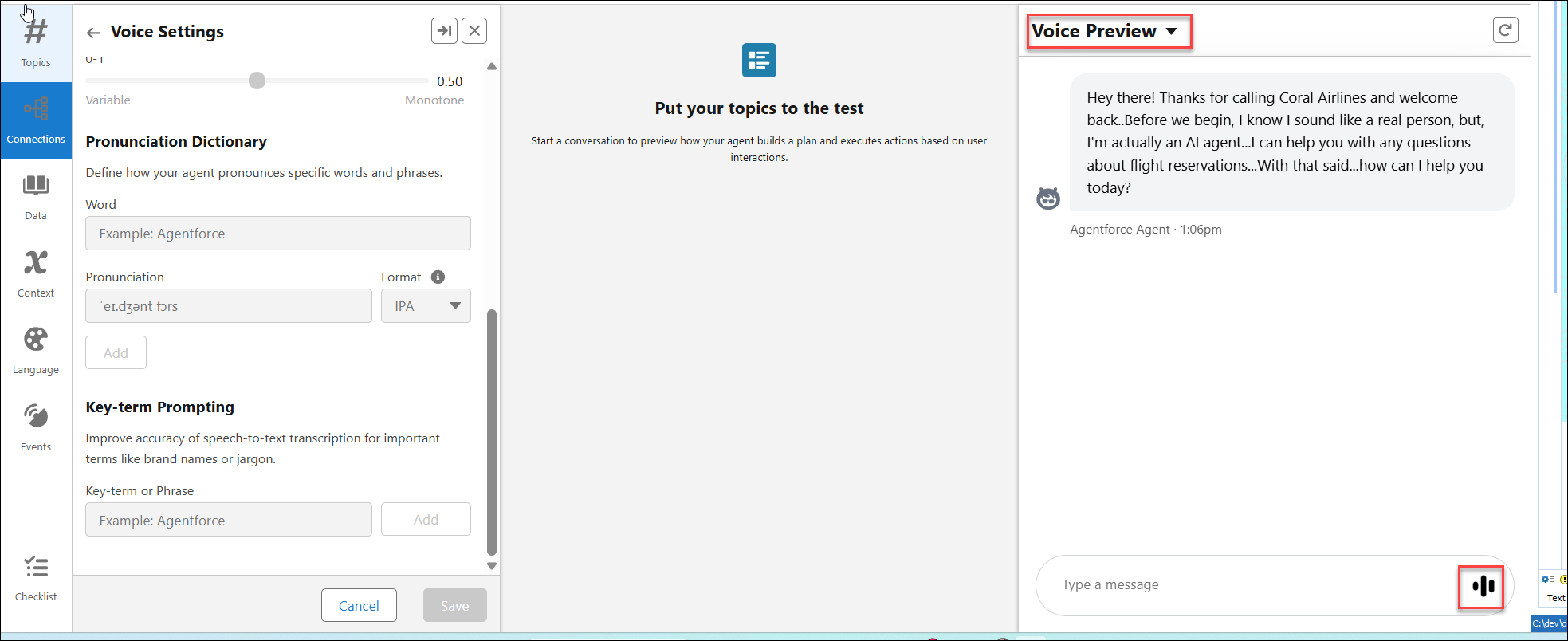
Use the Voice Preview panel to test how your agent sounds. Save your settings.
Did this article solve your issue?
Let us know so we can improve!
