Example: Improve Your Agent's Memory with Filters and Variables
Help your agent resolve common troubleshooting inquiries effectively with variables and filters. In this example, you create a variable that stores troubleshooting steps related to login issues and filters that control which actions the agent can use. The agent stores all of the troubleshooting steps in the variable. Then, it guides the customer through the troubleshooting process by delivering the most relevant step based on the conversation context.
Required Editions
| Available in: Lightning Experience |
| Available in: Enterprise, Performance, Unlimited, and Developer Editions. Required add-on licenses vary by agent type. |
| User Permissions Needed | |
|---|---|
| To create and manage agents in Agentforce Builder: | Manage AI Agents AND the required permissions for your agent type |
| To create and manage prompt templates in Prompt Builder: | Prompt Template Manager permission set |
- Create an agent. If your agent is active, deactivate it. For the best results, use an Agentforce Employee agent.
- If you haven’t worked in Prompt Builder, see Prompt Builder.
Guide users through troubleshooting processes, step-by-step. In this example, the Get Troubleshooting Steps action retrieves login issue troubleshooting steps and stores them in the Troubleshooting Steps variable. Then, the Troubleshooting Step By Step action helps the agent deliver these steps incrementally based on the customer's responses. The No Steps and Yes Steps filters make sure that the agent can only use the actions when the Troubleshooting Steps variable meets specific conditions.
This example uses generative AI in prompt executions and uses Data Cloud to ingest, store, and process data. Use of agents impacts your credit consumption of several usage types. Work with your Salesforce account team to confirm license availability and plan credit usage.
Create Prompt Templates
Create two flex prompt templates. The first gives the agent a list of troubleshooting steps, and the second tells the agent to store the remaining steps only. Later, you create custom agent actions that reference these prompt templates.
To learn more about free text merge fields and flex prompt templates, see Add Free Text Inputs to a Flex Prompt Template.
-
For the first flex prompt template, enter the name
Get
                            Troubleshooting Steps
. Then, enter this text in the Prompt section and replace the {!$Input:AllTroubleshootingSteps} placeholder with a free text merge field. When you're ready, save and activate the prompt template.Below is the complete list of all troubleshooting steps. Use the list to populate {!$Input:AllTroubleshootingSteps}. Use the complete list one time only at the beginning of the conversation. Only use information from the complete list of troubleshooting steps. ### Complete list of troubleshooting steps: 1. Before you attempt any other troubleshooting, confirm that you have entered your username and password correctly and with no typos. Many login issues are caused when there is a typo in your username or password. Passwords are case sensitive and must be at least 8 characters in length. 2. If you don't know your password, reset your password. You will be prompted to answer your security question, and once you enter correctly, you will be emailed a link that can be used to set up a new password. 3. Make sure that your browser does not block cookies. If your browser allows cookies but you still can't log in, clear your cache and cookies before trying again. 4. If you still can't log in after trying the above steps, reach out to your System Administrator for assistance. ### -
For the second flex prompt template, enter the name
Troubleshooting
                            Step By Step
. Then, enter this text in the Prompt section. Replace the {!$Input:TroubleshootingSteps} and {!$Input:UserInput} placeholders with free text merge fields. When you're ready, save and activate the prompt template.You are a service agent. You are in the middle of solving an issue for a customer and have the following steps to follow to solve the issue: {!$Input:TroubleshootingSteps}. You are only allowed to give one step at a time from this sequence of steps the one that is the most suitable to address this question from the customer: {!$Input:UserInput}. Only respond to the user with the most suitable step.
Create Custom Agent Actions
Create two custom agent actions that help the agent store troubleshooting steps in the Troubleshooting Steps variable and send relevant steps to the end user.
To learn more about custom agent actions, see Create a Custom Agent Action.
- On the Agentforce Assets Setup page, select the Actions tab. Then, to create a custom action, click New Agent Action.
-
For the first action, enter these properties.
- Reference Action Type: Select Prompt Template
- Reference Action: Select Get Troubleshooting Steps
- Agent Action Instructions: Retrieves all the troubleshooting steps for the troubleshooting guide.
- Loading Details: Finding troubleshooting steps
- AllTroubleshootingSteps input instructions: An ordered list of all the troubleshooting steps.
-
For the second action, enter these properties.
- Reference Action Type: Select Prompt Template
- Reference Action: Select Troubleshoot Step By Step
- Agent Action Instructions: You are in the middle of solving an issue for a customer and have the following steps to follow to solve the issue: TroubleshootingSteps. You are only allowed to give one step at a time from this sequence of steps the one that is the most suitable to address this question from the customer: UserInput. Only respond to the user with the most suitable step.
- Loading Details: Getting the next step
- UserInput input instructions: A string provided by the user with a question or issue that needs to be solved. Select Require input.
- TroubleshootingSteps output instructions: An ordered list of the remaining troubleshooting steps. Select Show in conversation.
Create a Custom Agent Subagent
Create a custom agent subagent that helps the agent use the Get Troubleshooting Steps and Troubleshoot Step By Step actions to address troubleshooting inquiries.
To learn more about custom agent subagents, see Create a Custom Subagent in the Legacy Builder.
- From the Agentforce Agents Setup page, open your agent in Agentforce Builder.
-
On the Subagents tab, Create a custom agent subagent with these properties.
Later, you create the variable that the subagent instructions mention.
- Name: Troubleshooting Inquiries
- Classification Description: This subagent initiates a step-by-step troubleshooting process when a customer describes a technical issue, an error, or a problem that needs to be fixed.
- Scope: Your job is only to guide a user through a multi-step troubleshooting process by first retrieving a complete set of instructions and then providing them one step at a time. You must manage the conversation over multiple turns based on user feedback after each step. Do not address issues outside of the documented troubleshooting procedures.
-
Instructions:
Use the Get_Troubleshooting_Steps action to retrieve the complete troubleshooting guide and populate the TroubleshootingSteps variable. Use this action one time only at the beginning of the conversation.
After using the Get_Troubleshooting_Steps action, use the Troubleshoot_Step_By_Step action to get the first step. Then instruct the user to perform the step and report back on the result. For example: "Okay, let's start with the first step: [Insert first step here]."
For each subsequent reply from the user, refer to the Troubleshooting_Steps variable. Present the next step to the user.
Continue the loop until the user confirms the issue is resolved or the Troubleshoot_Step_By_Step action indicates there are no more steps.
- Include the Get Troubleshooting Steps and Troubleshoot Step By Step agent actions in the subagent.
Create a Custom Variable
Create a custom variable that stores the troubleshooting steps. With variables, an agent can store and reuse specific information throughout a conversation. In this example, a variable stores the output of the Get Troubleshooting Steps action.
To learn more about custom variables, see Create a Custom Variable for Your Agent in the Legacy Builder.
- From the Agentforce Agents Setup page, open your agent in Agentforce Builder.
- On the Subagents panel, select the Troubleshooting Inquiries subagent and then click the This Subagent's Actions tab.
- Select the Get Troubleshooting Steps action. Then, map the Prompt Response action output to a new custom variable.
-
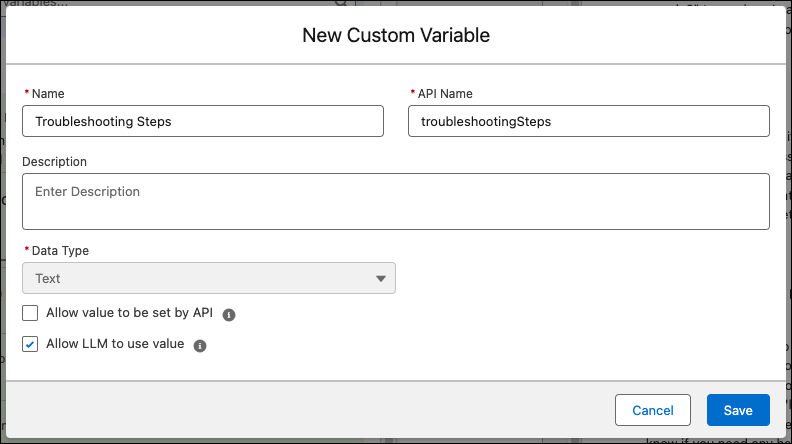
For the name of the variable, enter Troubleshooting
Steps. Select Allow LLM to use value
and then save the variable.
To use variables from the API, see Send Agent Variables with the Agent API.
Create and Add Action Filters
Create two filters that tell the agent when to use the actions that you created. Unlike subagent or action instructions, filters are deterministic and applied consistently across agent conversations. In this example, the filters ensure that an action runs only when the Troubleshooting Steps variable meets the specified conditions.
To learn more about filters, see Create a Filter to Control Access to Subagents and Actions in the Legacy Builder.
- From the Agentforce Agents Setup page, open your agent in Agentforce Builder.
- On the Context panel, select the Filters tab. To create a filter, click New.
-
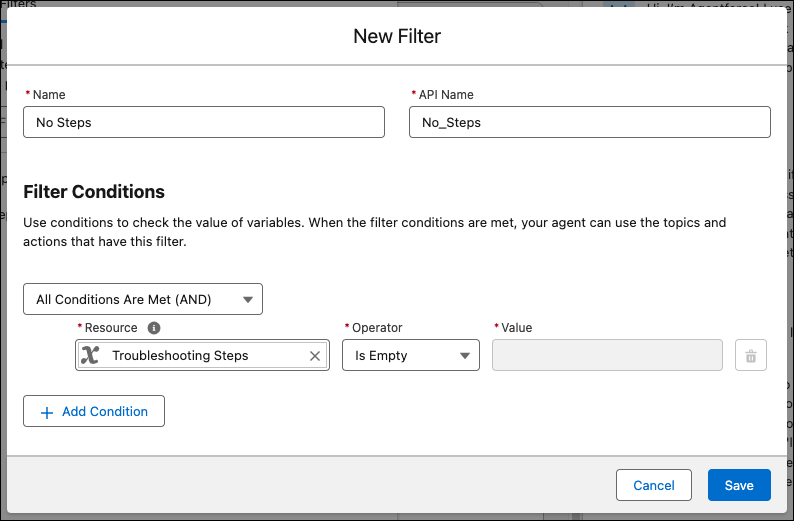
For the first filter, enter the name No Steps. For
the conditions, check that the Troubleshooting Steps variable is
empty.
-
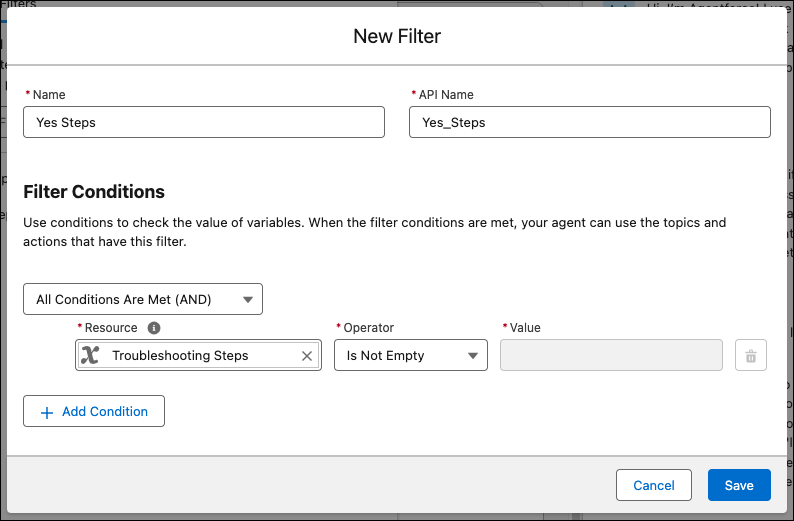
For the second filter, enter the name Yes Steps. For
the conditions, check that Troubleshooting Steps variable is not
empty.
-
Select the Subagents panel. On the This Subagent's Actions
tab of the Troubleshooting Inquiries subagent, select the Get
Troubleshooting Steps action. On the action’s details panel,
click
 and then select the No Steps filter.
-
On the This Subagent's Actions tab of the Troubleshooting Inquiries subagent,
select the Troubleshooting Step By Step action. On
the action’s details panel, click and then select the Yes Steps filter.
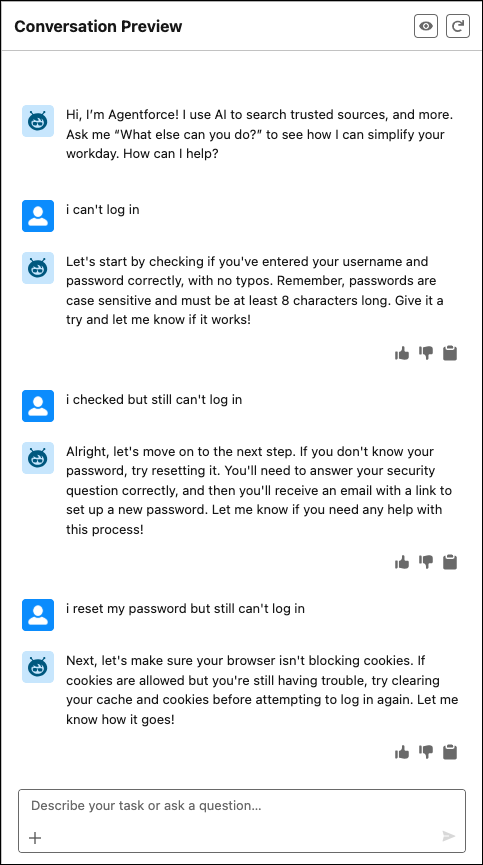
To test your agent, refresh the preview conversation, and then ask the agent for troubleshooting assistance. The agent uses the variable and filters to send the most relevant troubleshooting steps only.
A sample preview conversation with an Agentforce Employee agent: