
Example: Send a Rich Link Response to a Customer With a Flow
In this example, you send links and images associated with menus using an autolaunched flow and rich link response.
Required Editions
| Available in: Lightning Experience |
| Available in: Enterprise, Performance, Unlimited, and Developer Editions. Required add-on licenses vary by agent type. |
| User Permissions Needed | |
|---|---|
| To build and manage Service Agents: | Manage Agentforce Service Agents AND Manage AI Agents OR Customize Application |
| To open, edit, or create a flow in Flow Builder: | Manage Flow |
Before you begin:
- Create an Agentforce Service agent. If you want to use an active agent, create a version of it or deactivate it.
- Connect the service agent to an enhanced Messaging channel.
- Turn on adaptive response formats.
- If you haven’t worked in Flow Builder before, see Automate Tasks with Flows.
Create a Custom Object
To store information about different menus, create a custom object.
-
Create a custom object with these
properties. Give the object a descriptive name, such as Menu.
- Data Type: Text
- Optional Features: Allow Reports, Allow Activities, Track Field History, Allow in Chatter Groups
- Object Classification: Allow Sharing, Allow Bulk API Access, Allow Streaming API Access
- Search Status: Allow Search
-
In Object Manager, click Fields & Relationships
and then create these fields on the custom object.
- Image MIME Type with the Text data type.
- Menu with the Rich Text Area data type.
- Menu URL with the URL data type.
- Description Text with the Text data type.
- Create a few records from this object. For example, you can create a dinner menu and lunch menu. Later, your agent uses information from these records in responses.
Make sure that the agent user has access to the custom object and its fields. Also, give your agent access to URLs by adding them to your trusted URLs and CORS allowlist.
Create a Flow
To retrieve details from Menu records, create an autolaunched flow. Later, you create a custom agent action based on this flow.
- From Setup, in the Quick Find box, enter Flows, and then select Flows.
- Click New Flow. Select Autolaunched and then Autolaunched Flow (No Trigger).
-
In Flow Builder, create a menuList resource with these properties.
- Data Type: Record. Select Allow multiple values (collection).
- Object: Menu
- Availability Outside the Flow: Available for output
-
Create a recordId resource with these properties.
- Data Type: Text
- Availability Outside the Flow: Available for input
-
Create a menuRecordId resource with these properties.
- Data Type: Text
- Availability Outside the Flow: Available for output
-
Create a menuURL resource with these properties.
- Data Type: Text
- Availability Outside the Flow: Available for output
-
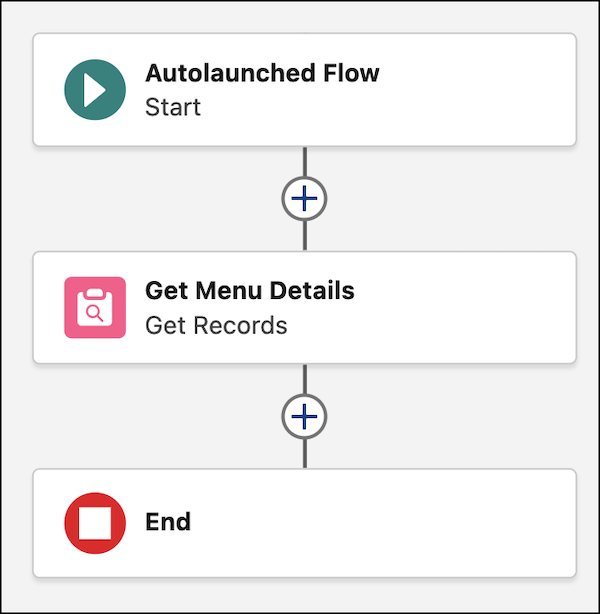
After the Start element, click
 and then add a Get Records element with these properties.
- Label: Get Menu Details
- Get Records of This Object: Select the Salesforce Object data source. From the Object dropdown, select the Menu object that you created.
- Filter Product Menu Records: Select the None–Get All Menu Records condition requirement.
- How Many Records to Store: All Records
- How to Store Record Data: Choose fields and assign variables (advanced).
- Select Variable to Store Product Menu Records: The menuList resource that you created.
- Select Menu Fields to Store in Variable: Name, ImageMimeType__c, Menu__c, MenuURL__c, DescriptionText__c
-
Save and activate the flow.
Make sure that the agent user has the Run flows permission.
Create a Custom Agent Action
Create a custom agent action that uses the Get Menu Details flow as a reference action.
- Reference Action Type: Flow
- Reference Action: Get Menu Details
- Agent Action Instructions: Finds and retrieves details from a menu. For each menu, retrieves its name, image, MIME type, and URL. This action is for when a user asks to see the menu.
- Loading Details: Getting menu
- recordId input instructions: The single ID of the Salesforce record with the menu name.
- menuList output instructions: A list of menu URLs. Select Show in conversation.
- menuURL output instructions: The URL of the menu. Select Show in conversation.
- menuRecordId output instructions: The single ID of the Salesforce record with the menu name. Select Show in conversation.
Create a Custom Subagent
Create a custom subagent that includes the Get Menu Details action.
- Open your Agentforce Service agent in Agentforce Builder.
-
Create a custom
subagent with these properties.
- Classification Description: This subagent handles customer requests for menu information.
- Scope: Your job is only to provide lists of available menus and display the details for a selected menu, including names, images, and URLs. If the user asks for a task that is out of scope, should state that you cannot assist and can only provide menu information.
-
Instructions:
Use the Get_Menu_Details action to get menu details for a given menu.When the user says: "give me the menu", always give a list of available menus.
- Include the Get Menu Details agent action in the subagent.
To test your agent, activate it and then chat with it on a connected channel.
