

Use Uploaded Files
Select the files to upload for your data library to index.
Required Editions
| Available in: Lightning Experience |
| Available in: Enterprise, Performance, and Unlimited Editions with the Einstein for Platform or Einstein or Agentforce for Sales or Service add-on, or Agentforce Foundations |
| User Permissions Needed | |
|---|---|
| To set up Agentforce Data Libraries: | Data Cloud admin AND System Administrator permissions. |
To use Agentforce Data Libraries, you must have Data 360 set up. Data libraries consume Data 360 credits.
- To configure a data library based on your files, from Agentforce Data Library Setup, select Add Data, and Upload Files.
-
When you create a file-based data library, we automatically apply advanced processing
tools. Advanced processing uses Intelligent Context to create an optimal search index and
retrieval pipeline for your data. Files are evaluated to determine the best indexing
configuration. Intelligent Context uses additional data credits. For more rate information see Data 360 Billable Usage Types. To turn it off, click the Intelligent Context toggle on the library's settings page. This may lower retrieval accuracy for tables and infographics. After you save the library, you can’t turn Intelligent Context on or off later.See Intelligent Context in Data 360.

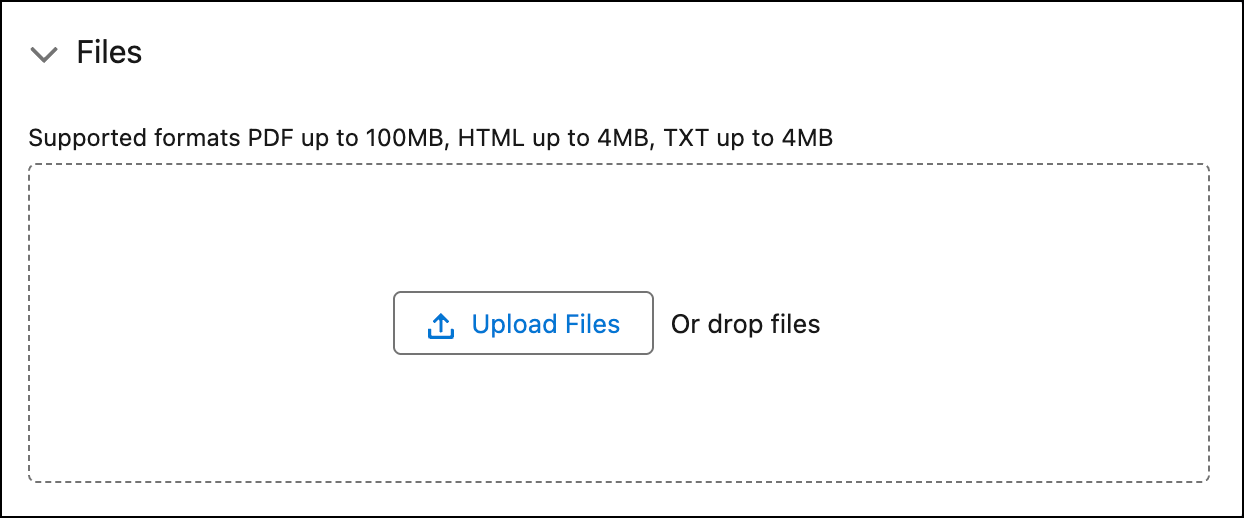
- To add files, click Add Data, select your files or drag files directly into the upload box, and click Save. You can upload up to 4 MB for text or HTML files, or 100 MB for PDF files. You can see each file's status transition from Uploading, Uploaded, Indexing, to Indexed.
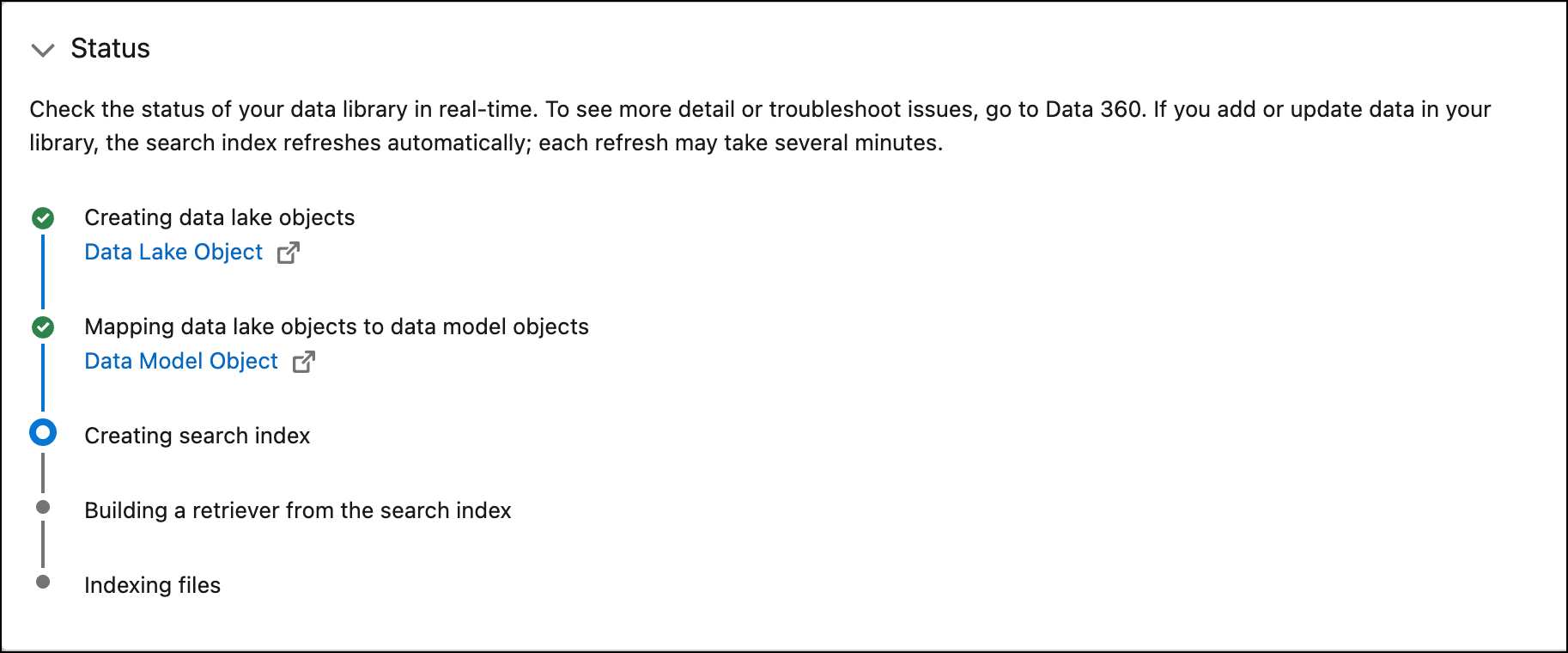
- After you save, monitor your data library's progress from the status card in Setup. As your library builds, the status card updates at each stage, from creating the data structures that store and organize your files, to building a search index, configuring a retriever, and finally chunking and indexing your content for retrieval.
- While the library builds, its status changes to 'In Progress' and it can't be used. Build time can take from a few minutes to several hours, and depends on the number and size of your files. To remove files in your library, delete the files you want to remove, add any new files, and click Save. When you add files to a data library, the search index associated with the data library is updated with the new files.

When the status updates to 'Your data library is ready to use!' your content is available and your agents can start using it with confidence.

Note
Get programmatic access to data libraries through the Agentforce Data Library connect API (beta).
Did this article solve your issue?
Let us know so we can improve!