
Use Salesforce Knowledge
Select the knowledge fields for your data library to index.
Required Editions
| Available in: Lightning Experience |
| Available in: Enterprise, Performance, and Unlimited Editions with the Einstein for Platform or Einstein or Agentforce for Sales or Service add-on, or Agentforce Foundations |
| User Permissions Needed | |
|---|---|
| To set up Agentforce Data Libraries: | Data Cloud admin AND System Administrator permissions. |
To use Agentforce Data Libraries, you must have Data 360 set up. Data libraries consume Data 360 credits.
- To configure a data library, select it and click Edit.
- If you want to base a data library on your Knowledge articles, select the Knowledge tab.
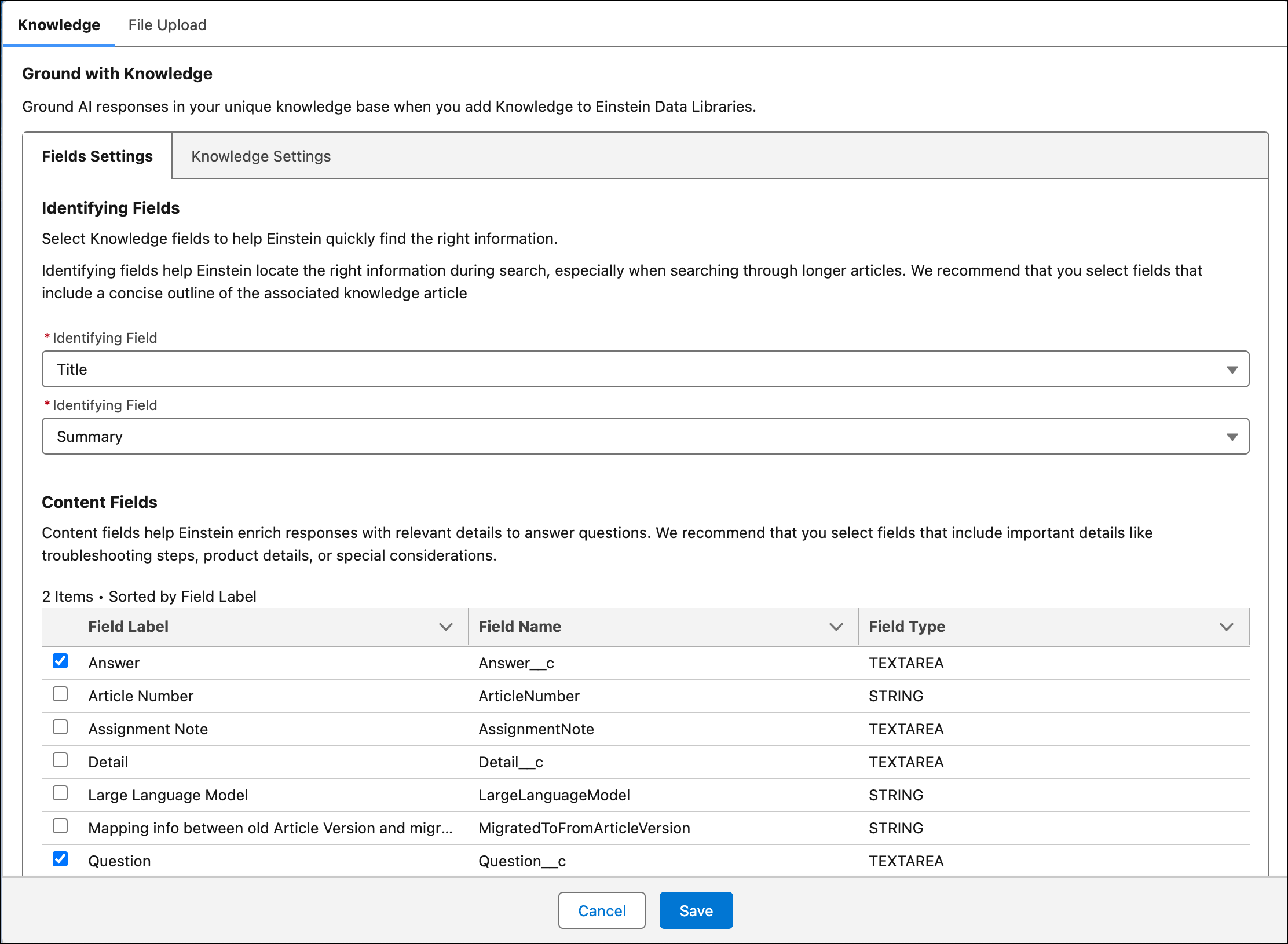
- Under Knowledge Field Settings, select identifying fields for the knowledge articles. Identifying fields help Agentforce locate the right information in your index. Idenitfying fields must be a text or text area type fields and are limited to 512 tokens. We recommend that you select fields that include a concise outline of the associated knowledge article.
-
Select the content fields. Content fields help AI agents enrich responses with relevant
details. We recommend that you select fields that include important details such as
troubleshooting steps, product details, and special considerations. Knowledge data
libraries support only text or text area type fields.
- In data library setup from Agent Builder, you an also include citations. A citation is a link to the Knowledge Article that a response is grounded on. To include citations select Show sources. Next, add your Salesforce Knowledge domain URL to link AI-generated responses to their source in your Knowledge base. If you don’t include a specific Knowledge domain URL, it uses the publicly available URL. Learn more about Knowledge domains.
- Click Save.
- Under Knowledge Settings, specify which articles are included in the data library. Only published articles are considered for the data library. See Publish Articles and Translations.
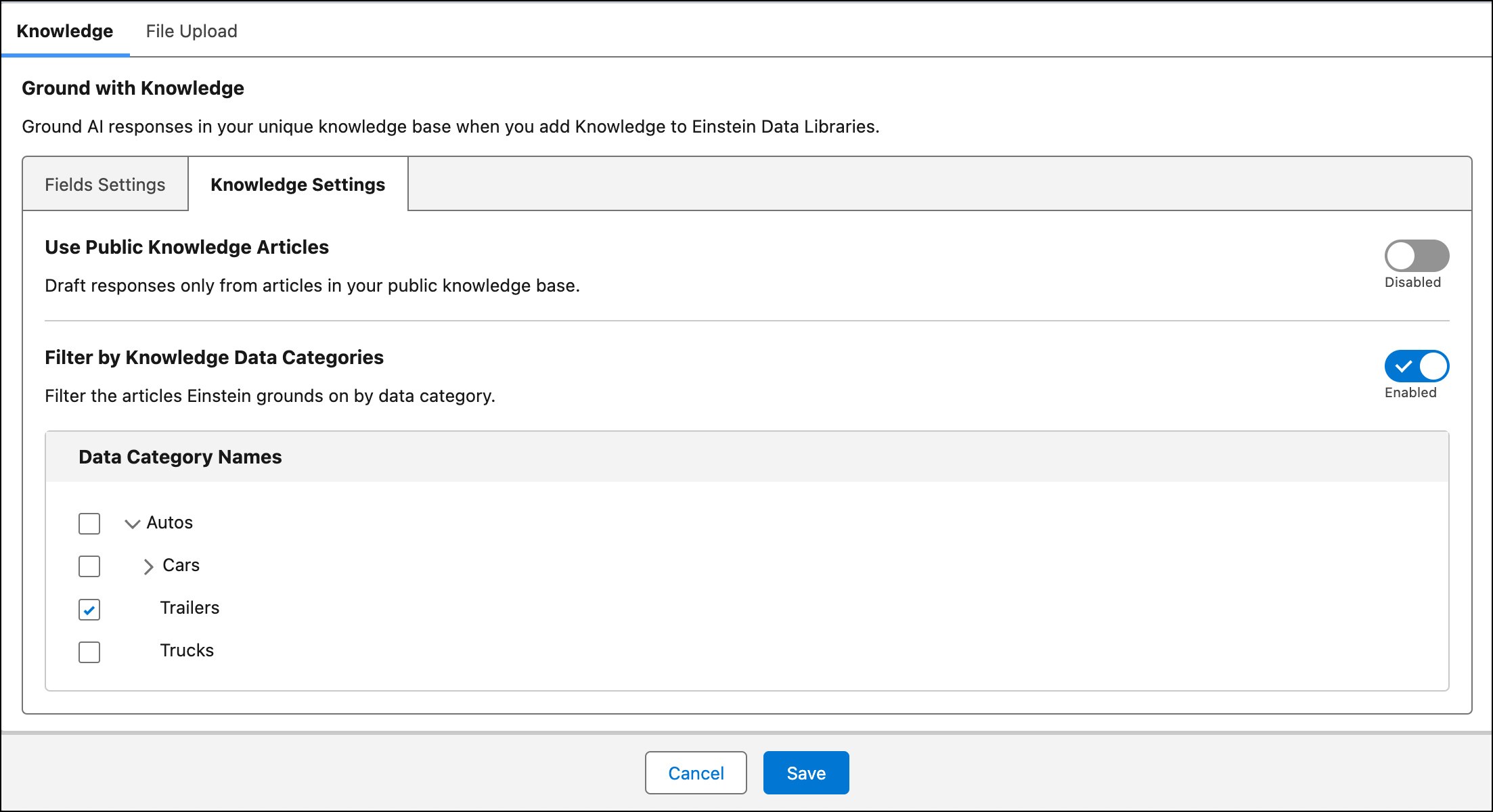
- To restrict indexed articles to articles that are publicly available in your Knowledge base, enable Use Public Knowledge Articles. Knowledge Articles that are publicly available have IsVisibleInPkb as True. See Create a Knowledge Base with Salesforce Knowledge.
-
To filter indexed articles by data category, enable Filter by Knowledge Data
Categories. Then, select the categories to include in your data library. See
Work with Data Categories.
- Save your work.


After you save your selections, data streams, a search index, and a retriever are created automatically and available to view or edit in Data 360. Monitor your data library’s progress from Setup. When the status updates to “Your data library is ready to use!” you can test and use the library data with agents.
Did this article solve your issue?
Let us know so we can improve!
