
Navigate the Metadata Studio
Explore the different sections of the Metadata Studio to better understand how to get the best results when validating your metadata.
Required Editions

| Available in: Lightning Experience |
| Available in: Enterprise, Performance, Unlimited, and Developer Editions with Foundations, or Agentforce 1 or Einstein 1 Editions |
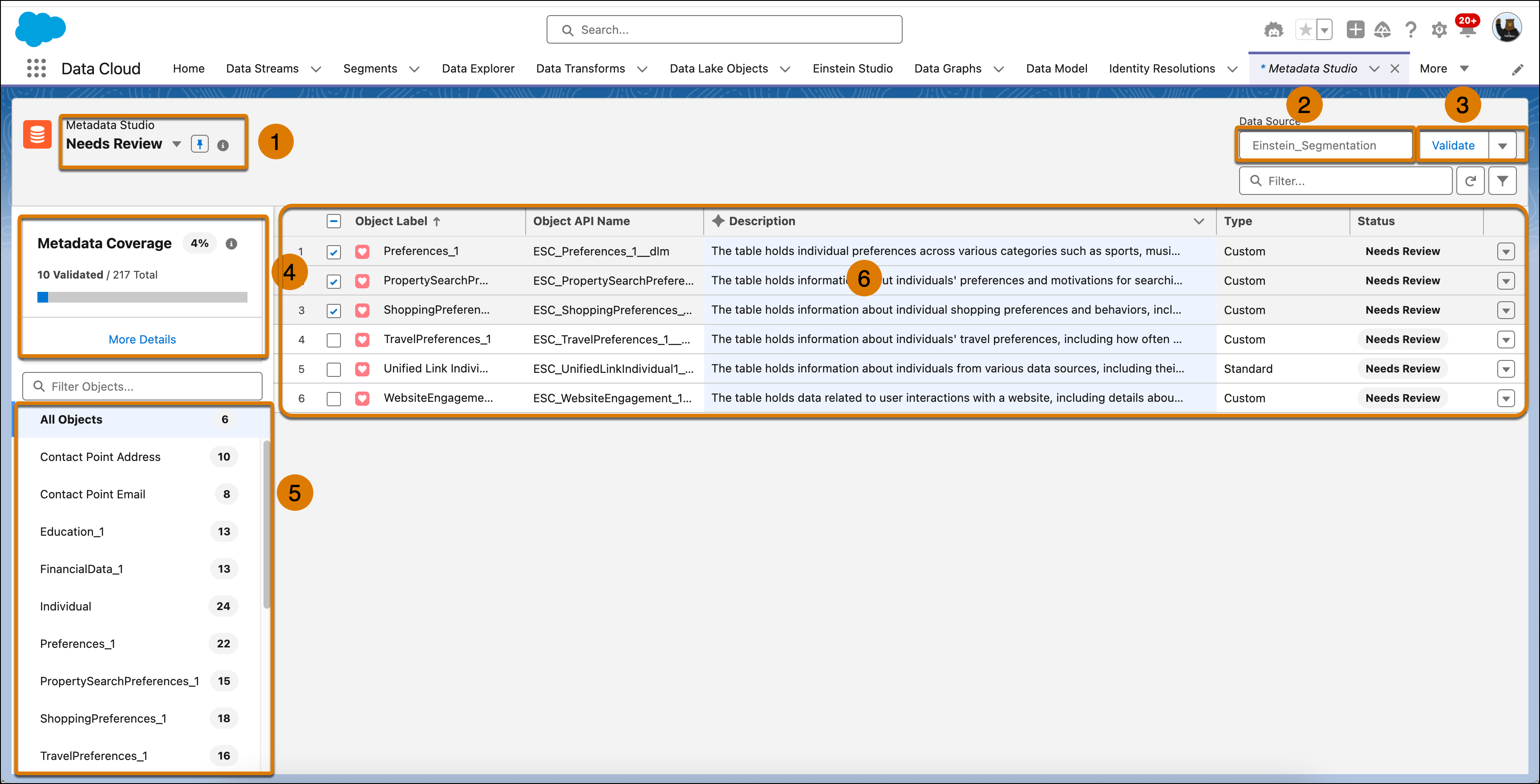
Filter the page and focus on specific entities. By default, the table displays all entities that require reviewing. If you've excluded fields, then you can use the Excluded Entities view to show only excluded entities (1).
Select the required data source (dataspace or Core org depending on your purchased products). If you have Data 360, all available dataspaces appear. If you have a Core App, the Core org appears (2).
Validate or exclude entities either one-by-one, or by selecting multiple entities and performing a bulk action. Validating or excluding entities can also be done inside the object table by selecting Validate or Exclude from the dropdown menu (3).
Review how many entities (objects and fields) have been validated. To increase metadata coverage, add missing descriptions and edit if necessary to validate the accuracy of the generated descriptions. Adding descriptions or business logic as part of the object descriptions can help improve your metadata coverage and results (4).
Explore the objects in your metadata, and view how many fields within that object require validating. By default, you can see all the objects depending on the selected dataspace or Core App org under the All Objects node. If you select a specific object (on the left navigation) you can see all the fields that belong to that object (in the object table on the right-hand side) (5).
Review the accuracy of the metadata labels and descriptions, add missing descriptions, and validate or exclude entities. Adding descriptions or business logic as part of the object descriptions can help improve your metadata coverage and results. All generated descriptions appear in light blue, indicating they were generated by generative AI (6).
