Add a Field Generation Prompt Template to a Lightning Record Page
Generative AI-enabled fields powered by prompt templates can help users complete their
work faster. With a click of a button, your users can quickly populate a record field with useful
information, such as a summary of open cases for an account, to facilitate more productive
conversations with your customers.
Required Editions
Available in: Lightning Experience
Available in: Enterprise, Performance, and Unlimited
Editions with the Einstein for Platform, or Einstein or Agentforce for Sales or
Service add-on, or Agentforce Foundations
User Permissions
Needed
To access and run prompt templates outside Prompt Builder:
Prompt Template User permission set
Note For users to access generative AI-enabled fields in the Salesforce mobile app, you must
first enable Dynamic Forms on Mobile.
From Setup, enter App Builder in the Quick Find box, then select
Lightning App Builder.
Select an existing Lightning record page, or create a new one.
If you’re creating a new record page, drag a Field Section component or a Record Detail
component onto the canvas.
Use one of these options, but not both.
Click the Fields tab and add one or more Field Section
components to build your record details and fields from scratch. Then drag fields into
the Field Section component.
Use a Record Detail component to migrate your page to Dynamic Forms and convert
the single block of fields into individual field components. Add the Record Detail
component to the page, select it, then click Upgrade Now in the
component panel.
If you’re editing an existing record page that’s not already using Dynamic Forms, click
the Record Detail component on the canvas, then click
Upgrade Now in the property panel.
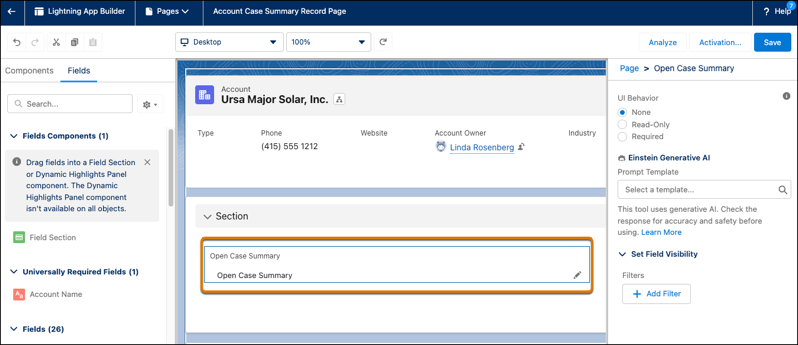
Click a field on the canvas that supports field generation.
You can add a field generation prompt to writable text, text area, text area (long),
and text area (rich) field types. You can’t add a field generation prompt to read-only
fields.
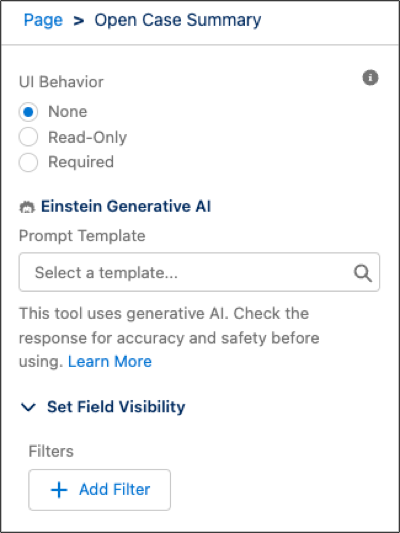
In the Einstein Generative AI section of the field properties, select a field
generation prompt template to assign to the field.
Save and activate the page.
Note You must have the Manage Prompt Templates permission to successfully package Lightning
pages that reference prompt templates. Without this permission, package creation succeeds,
but the prompt template isn’t included in the package.
We use three kinds of cookies on our websites: required, functional, and advertising. You can choose whether functional and advertising cookies apply. Click on the different cookie categories to find out more about each category and to change the default settings.
Privacy Statement
Required Cookies
Always Active
Required cookies are necessary for basic website functionality. Some examples include: session cookies needed to transmit the website, authentication cookies, and security cookies.
Functional Cookies
Functional cookies enhance functions, performance, and services on the website. Some examples include: cookies used to analyze site traffic, cookies used for market research, and cookies used to display advertising that is not directed to a particular individual.
Advertising Cookies
Advertising cookies track activity across websites in order to understand a viewer’s interests, and direct them specific marketing. Some examples include: cookies used for remarketing, or interest-based advertising.