
Add Flow Merge Fields with Data 360 Objects to a Field Generation Prompt Template
Build a flow that uses unified Data 360 object data to get a 360-degree view of an account, and then add a flow merge field to your prompt template.
Required Editions
| Available in: Lightning Experience |
| Available in: Enterprise, Performance, and Unlimited Editions with the Einstein for Platform, or Einstein or Agentforce for Sales or Service add-on, or Agentforce Foundations |
| User Permissions Needed | |
|---|---|
| To create and manage prompt templates in Prompt Builder: | Prompt Template Manager permission set
OR Customize Application permission set |
In this example, we create a flow that uses the standard Salesforce CRM Account object to look up data in the Account and Unified Account Data 360 objects. Unified objects consolidate data from multiple data sources. To learn more about data consolidation, see Unify Source Profiles. This example uses the standard data bundles for the Salesforce CRM connector. Your Data 360 setup, objects, and fields can differ.
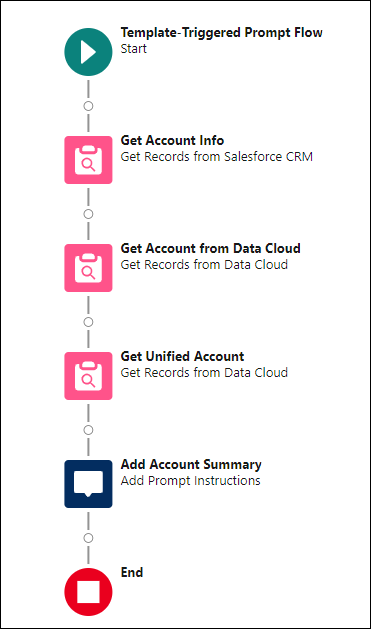
Before creating the field generation prompt template, create a prompt template flow that gets account data from Data 360. For this example, you create the Get Account Activity from Data Cloud prompt template flow. In Flow Builder, the flow looks like this.
- Turn on Einstein.
- From Setup, in the Quick Find box, enter Einstein Setup, and then click Einstein Setup.
- Turn on Einstein.
- Create the flow.
- From Setup, in the Quick Find box, enter Flows, and then click Flows.
- Click New Flow.
- From Flow Builder, select Template-Triggered Prompt Flow, and then click Create.
- Configure the flow.
- For Prompt Template Type Capability, select Field Generation Template
Capability.A capability makes it possible to pass data between the flow and the prompt template. When you create a prompt template in Prompt Builder, you select its prompt template type.
- For Object, select Account.
- For Prompt Template Type Capability, select Field Generation Template
Capability.
- Add a Get Records element. This Get Records element retrieves the account
information.
- For Label, enter Get Account Info.
- For Data Source, select Salesforce Object.
- For Object, select Account.
- For Condition Requirements, select None—Get All Account Records.
- For How Many Records to Store, click Only the first record.
- Add another Get Records element and configure it. This Get Records element gets the Data
Cloud account object that corresponds to the Salesforce CRM account object.
- For Label, enter Get Account from Data Cloud.
- For Data Source, select Data Cloud Object.
- For Data Space, select the data space that you want to use, for example, default.
- For Object, select your account data model object (DMO), for example, Account.
- For Condition Requirements, select All Conditions Are Met (AND).
- For Field, select the field that represents the account ID, for example, ssot_Id__c.
- For Operator, select Equals.
- For Value, select {!Get_Account_Info.Id}.
- For How Many Records to Store, click Only the first record.
- Add a third Get Records element. This Get Records element retrieves the unified account
that’s linked to your Data Cloud account object.
- For Label, enter Get Unified Account.
- For Data Source, select Data Cloud Object.
- For Data Space, select the same data space as before.
- For Object, select your unified account DMO, for example, Unified Account 0001.
- For Condition Requirements, select All Conditions Are Met (AND).
- For Field, select the field that represents the account name, for example, ssot_Name__c.
- For Operator, select Equals.
- For Value, select {!Get_Account_from_Data_Cloud.ssot__Name__c}.
- For How Many Records to Store, click Only the first record.
- Add the Create Prompt Instructions element.
- For Label, enter Add Account Summary.
- For Prompt Instructions, enter:
Account details: Account Name
        is {!Get_Unified_Account.ssot__Name__c};Account Description is
        {!Get_Unified_Account.ssot__Description__c};Account Type is
        {!Get_Unified_Account.ssot__AccountTypeId__c};Account Last Modified Date is
        {!Get_Unified_Account.ssot__LastModifiedDate__c}.
- Save your work, and click Activate.
Now you can insert the prompt template flow into the field generation prompt template “Summarize open cases for an account” from the Field Generation Example Templates. For a step-by-step guide about how to add a flow merge field to a field generation prompt template, see Add Flows Without Data 360 Objects to a Field Generation Prompt Template.
