
You are here:
Enhance Natural Language Search
Make natural language search more personalized and useful. You can receive results based on your location and rename objects to names more relevant to your business, and rank the opportunities and leads that are most important to you. Also, you can explore how picklists and operators break down your search.
Get Search Results Based on State or Country
You can set up State and Country/Territory picklists. If you configure this type of picklist, natural language search uses the integration value of the picklist entry to return search results. Natural language search doesn’t look at the state or country name configured for the picklist. If the name and integration values are different, users can see unexpected search results.
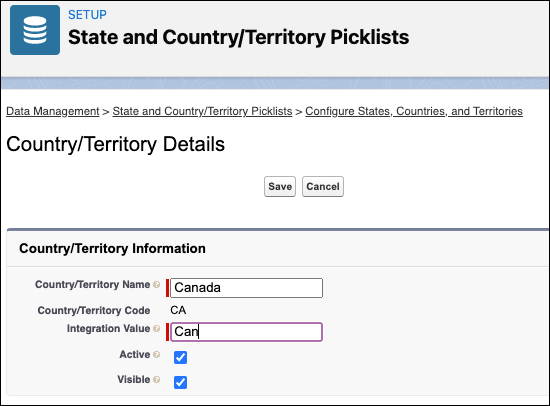
For example, in this configuration, the Country/Territory name is Canada, but the integration value is Can. If users search for contacts in Canada, they don’t get any results because the integration value is Can. If the integration value is Canada, then natural language search delivers results.
If you enable a state or country picklist, consider the integration value’s impact on natural language search. For consistency, we recommend that the name and integration values match.
Search Using Renamed Objects
Want to change an object’s name so that it’s more relevant to your business? You can rename these standard objects supported by natural language search: Account, Case, Contact, Knowledge, Lead, and Opportunity. Einstein Search can return results for searches that use the new name.
Examples:
- Rename accounts to hospitals, and then users can search for hospitals in Boston.
- Rename opportunities to deals, and then users can search for my open deals last week.
- Rename cases to service issues, and then users can search for closed service issues this month.
- Rename knowledge to articles, and then users can search for articles created today.
Rename an Object
From Setup, in the Quick Find box, enter Rename Tabs and Labels, and then select Rename Tabs and Labels. After you rename an object, users can no longer search using the original standard object name. For example, a search for accounts in Boston doesn’t work anymore.
Rank Your Top Opportunities and Leads
Natural language search works with Einstein Opportunity and Lead Scoring to rank search results. You can list your top opportunities and leads by including the word top in your search. Enter queries such as my top opportunities in Boston or top leads last month in the search bar. Einstein Search uses the Einstein score to return a ranked list of your opportunities or leads.
The term top only works with natural language search phrases for opportunities and leads.
To use the term top in your natural language searches, enable Einstein Opportunity Scoring and Einstein Lead Scoring.
Search Using Picklist Values and Operators
You can enter a natural language search for values of picklist fields. For this type of search, you must enter the field name and a valid field value. Optionally, you can add an operator. Valid operators are =, ==, equal, equals, equal to, equals to, is, as. For example, to see all opportunities where a partner provided the lead, enter opportunity lead source partner. The picklist field is lead source and the value is partner. Always have a space between each field, value, and operator that you enter.

These examples show picklists that work with natural language search.
| Combinations | Examples |
|---|---|
| Field name + field value | Opportunity stage closed won |
| Field value + field name | Status escalated case |
| Field name + operator + field value | Accounts industry = banking |
| Field value + operator + field name | Qualified equal to lead status |
