
Monitor Emails Sent by an Agentforce Service Agent
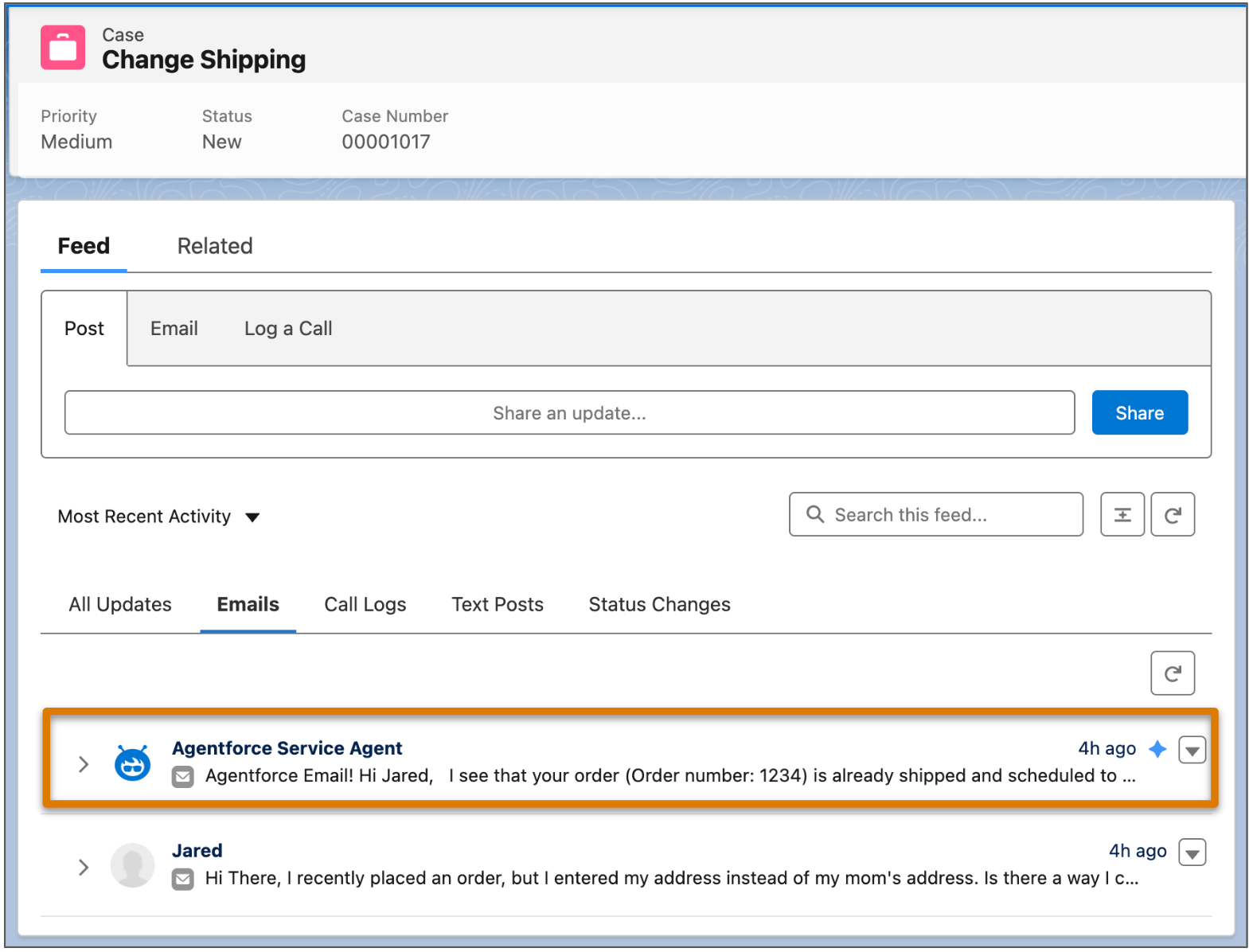
To view and monitor emails sent by an AI agent, create a custom report or check the case feed for a specific case.
Required Editions
| Available in: Lightning Experience |
| Available in: Enterprise, Performance, Unlimited, and Developer Editions. Required add-on licenses vary by agent type. |
To learn about channel support for other agent types, see the documentation for that type. |


| User Permissions Needed | |
|---|---|
| To create email templates: | Lightning Experience User |
| To edit public email templates: | Modify All Data, Manage Public Lightning Email Templates, or template ownership |
| To create Agentforce Service Agent email configurations: | Manage Agentforce Service Agents AND Manage AI Agents OR Customize Application |
| To edit routing addresses: | Customize Application |
| To create Omni-Channel flows: | Customize Application |
Monitor All Emails in a Report
Create a report that only shows emails sent by your Agentforce Service agent.
-
Create a custom report type to show email message records.
- From Setup, enter Report Types in the Quick Find box and select Report Types.
- Click New Custom Report Type.
- Select Email Messages as the primary object.
- Add a description and category, and select Deployed to make the report type available to others in your organization.
- Save your report type.
- On the report types page, open the action menu of your new report type and select Start Report.
- In the Outline tab, select Email Message fields to add to your report, such as Parent Case, Message Date, and Subject.
-
In the Filters tab, add a filter for emails whose Automation Type equals AI-Automated.
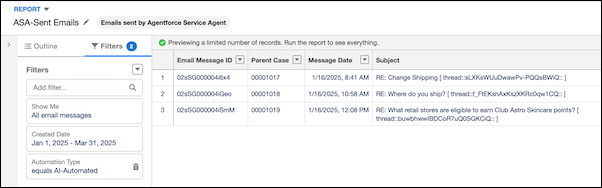
- Save and run your report.
Alternatively, to track cases owned by your Agentforce Service agent, create a report that shows all cases whose Case owner is your AI agent’s context user.
Did this article solve your issue?
Let us know so we can improve!
