Loading
Analyze Your Data
Manage Your Reports and Dashboards on Analytics Home

Manage Your Reports and Dashboards on Analytics Home

The Analytics tab provides a modern and cohesive experience for organizing all your analytics content in one place. You can access all your reports and dashboards in a single location, making it easier for you to manage and analyze your data. Some of the enhancements you can experience in the Analytics tab include an improved search experience that helps you find the information you need more efficiently. Another enhancement is the organization of your data with Collections to curate analytics for a project or items that are the most relevant to you.

Required Editions

Available in: Lightning Experience
Available in: Essentials, Group, Enterprise, Professional, Unlimited, and Developer Editions.
User Permissions Needed
To access the Analytics tab:
Enhanced Folder Sharing
Run Reports AND Create and Customize Dashboards
To access the Analytics tab with CRM Analytics items: Use CRM Analytics

Watch a Demo: Watch Video DemoUnified Analytics Home

From the App Launcher, select Analytics.

Note
Note If you can’t find the Analytics tab or accidentally remove it, refer to the steps in Personalize the Navigation Bar in Lightning Experience.

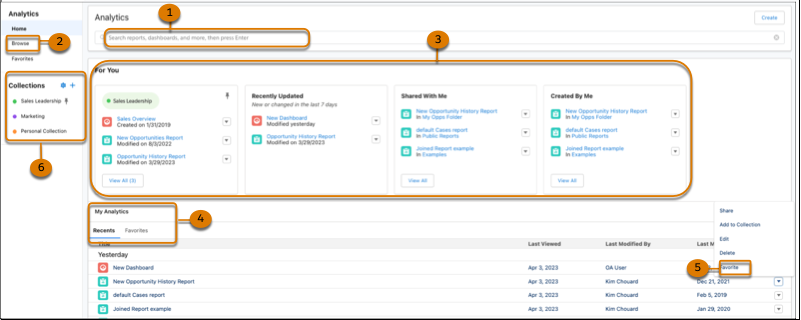
Use the search bar (1) for keyword searches and Browse (2) to locate specific reports and dashboards. The cards in For You (3) organize your reports and dashboards and help you find what you’re looking for quickly. Go to My Analytics (4) to access content from a chronological listing and Favorites (5). Use Collections (6) to curate and organize analytics across different folders, and share them with other users.

Analtytics tab
  • Browsing the Analytics Tab
    Find the last report or dashboard that you worked with or see what’s available on the Analytics tab. Browse enables you to quickly locate the items you’re looking for by filtering through different categories.
  • Use Navigation Breadcrumbs on the Analytics Tab
    Use the navigation breadcrumb to guide you back to where you started when opening items in the Analytics tab.
  • Favorite Your Reports and Dashboards
    Favorite your reports and dashboards for quick access, such as My Analytics, and throughout the Analytics tab.
  • Stay Organized with Collections
    Collections enable you to curate and organize your analytics in a customized way. By creating a collection, you have a personalized set of analytics that’s relevant to your projects or interests. Your analytics can be drawn from different folders, and you can avoid searching different folders to access your most important analytics. In addition, collections can personalize the home page that makes it easier to find and use the information that matters most to you.
  • Create Reports and Dashboards on the Analytics Tab
    Create reports and dashboards right from the Analytics tab. Rather than opening multiple tabs, you can stay in one app and create the analytics you want.
  • Share a Lightning Report or Dashboard Folder
    Use enhanced folder sharing to share a report or dashboard folder with users, groups, roles, or territories. Enhanced folder sharing is the default option for all orgs created after 2013.
  • Update Multiple Assets Simultaneously with Bulk Actions
    Bulk Actions available on the Analytics Browse and Favorites pages let you quickly make updates to batches of assets.
 
Loading
Salesforce Help | Article