You can view dashboard data from different perspectives by applying filters. A single
dashboard with well-chosen filters can do the work of several dashboards. When you apply a
dashboard filter, the view is preserved. The next time you view the dashboard, the data is
filtered in the same way. To provide the filtered dashboard view to others, you can create a URL
to post or email.
Required Editions
Available in: both Salesforce Classic and
Lightning Experience
Available in: Essentials, Group (View Only), Professional,
Enterprise, Performance, Unlimited, and Developer
Editions
In Salesforce Classic, widgets are called components.
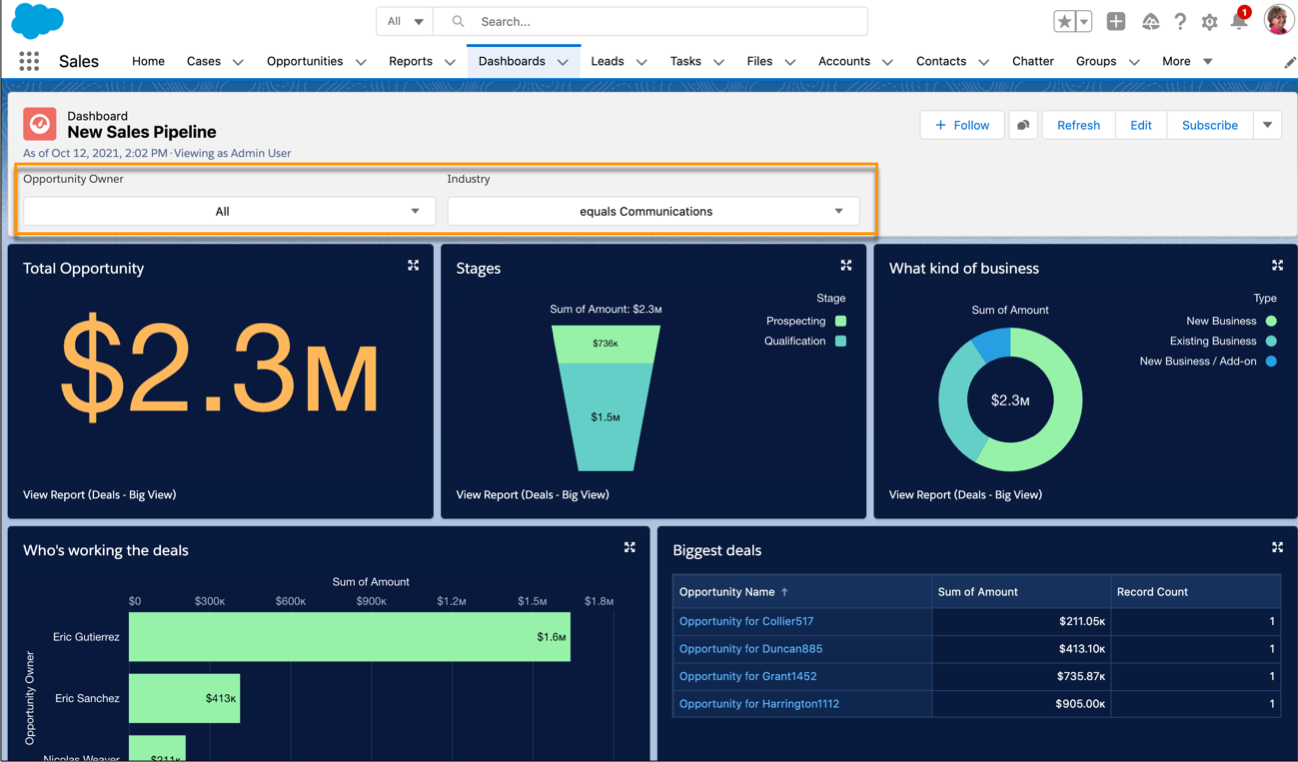
Multiple Dashboard Views from a Single Source Report
This sales pipeline
dashboard visualizes the data from an Opportunities source report. By including filters,
this single dashboard can provide a personalized view for each member of the sales team.
With the Opportunity Owner filter, the viewer can see the pipeline for each team member.
Vertical sales managers can focus on prospects in a selected industry using the Industry
filter. This one dashboard works for the entire sales organization.
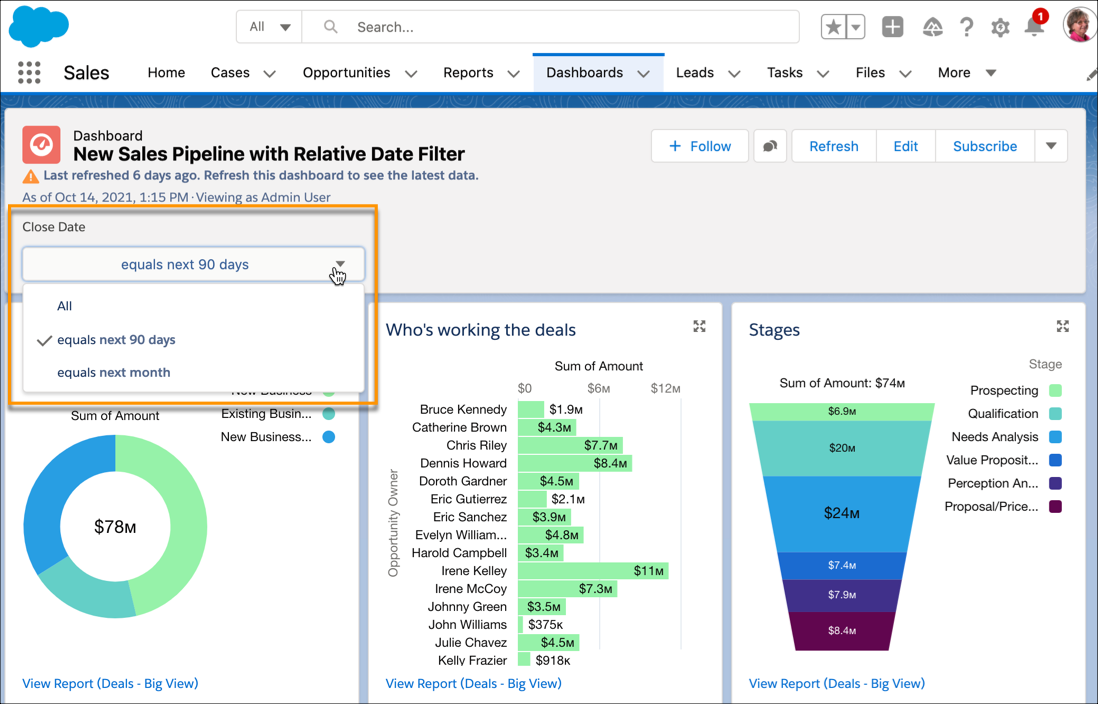
Dashboard Filter with Relative Dates
To keep dashboard date filters
current, use relative dates, such as next month or next week, instead of calendar dates.
This dashboard includes a Close Date filter to focus on expected results for the next few
months. Because the filter uses relative dates, it continues to work over time without
requiring updates.
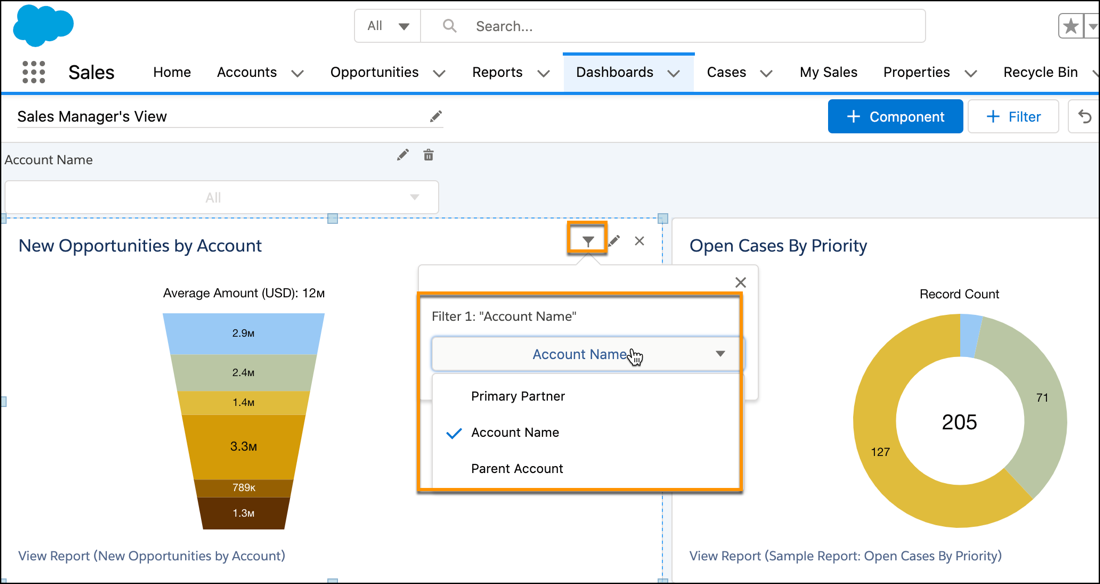
Equivalent Fields and Different Filtering Results
Equivalent fields
are derived from the same field on the underlying Salesforce object. By assigning different
equivalent fields on a per component basis, you can affect the data that’s presented in a
filtered dashboard.
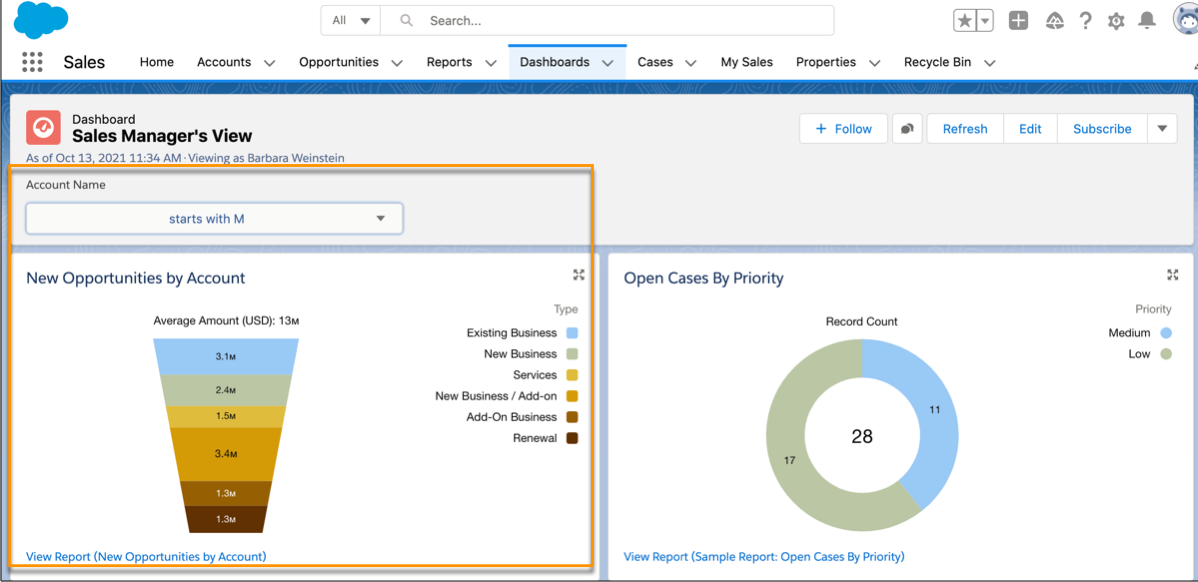
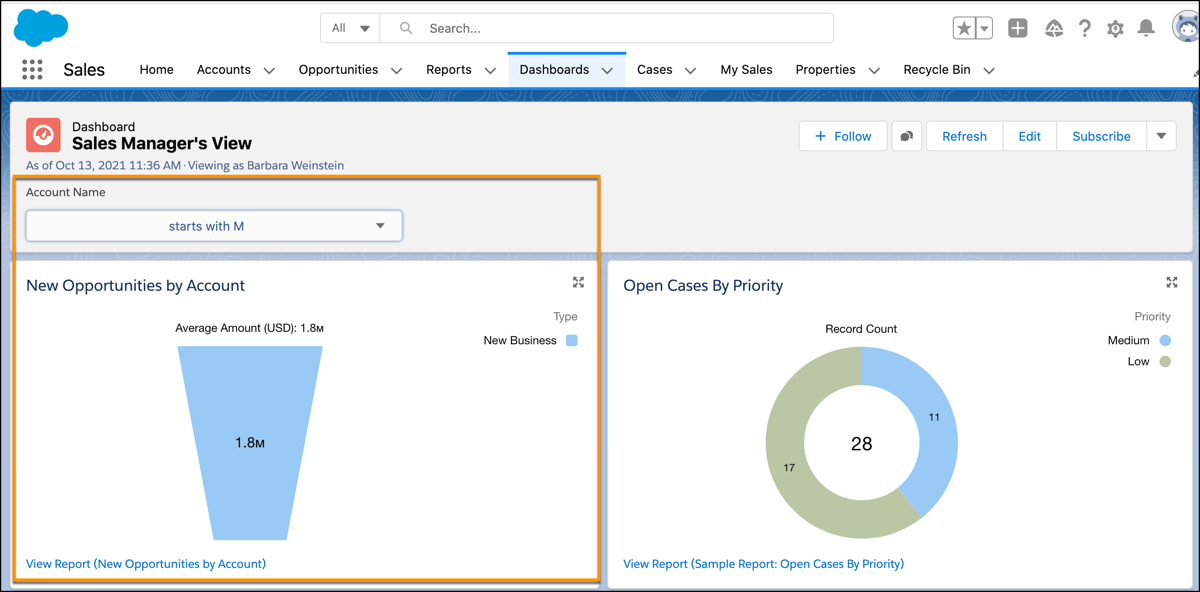
This Sales Manager’s View dashboard is built from Cases and
Opportunities source reports and includes an Account Name filter. The funnel chart is based
on an Opportunity report. In the Opportunity object, Account Name has the equivalent fields
Account Name, Parent Account, and Primary Partner.
If Account Name is selected as the equivalent field for the filter, the funnel chart
is filtered on the Account Name field when the filter is applied.
If Parent Account is selected as the equivalent field and the same Account Name
filter is applied, the funnel chart is filtered on the Parent Account field and the results
are different.
Did this article solve your issue?
Let us know so we can improve!
Loading
Salesforce Help | Article
Cookie Consent Manager
Cookie Consent Manager
General Information
Required Cookies
Functional Cookies
Advertising Cookies
General Information
We use three kinds of cookies on our websites: required, functional, and advertising. You can choose whether functional and advertising cookies apply. Click on the different cookie categories to find out more about each category and to change the default settings.
Privacy Statement
Required Cookies
Always Active
Required cookies are necessary for basic website functionality. Some examples include: session cookies needed to transmit the website, authentication cookies, and security cookies.
Functional Cookies
Functional cookies enhance functions, performance, and services on the website. Some examples include: cookies used to analyze site traffic, cookies used for market research, and cookies used to display advertising that is not directed to a particular individual.
Advertising Cookies
Advertising cookies track activity across websites in order to understand a viewer’s interests, and direct them specific marketing. Some examples include: cookies used for remarketing, or interest-based advertising.