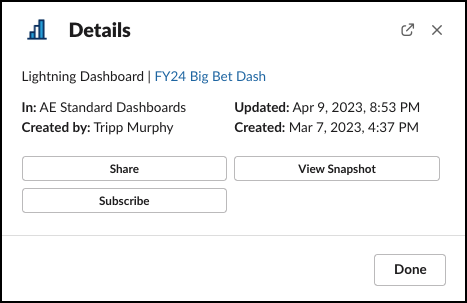
Share analytics with colleagues across your Slack workspaces and channels. Recipients
can view dashboard details, share, subscribe, view a snapshot of the dashboard with the latest
data, and quickly open the dashboard in Salesforce.
Required Editions
Available in: Lightning Experience
Available in: Essentials, Group (View Only), Professional,
Enterprise, Performance, Unlimited, and Developer
Editions
The CRM Analytics for Slack app is available for use where approved by a
workspace admin and installed in Slack.
Permissions Needed
To use CRM Analytics for Slack:
Connect Salesforce with Slack
To set up the Post to Slack feature, complete these steps.
From Setup, in the Quick Find box, enter Slack, and then select
Slack Apps Setup.
At step 2, click Accept to agree to the Terms and Conditions.
In the left navigation panel, select CRM Analytics for Slack and
click Agree and enable Slack integration. For more information, see
Enable Salesforce for Slack
Integrations.
Each user must then add CRM Analytics for Slack to their personal Slack sidebar and
connect their Salesforce account. See Add Apps in Your Personal Slack Sidebar.
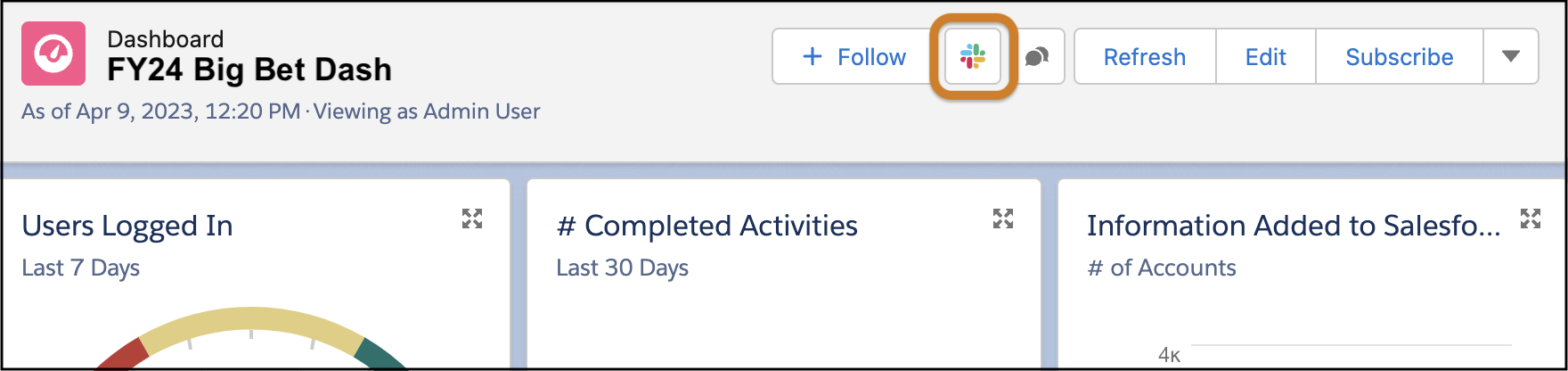
After setting up the feature, the Post to Slack icon appears on Lightning dashboards.
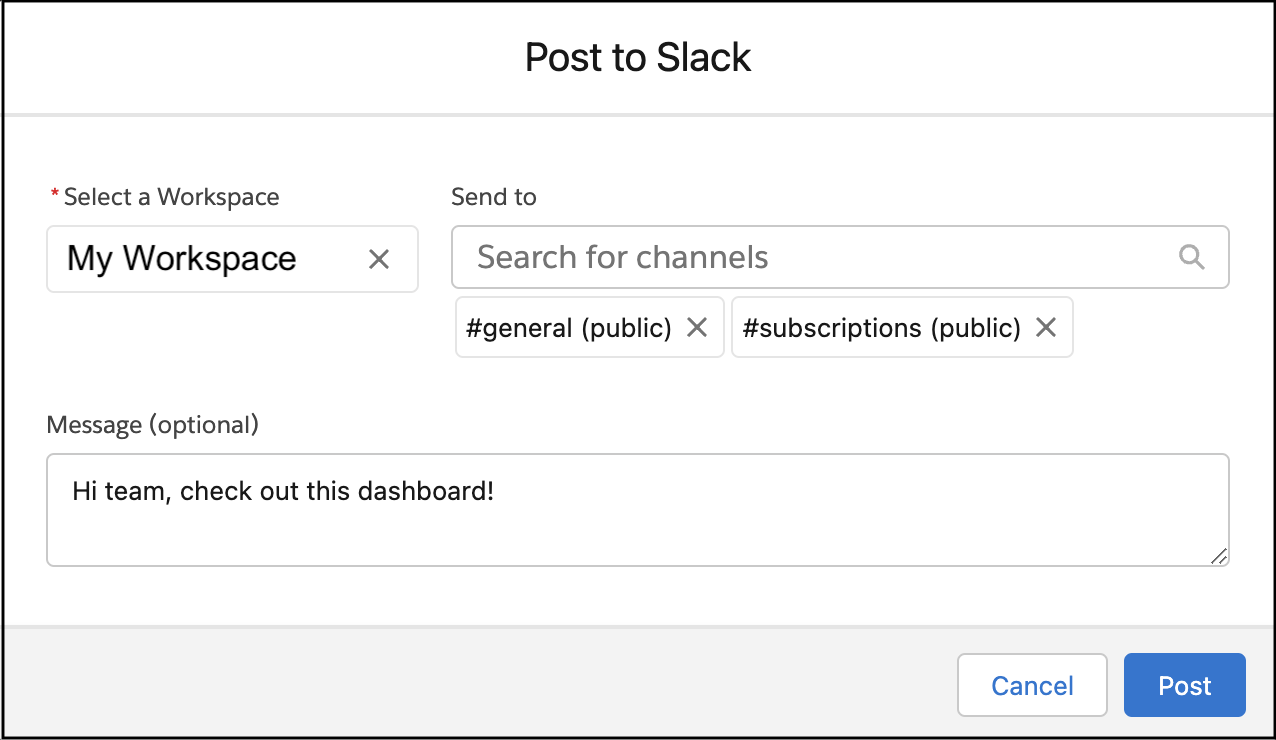
Click the icon to select the Slack workspace and channels where you want to share the
dashboard. Optionally, type a message to accompany your post. The maximum number of channels
available within the Post to Slack dialog box is 1000.
Note Post to Slack is only available in channels that are not shared
across multiple workspaces.
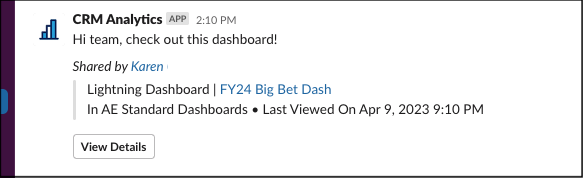
The post appears in the channels that you selected. Click the dashboard name to go to the
dashboard in Salesforce.
Or click View Details to see more and access the Share, Subscribe, and
View Snapshot actions.
View Snapshot runs the dashboard in the background and creates a screenshot .png file. If you
share your snapshot, keep in mind that others can see and share your personal view of your
data.
We use three kinds of cookies on our websites: required, functional, and advertising. You can choose whether functional and advertising cookies apply. Click on the different cookie categories to find out more about each category and to change the default settings.
Privacy Statement
Required Cookies
Always Active
Required cookies are necessary for basic website functionality. Some examples include: session cookies needed to transmit the website, authentication cookies, and security cookies.
Functional Cookies
Functional cookies enhance functions, performance, and services on the website. Some examples include: cookies used to analyze site traffic, cookies used for market research, and cookies used to display advertising that is not directed to a particular individual.
Advertising Cookies
Advertising cookies track activity across websites in order to understand a viewer’s interests, and direct them specific marketing. Some examples include: cookies used for remarketing, or interest-based advertising.